What You Will Learn
- Describe a packet the drone sends down: its values, how each is stored (size and scale), and how often it goes.
- Give each value of a packet going out what it sends: after "=" in the link block, worked out each time the packet goes, or the variable itself, set by the program.
- Choose a size that fits: a distance of 600 m does not fit in one byte, a height in centimetres does fit in two.
- Follow a moving target from a set distance behind it, along its course.
- Read the packets live in Fly › Data links, and as graphs and spreadsheet columns in Analyse.
- Know what changes on the real drone: nothing in the program; your ground computer sends and receives the same bytes.
Ideas First
Data both ways
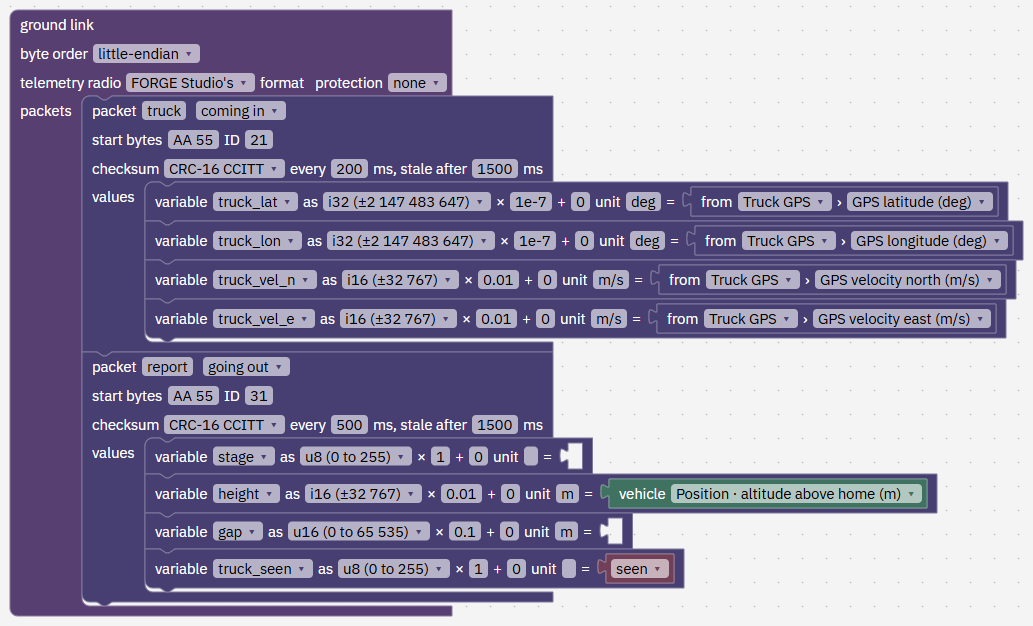
The ground link block lists the packets that travel over the telemetry radio, in both directions. A packet coming in is sent by your ground computer to the drone: here truck, the truck GPS's position and velocity. A packet going out is sent by the drone to the ground: here report.
On the real drone both go over the telemetry radio: the truck packet goes up signed and encrypted, so only your paired computer can send it; the report comes down with the rest of the drone's telemetry. FORGE Studio shows each packet's values in Fly › Data links, keeps them in the recording for Analyse, and passes the bytes on to your own ground device (Setup › Connection), so your software can read them too.
The links run from the moment the program is on the drone, in every flight mode. The report starts going down while you take off, before you press FORGE.
How a value is stored: size and scale
Each variable in a packet says how it travels (its as): u8 is one byte for 0 to 255, i16 two bytes for -32768 to 32767, u16 two bytes for 0 to 65535. The scale turns the whole number into the value: height is an i16 times 0.01, so it carries centimetres, from -327.68 to 327.67 m. gap is a u16 times 0.1, so it carries up to 6553.5 m in steps of 10 cm.
A value too big for its size is cut to that size's range, and Fly › Data links says so under To fix. Pick the size from the largest value you expect, and the scale from the smallest step you care about.
Fewer bytes leave more of the radio for everything else. The report is 11 bytes, twice a second. Checks says if a link would ask more than the radio can carry.
Follow from behind
The truck lesson flew to the deck. Here the drone keeps a place 15 m behind the truck, along the way the truck drives. The program works out that place from the truck's position and its course, and flies the truck's own velocity plus a small extra towards that place.
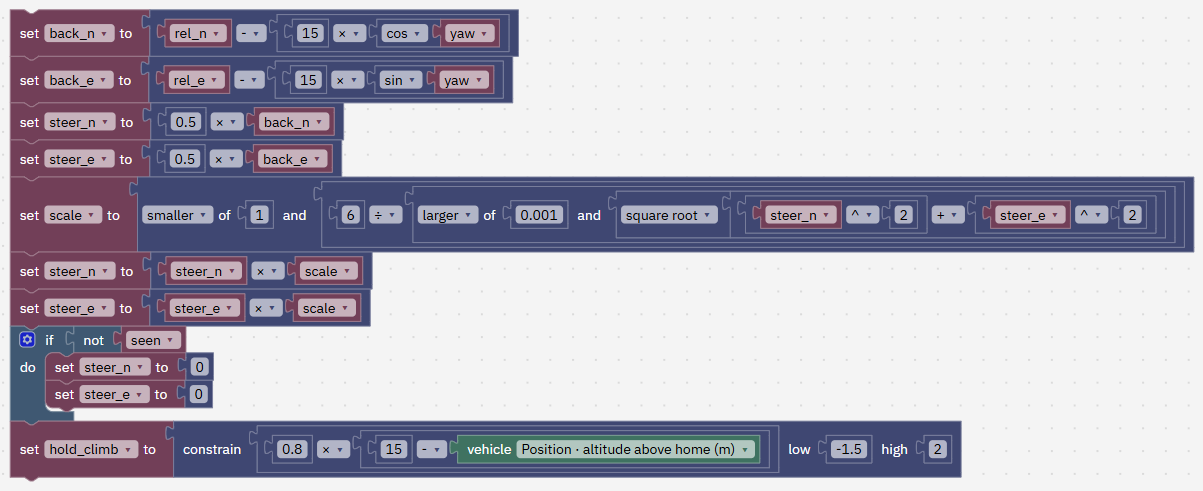
Sideways and behind are worked out with cos and sin of the course: 15 × cos(course) metres north and 15 × sin(course) metres east is 15 m ahead of the truck, so the place behind it is the truck's offset less that.
Step by Step
-
Open the program 2 min
In Studio: FORGE
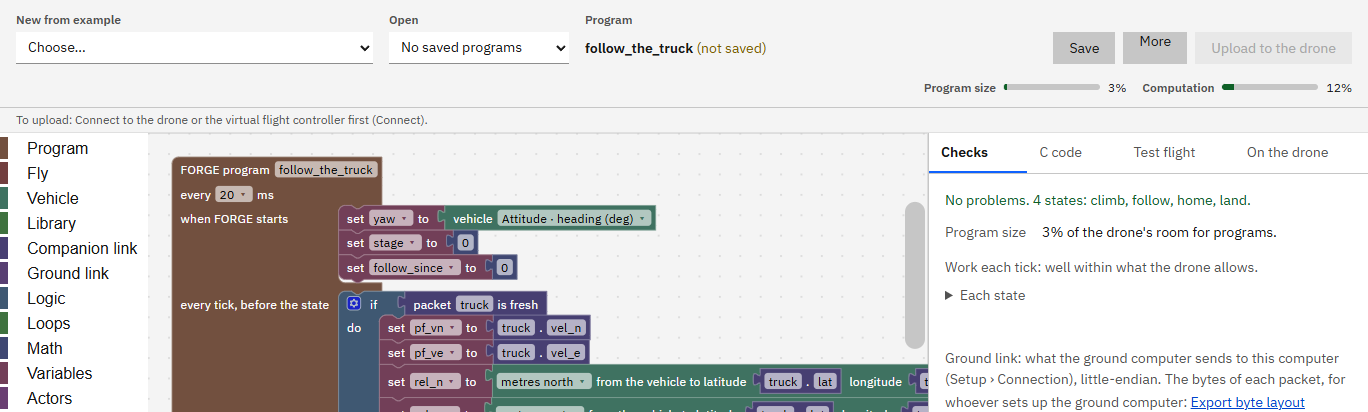
The program runs every 20 ms, like the others: when FORGE starts, then every tick, before the state, then the four states. Beside it is the ground link block with its two packets.
You can also download follow_the_truck.forge.json from this page, save it in Documents › UVIRA FORGE Studio › Programs and choose it under Open.
- In FORGE, open New from example and choose Follow the truck and report home (School lesson).
- If Studio asks Start a new program?, press Start new, lose the changes (or Cancel and save your own program first).
- Open the Checks tab: it says No problems. 4 states: climb, follow, home, land.
Type exactly
- Start from
Follow the truck and report home (School lesson)
It worked when FORGE shows the program follow_the_truck, and Checks says No problems. 4 states.
-
Read the links, 1: the truck coming in 2 min
In Studio: FORGE
The first packet, truck, is the one from the truck lesson: the truck GPS's latitude, longitude and velocity north and east, 5 a second, stale after 1500 ms. Each of its variables ends with = from Truck GPS: in the simulation Studio is that GPS and sends what it would report, with its errors.
- Find the ground link block and the packet truck.
It worked when You can say which four values the truck packet carries and how often it comes.
-
Read the links, 2: the report going out 4 min
In Studio: FORGE
The second packet, report, is going out: the drone sends it every 500 ms, start bytes AA 55, ID 31, with a CRC-16 so the ground can tell a damaged packet. Its four variables: stage (u8: 0 climb, 1 follow, 2 home, 3 land), height (i16 × 0.01, metres above home), gap (u16 × 0.1, metres to the truck) and truck_seen (u8: 1 while the truck's packets are fresh).
In a packet going out, the value after "=" is what it sends, worked out each time the packet goes: the vehicle's altitude for height, and seen for truck_seen. stage and gap have nothing after "=": the packet sends the variables themselves, which the program sets. To send at a moment you choose, use send packet report now.
- Find the packet report and its four variables, and what each sends.
It worked when You can say what the report carries, in what sizes, and how often it goes.
-
Read block 1: when FORGE starts 1 min
In Studio: FORGE
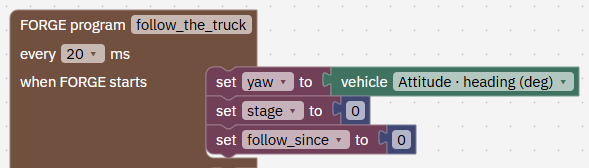
yaw starts as the drone's own heading. stage is 0 and follow_since 0; each state sets them again when it starts.
- Find the three set blocks under when FORGE starts.
It worked when You have found yaw, stage and follow_since.
-
Read block 2: every tick, where is the truck? 3 min
In Studio: FORGE
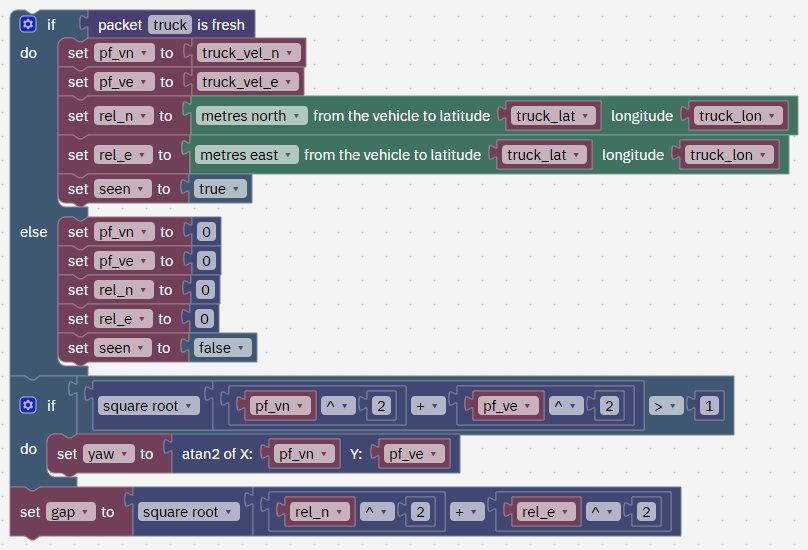
While packet truck is fresh, the program takes the truck's velocity (pf_vn, pf_ve) and how far the truck is north and east of the drone (rel_n, rel_e, from its latitude and longitude), and seen is true. When the packets stop for more than 1.5 s, all four are 0 and seen is false, so the drone stops and holds where it is.
yaw becomes the truck's course (atan2 of its velocity, 0 north, 90 east) while the truck moves faster than 1 m/s. gap is the straight distance to the truck: the report sends it down.
- Find the first three blocks under every tick, before the state.
It worked when You can say what happens to the steering when the truck's packets stop.
-
Read block 3: every tick, the place behind the truck 3 min
In Studio: FORGE
back_n and back_e are the offset to a place 15 m behind the truck, along its course. The steering is 0.5 m/s for every metre away from that place, at most 6 m/s (the scale blocks cap its length without changing its direction, as in the truck lesson). Without the truck's packets the steering is 0.
hold_climb holds 15 m above home: 0.8 m/s for every metre off, at most 2 m/s up and 1.5 m/s down.
- Find back_n, back_e, the steering and hold_climb.
It worked when You can say how far behind the truck the drone flies, and how fast it closes the distance at most.
-
Read block 4: the shown values 1 min
In Studio: FORGE
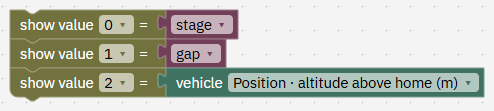
Value 0 is the stage, value 1 the gap and value 2 the height: the same as the report, so the quick Test flight, which has no ground computer to read the report, shows them too.
- Find the three show value blocks.
It worked when You have found the three show value blocks.
-
Read block 5: state climb 1 min
In Studio: FORGE
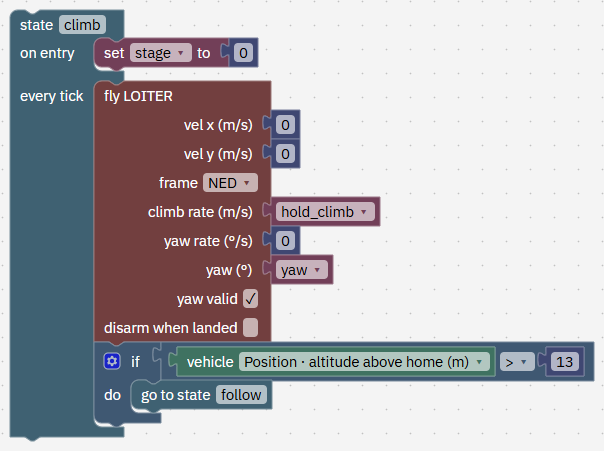
The drone holds its place (velocity 0) and climbs to 15 m. Above 13 m it goes to follow: it reaches 15 m on the way.
- Find state climb.
It worked when You can say when climb ends.
-
Read block 6: state follow 2 min
In Studio: FORGE
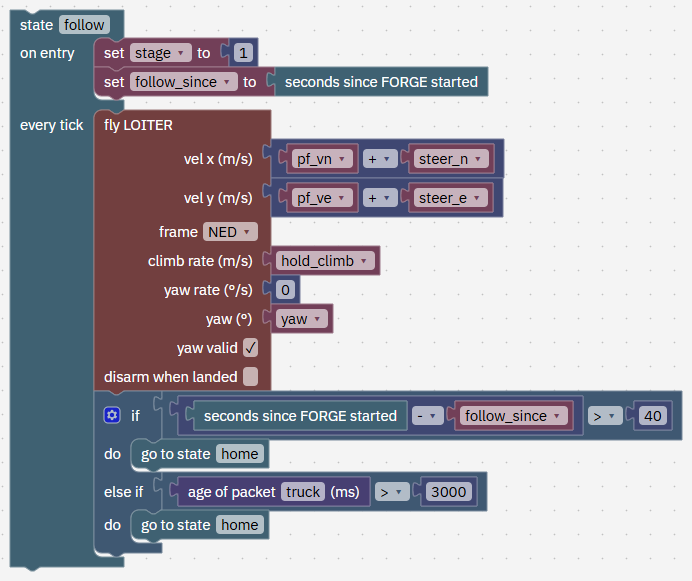
On entry it notes the clock in follow_since. Every tick it flies the truck's velocity plus the steering, holds 15 m and points its nose along the truck's course.
It goes home after 40 s of following, or sooner if no truck packet has come for 3 s (packet truck age > 3000): a drone that cannot hear the ground should not wander.
- Find state follow and its two ways out.
It worked when You can say the two reasons follow ends.
-
Read block 7: states home and land 2 min
In Studio: FORGE
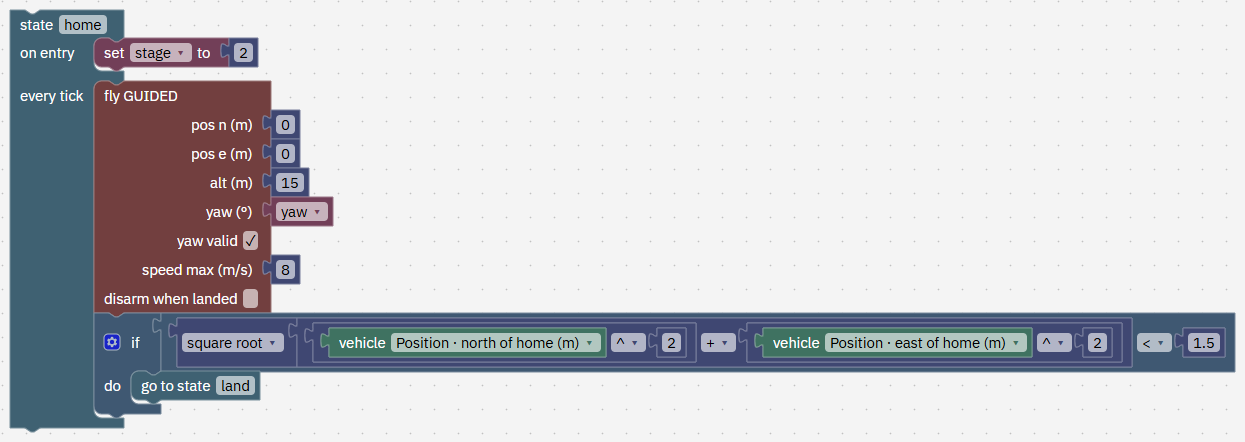
home flies GUIDED to home (0 m north, 0 m east) at 15 m, at most 8 m/s. Within 1.5 m of home it goes to land, which comes straight down with no sideways velocity. The flight controller stops the motors once it is sure the drone has landed.
- Find states home and land.
It worked when You can say where the drone lands and how close to home it must be first.
-
Fly it in the quick simulation 3 min
In Studio: FORGE › Test flight
The quick simulation has its own truck, driving north at 5 m/s, with a GPS receiver on it, separate from the truck in the 3D world. It has no ground computer to show you the report, so watch the shown values.
- Open the Test flight tab on the right of the editor.
- Set Scenario to Landing platform (truck) at 5 m/s and Drone that flies to QC-02, Studio's example drone. Leave the other boxes empty.
- Press Save and fly in simulation. The first run can take up to a minute while Studio gets the test flight ready.
Type exactly
- Scenario
Landing platform (truck) at 5 m/s- Drone that flies
QC-02, Studio's example drone
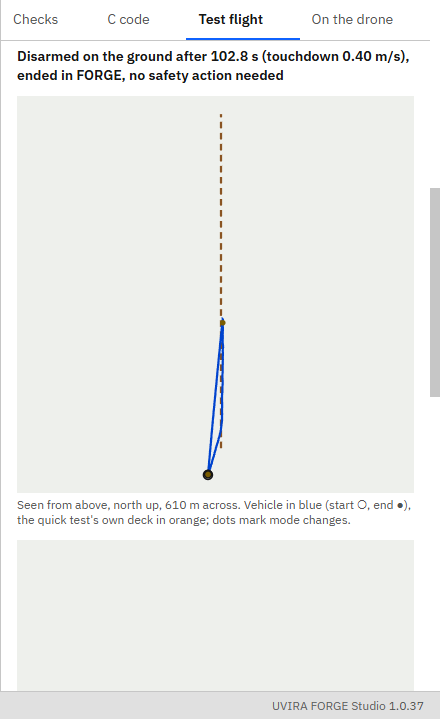
It worked when The result says Disarmed on the ground after about 103 s, ended in FORGE, no safety action needed.
-
What you should see 3 min
In Studio: FORGE › Test flight
In our run: climb ends at 1.8 s (the quick simulation starts at 10 m). The drone races after the truck at up to 10.9 m/s and is within 17 m of it at 10.8 s. From then on value 1, the gap, stays between 12 and 18 m (half the time under 15.1 m): GPS errors and the truck's own wobble move it a little.
At 41.8 s it has followed for 40 s: value 0 goes to 2 and it flies home at 8 m/s, about 240 m. At 76.1 s it is over home: value 0 goes to 3 and it comes down. The motors stop at 102.8 s, 1.3 m from where FORGE started, at 0.40 m/s down.
- Scroll down to the plot of the shown values and compare it with these numbers.
It worked when You can say how far behind the truck the drone flew and when it turned for home.
-
On the virtual flight controller: start it 2 min
In Studio: Connect
Now the same program on a flight controller running on your computer, as it would fly on the drone, with the truck of the 3D world and FORGE Studio as the ground computer. Skip this step if the top bar already says Connected and Simulation. The truck starts driving when the drone is armed.
- Press Connect, then Start the virtual flight controller.
- If Fly says it needs a place first, go to Simulate › Where it flies, type the latitude and longitude below (or your own place) and press Apply.
Type exactly
- Home latitude, °
12.9716- Home longitude, °
77.5946
It worked when The top bar says Connected and Simulation, and Fly no longer asks for a place.
-
Upload the program 2 min
In Studio: FORGE
From the moment it is on the drone, the program's links run: Studio starts sending the truck packet, and the drone starts sending its report, in every flight mode.
- If Fly shows Restart the simulation, press it and wait a few seconds.
- In FORGE, with the program open, press Upload to the drone at the top right and wait for Uploaded "follow_the_truck" with its blocks.
It worked when FORGE › On the drone says On the drone: "follow_the_truck", the same as the editor.
-
Take off 2 min
In Studio: Fly
The truck starts driving when you arm, so don't wait long between arming and FORGE.
- On Fly, press LOITER, then press and hold Hold to arm until it arms.
- Set Take off to, m to 10 and press Take off.
Type exactly
- Take off to, m
10
It worked when Fly says Armed and the altitude reads about 10 m.
-
Run the program and watch the report arrive 4 min
In Studio: Fly
Any other mode button takes control back at once.
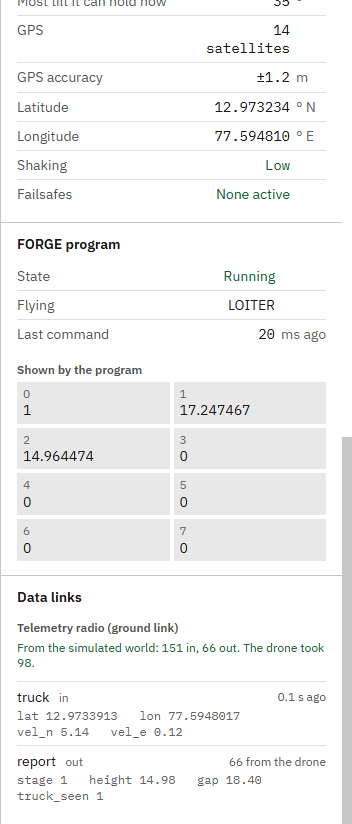
Fly › Data links shows the telemetry radio both ways: truck in, 5 a second, with its newest values, and report out, twice a second, with how many came from the drone and the newest stage, height, gap and truck_seen. Under To fix it would name anything wrong: a value cut to its range, a source missing from the simulation.
If you took a while between arming and FORGE, the truck is far ahead and the drone spends part of its 40 s catching up. Before FORGE starts, gap can read 6553.5: the drone does not know yet where the truck is, and 6553.5 m is the most a u16 × 0.1 can carry.
- Once it hovers (about 5 seconds), press FORGE and watch the 3D tab.
- Scroll the right-hand column down to Data links. In our run it followed from 1.8 s, about 15 m behind the truck (half the time under 15.5 m), turned for home at 41.9 s, was over home at 82.2 s, and the motors stopped at about 109 s, 1.6 m from home.
It worked when The drone has landed near home and disarmed, and Data links showed report out with its values while it followed.
-
Read the report back in Analyse 4 min
In Studio: Analyse
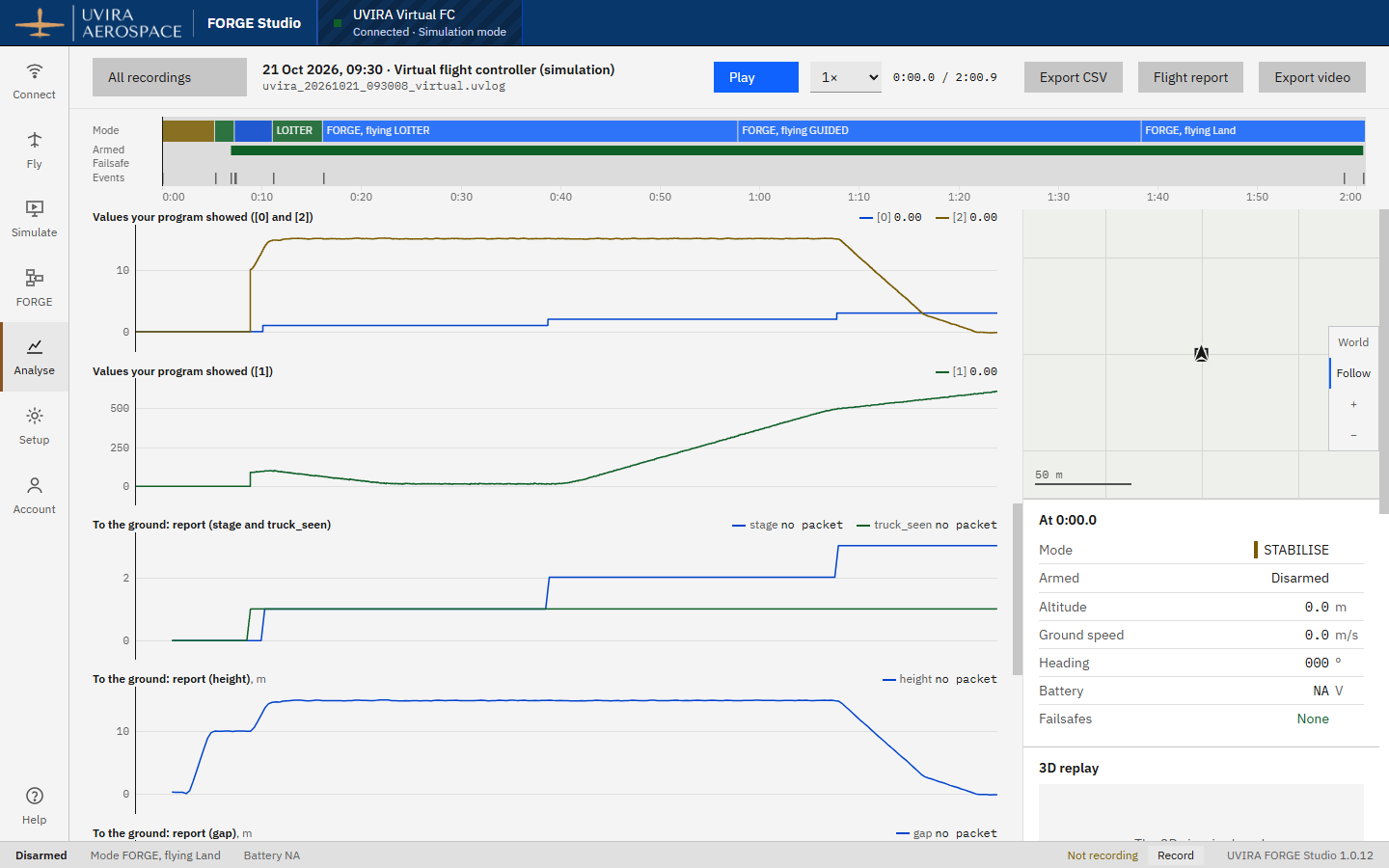
Studio records every flight, and the recording knows your program's packets. In Analyse each packet gets its own graphs: To the ground: report for what the drone sent, From the ground: truck for what came up. Fields on very different scales get a graph each, so a height of 15 m is not flattened by a distance of 600 m.
The report's graphs: stage steps 0, 1, 2, 3; height climbs during take-off (the report goes down before FORGE), holds 15 m, then comes down; gap stays near 15 m while it follows and grows to about 600 m while the drone flies home and the truck drives on. Where packets stopped, the line breaks and the value at the cursor says no packet.
Export CSV puts each value in its own column (ground_out_report_gap and so on), empty where no packet had come.
- Open Analyse, then the newest recording (the top row).
- Scroll down to To the ground: report and click on the graphs to move the cursor: the values at the cursor show beside each name.
It worked when You have found the report's graphs and read the gap while the drone followed.
-
On the real drone 3 min
In Studio: FORGE › Checks
Nothing in the program changes. The truck packet comes from your ground computer: a GPS on the truck read by a small computer, or your own ground program, connected to FORGE Studio (Setup › Connection, ground device), which passes it to the drone over the telemetry radio. The report comes down the same radio; Studio shows it in Data links, keeps it in the recording, and passes its bytes on to the same ground device.
Whoever writes the ground software needs the bytes of each packet: in FORGE › Checks, Export the byte layout and code gives them, value by value.
- In FORGE › Checks, find Export the byte layout and code under the ground link.
It worked when You can say where the truck packet comes from and where the report goes on the real drone.
-
Common mistakes 3 min
In Studio: FORGE
A size too small. gap as a u8 stops at 255 m: the report would say 255 all the way home. Data links shows it under To fix. Use u16, with a scale for the step you need.
Steering to the truck itself. Fly towards rel_n and rel_e and the drone sits on top of the truck. The place to fly to is the truck's offset less 15 m along its course.
Following a truck you cannot hear. Without the 3 s check the drone would hold its place forever when the packets stop. Decide what the drone does when the ground goes quiet.
Sending often for no reason. A report 50 times a second takes the radio from everything else and tells the ground nothing new. Twice a second is plenty for a person watching.
- Read the four mistakes.
It worked when You have read the mistakes.
-
Check yourself 3 min
In Studio: FORGE
1. The report's height is an i16 times 0.01. What is the highest height it can carry? Answer: 327.67 m (32767 × 0.01).
2. The truck's packets stop for 2 s while the drone follows. What does it do? Answer: after 1.5 s the packet is stale, so seen is false and the velocity and steering are 0: it holds its place at 15 m. The packets come back within 3 s, so it carries on following.
3. On the real drone, who sends the truck packet and who reads the report? Answer: your ground computer sends the truck packet through FORGE Studio; the report comes down the telemetry radio to Studio, which shows it, records it and passes its bytes to your ground device.
- Answer the three questions, then read the answers.
It worked when You have answered the three questions.
-
Try it yourself: follow further back 6 min
Your turn: try it on your own first. Your AI app gives hints if you ask.
In Studio: FORGE
Make the drone follow 25 m behind the truck instead of 15 m, and check it in the report.
Hint: the 15 is in back_n and back_e, under every tick, before the state. Leave the 15 in hold_climb and in home alone: those are the height.
- Change the 15 in back_n and in back_e to 25.
- Fly it in the Test flight tab with Landing platform (truck) at 5 m/s. What you should see: value 1, the gap, settles around 25 m (in our run half the time under 25.3 m), and the motors stop at about 102 s.
It worked when The Test flight shows the gap around 25 m while the drone follows.
Next on the Path
Next lesson, about 50 minutesBring your own devices inBy the end you can prove your own ground device and companion computer against your program in FORGE Studio before the drone flies, replay a real object's run in the simulation, and choose how the ground link travels on the radio.What you prove here flies the real drone: See the flight controller