What You Will Learn
- What to weigh and measure on your drone, and where each number is printed
- How to enter your drone in Setup › Drone and spot a wrong entry from the numbers Studio works out
- What else makes the simulation closer to your drone: weights, data sheets, a thrust stand, its shape, its 3D model
- How to fly your drone in the simulation and keep a copy of it
- What to set on the flight controller for your drone: flight modes, battery, failsafes, and what to leave alone
- How to check the simulation against the real drone after its first hover
Ideas First
Seven numbers are enough to start
Studio needs seven things from your drone: its take-off mass, the rotor distance from the centre, the number of rotors, the motor KV, the propeller size, the battery capacity and the battery cells. That is enough to fly it in the simulation.
Studio estimates everything else and says how it made each estimate. Add more only if you know it; each real value brings the simulation closer to your drone.
Wrong entries show up as odd numbers
As you type, Studio works out how your drone will hover: the throttle it needs, the current it draws, how long it flies and how many times its weight it can lift. When one of those looks odd, an entry above it is usually wrong.
A drone that hovers below half throttle has power to spare. Above about 70 % it has too little left for wind and turns.
The math model and the config
The math model (Setup › Drone) describes the drone itself: its weight, motors, propellers, battery and shape. The simulation flies it.
The config (Setup › Config in Studio, or Setup on the phone page) tells the flight controller how to fly it: which flight mode is on each switch position, how it watches the battery, and what it does when something goes wrong. The same config flies the real drone.
Step by Step
-
Before you start 3 min
In Studio: Setup › Drone
This lesson takes about an hour and a half. Step 2 needs the drone in front of you, for about 15 minutes. Steps 6, 7 and 8 are optional: open them only if you know those things. Step 13 is a real hover on the field, on another day if you like.
Have at hand: the drone with its battery, a kitchen scale, a ruler or tape, and the labels on the motors, propellers and battery (or their boxes). A thrust stand, the motor's data sheet and a 3D model from your design tool help, but you do not need them.
Propellers off while the drone is on the table.
- Take the propellers off the drone.
- Put the drone, the scale and the ruler on the table.
- In Studio, open Setup, then Drone.
It worked when Setup › Drone is open and the drone is on the table with its propellers off.
-
Weigh and measure your drone 15 min
Write down each number as you go. Studio wants metres, kilograms and amp hours, and it tells you when a number looks like millimetres, grams or mAh.
For the take-off mass, put the drone on the scale ready to fly, with its battery and anything it carries. 1,250 g is 1.25 kg.
The rotor distance from the centre runs from the middle of the frame to one motor shaft. A frame named by its size (450, 420) gives the distance between opposite motors in millimetres, so half of it is your number: 420 mm becomes 0.21 m.
The motor KV is printed on the motor or its box, for example 1100KV.
The propeller size is printed on the blade. 8x4.5 (or 8045) means a diameter of 8 and a pitch of 4.5, in inches. Count the blades too.
The battery label gives the cells (4S is 4) and the capacity (4000 mAh is 4 Ah).
If you can, also weigh the battery alone and one motor. Step 6 uses them.
- Weigh the drone ready to fly, battery in.
- Measure from the middle of the frame to one motor shaft.
- Read the motor KV, the propeller size and blades, and the battery cells and capacity from their labels.
- If you can, weigh the battery alone and one motor.
It worked when You have written down the mass, the rotor distance, the KV, the propeller size and blades, and the battery cells and capacity.
-
Choose Add your own drone 2 min
In Studio: Setup › Drone
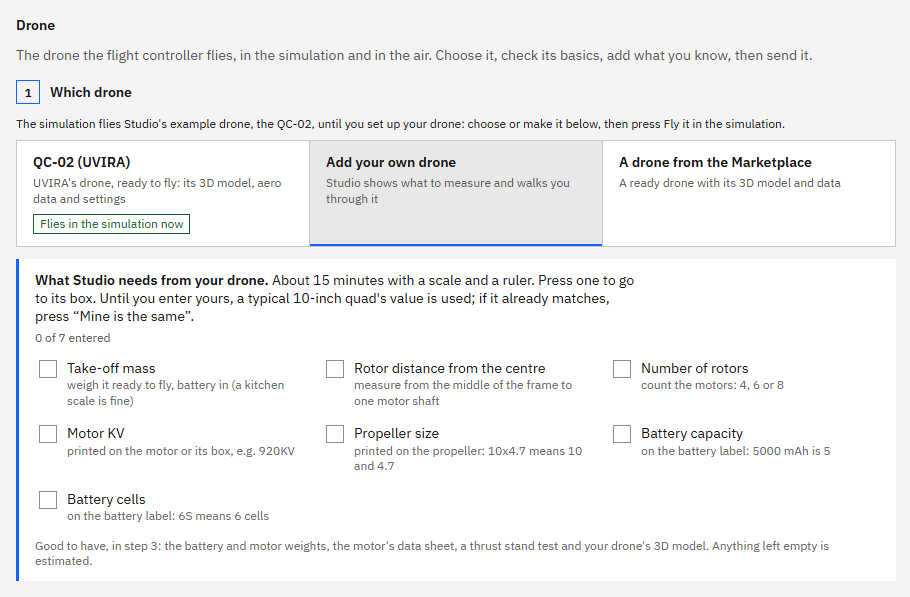
Step 1 of Setup › Drone has three choices: UVIRA's QC-02, Add your own drone, or a drone from the Marketplace. Yours is the second one.
It opens a list called "What Studio needs from your drone", with seven items. Pressing an item takes you to its box. Until you give your own value, Studio uses a typical 10-inch quad's and marks it "typical value". An item gets its tick once the value is yours.
- Press Add your own drone.
- Under Its basics, type your drone's name in Name.
It worked when The list "What Studio needs from your drone" shows "0 of 7 entered" and the Name box holds the drone's name.
-
Type its basics 8 min
In Studio: Setup › Drone
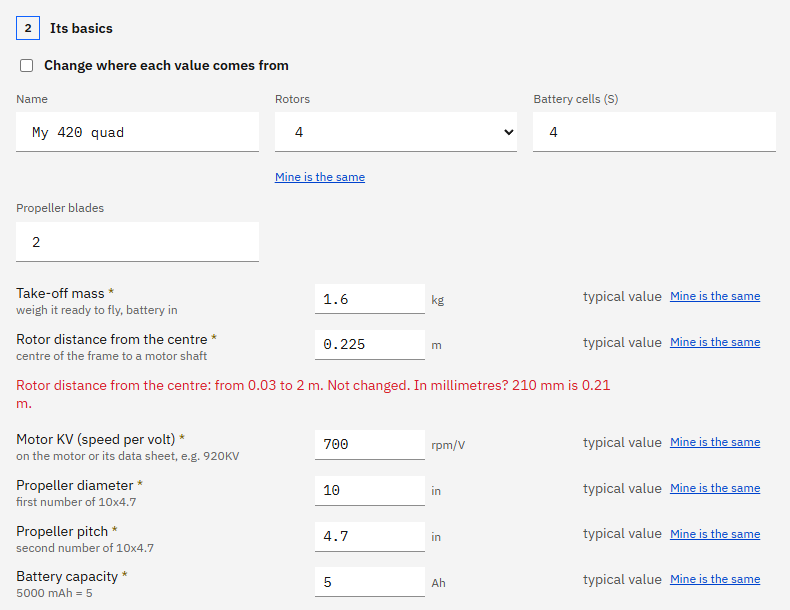
Type your numbers from step 2. When you leave a box, its item in the list gets a tick and the numbers under the boxes change.
If the typical value is already right for your drone (4 rotors, for example), press Mine is the same beside it. That ticks it without typing.
Studio refuses a number out of range and says why in red under the box. If you type 210 for the rotor distance, it asks "In millimetres?" and keeps the old value: type 0.21.
Beside each box, Studio notes where the value comes from: measured for what you weighed or measured, data sheet for what you read off a label. To change it, tick Change where each value comes from above the boxes; the number stays the same.
The typical quad has 6 battery cells, so check Battery cells (S) against your battery's label.
The values below are from an example 420 mm quad. Type your own.
- Set Rotors and Battery cells (S), or press Mine is the same beside one that already matches. Set Propeller blades if yours are not 2.
- Type Take-off mass, Rotor distance from the centre, Motor KV, Propeller diameter, Propeller pitch and Battery capacity.
- Leave Maximum tilt as it is.
Type exactly
- Battery cells (S), example drone (type yours)
4- Take-off mass, kg, example drone (type yours)
1.25- Rotor distance from the centre, m, example drone (type yours)
0.21- Motor KV, example drone (type yours)
1100- Propeller diameter, in, example drone (type yours)
8- Propeller pitch, in, example drone (type yours)
4.5- Battery capacity, Ah, example drone (type yours)
4
It worked when The list says "All 7 done. Check the numbers below, then send it in step 4."
-
Read the numbers Studio works out 4 min
In Studio: Setup › Drone
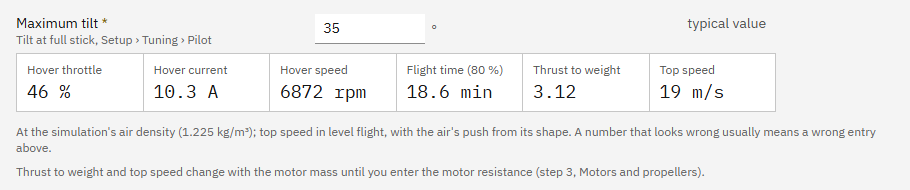
Under the boxes, Studio shows how your drone will hover: Hover throttle, Hover current, Hover speed (the propellers' speed), Flight time (80 %) (using 80 % of the battery), Thrust to weight (how many times its weight it can lift) and Top speed.
Our example drone: 46 % hover throttle, 10.3 A, 18.6 minutes, thrust to weight 3.26 and a top speed of 19 m/s. Your drone will have its own numbers. The picture is from after step 6: entering the motor's weight changed thrust to weight to 3.12, and Studio says why under the numbers.
A wrong entry usually shows as hover throttle above about 70 %, thrust to weight under 2, or a flight time far from what the drone really flies. Check the mass (battery in?), the KV, the battery cells and the propeller size. When a number is out of the safe range, Studio also writes a warning in red under it.
- Read the six numbers under the boxes.
- If one looks wrong, check the entries above it and type them again.
It worked when Hover throttle is under about 70 % and no red warning shows under the numbers, or you know why it does.
-
More about it (optional) 8 min
In Studio: Setup › Drone
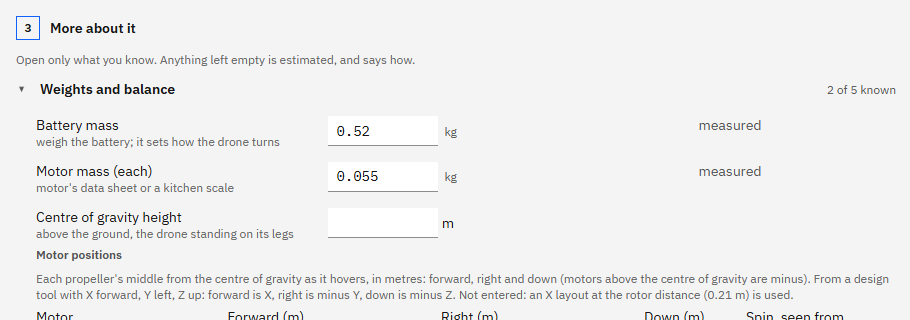
Step 3, More about it, holds folds you open only for what you know. Each heading says how many of its values are known, for example "2 of 5 known". Empty boxes show Studio's estimate in grey, with how it was made.
In Weights and balance, the battery's and one motor's weight from step 2 help most, because they decide how the drone turns. The centre of gravity height is how high it sits on its legs. Motor positions are needed only if your frame is not a plain X; empty, an X at your rotor distance is used, with M1 left front, M2 left back, M3 right back and M4 right front.
In Motors and propellers, the motor's data sheet gives its resistance and no-load current. With a thrust stand, enter one motor's rpm, thrust, current and voltage at 20, 40, 60, 80 and 100 % throttle: Studio works out the propeller numbers from them and says which rows it could not use.
In Battery, the C rating is on the label, and a smart charger shows the pack's resistance.
What Studio estimates lists the values the simulation flies with that Studio worked out for you. Each value you enter takes one off the list.
- Open Weights and balance and type Battery mass and Motor mass (each) if you weighed them.
- Open Battery and type the Battery C rating from its label.
- Open the other folds only if you have the values; skip this step if you have none.
Type exactly
- Battery mass, kg, example drone (type yours)
0.52- Motor mass (each), kg, example drone (type yours)
0.055- Battery C rating, example drone (type yours)
30
It worked when Each value you have is typed in, and its fold heading counts it as known.
-
Its shape in the air (optional) 4 min
In Studio: Setup › Drone
The air pushes on the drone when it moves. Without measurements, Studio estimates that push from the Body shape and the drone's size.
Pick the shape that looks most like yours: boxy (exposed parts), rounded (a shell) or streamlined. If your design tool shows the drone's area seen from the front, the side and above, type them; a photo with a ruler next to the drone works too.
An aero table is only for drones measured in a wind tunnel or a computer flow simulation. Most drones never get one, and the estimate from the shape is enough. If yours has one, What the table holds, and its format explains the file, and the QC-02's table is there as a sample.
- Open Air (how the air pushes it).
- Choose the Body shape closest to your drone.
- Type the front, side and top areas only if you know them.
It worked when The body shape matches the drone (the fold says "from its shape", or "from its aero table" when one was imported).
-
Its 3D model (optional) 8 min
In Studio: Setup › Drone
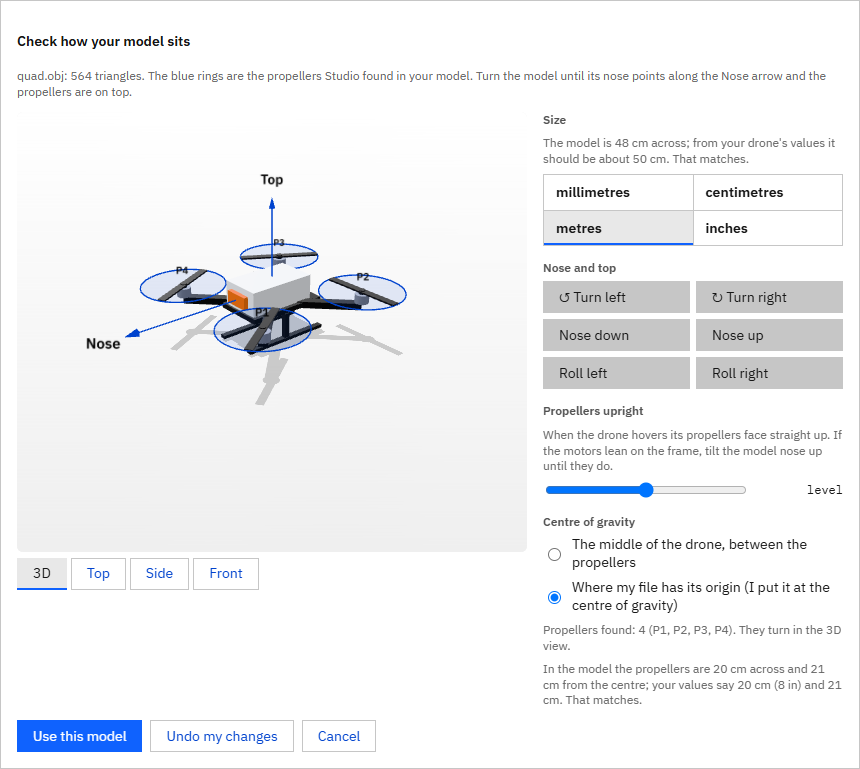
With its 3D model, your drone looks like itself in the 3D view, and Studio checks its size against your numbers.
Studio reads STL, OBJ, 3MF, glTF and GLB. A design file (STEP, IGES or your tool's own) has to be exported first: How to export the model from your design tool gives the steps for each tool.
To see the propellers turn, each propeller must be its own body, named P1 (left front), P2 (left back), P3 (right back) and P4 (right front). A binary STL has no names, so it shows still propellers.
After the import, Studio shows the model on a drawing of your drone. It guesses the unit, the nose and the top; you check them. Size says whether the model matches your numbers; if it does not, pick the unit your file is in. Turn the model with the buttons until its nose points along the Nose arrow and the propellers are on top.
- Open 3D model and press Import a 3D model….
- Pick the file you exported.
- Check Size; if it says the size does not match, pick the unit your file is in.
- Turn the model with Turn left, Turn right, Nose up or Nose down until the nose and top match the arrows.
- Press Use this model.
It worked when The 3D model fold says how many propellers it found (or "Stored"), and the report under it gives the model's size in cm.
-
Save it, and keep a copy 3 min
In Studio: Setup › Drone
Save only keeps your drone on this computer, in Documents › UVIRA FORGE Studio › Vehicles. It then gets its own card in step 1, so you can open it again any time.
Export drone… writes one .uvdrone file with everything: the numbers, the 3D model and the aero table. Import drone… on another computer brings it all back. Tick Include the connected flight controller's settings to put the config in the same file (after step 11 is a good time).
- Press Save only.
- Press Export drone… and choose where to keep the file.
It worked when Studio says the drone was saved in Documents › UVIRA FORGE Studio › Vehicles, and the drone has its own card in step 1.
-
Fly it in the simulation 8 min
In Studio: Setup › Drone
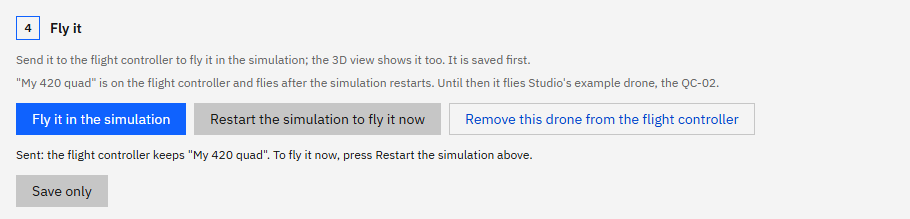
Step 4 of Setup › Drone sends your drone to the flight controller: the virtual one on this computer, or your board while it runs its simulation. The flight controller keeps it and its simulation flies it. Real flights do not change.
The simulation picks up the new drone at its next start. After you press Fly it in the simulation, the note under the buttons says "To fly it now, press Restart the simulation above" and your drone's card says "Flies after the restart". After the restart the card says "Flies in the simulation now".
Then fly it as in Getting started. The quickest way up is LOITER and Take off, with no sticks needed. If you fly with sticks instead, arming needs the throttle all the way down and the other sticks in the middle, and a radio plugged into the computer by USB flies only after Set up the radio on Fly.
- If no flight controller is connected: Connect, then Start the virtual flight controller.
- In Setup › Drone, press Fly it in the simulation.
- Press Restart the simulation to fly it now.
- Open Fly, choose LOITER, and keep Hold to arm pressed until it says Armed.
- Press Take off (to 10 m), watch it hover, then press Land here.
It worked when Setup › Drone says the simulation flies your drone, "sent from here", and on Fly it took off and hovered at about 10 m.
-
The config for your drone 12 min
In Studio: Setup › Config
The config tells the flight controller how to fly your drone. Set it on the phone setup page (Setup tab) or in Studio (Setup › Radio, Safety and Tuning): the same settings are in both. Most people use the phone, with the drone next to them.
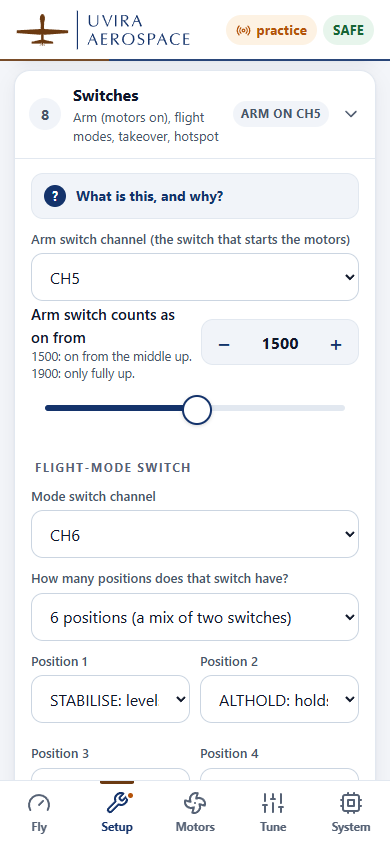
Set these first. On the phone, work down the Setup steps: Airframe (when the drone came from Studio it says Confirm: check the drone shown and tap This is my drone), Board orientation, Level, Receiver, Switches, Motors (propellers off), Battery, and Failsafe & safety. A real flight needs every required step done.
For the flight modes, open Switches and choose the mode switch channel and how many positions it has (most have 3). With 3, down, middle and up fly Slot 1, 2 and 3: STABILISE, ALTHOLD and LOITER at first. No GPS? LOITER, return home and GUIDED need it: use ALTHOLD there instead.
Under Battery, pick how your drone knows its battery: ESCs that report it, or a power board on J4. Without it the drone still flies, but nothing watches the battery. With it, the drone comes home when the battery is low (3.5 V a cell) and lands when it is critical (3.4 V).
Read Failsafe & safety and press These are right for my drone. Radio lost: it comes home (or lands, without GPS). Set the return height above the trees and buildings where you fly, and keep the fence within your country's drone rules.
Leave these alone for now: the Tuning page (except the starting point), the filters, the motor signal, and the Simulation switches (Any attitude, No limits). For the very first lift-off choose Starting point › Safe start; First hover once it hovers well.
- On the phone page, open Setup and work down the steps; or in Studio open Setup, then Radio and Safety.
- In Studio, the flight modes are under Setup › Radio, the battery and failsafes under Setup › Safety.
- Set Battery monitor to how your drone is wired.
- Choose the starting point Safe start for the first flight (in Studio: Setup › Tuning, Use Safe start).
- To keep a copy, in Studio press Setup › All settings, Save them to a file….
It worked when The mode switch slots, the battery monitor and the failsafes are set for the drone (get_parameters: RC_MODE_POS, MODE_SLOT1 to MODE_SLOT3, BATT_MON, BATT_LOW_ACT, RTL_ALT), and you exported a copy.
-
Fly it again and read the current 4 min
In Studio: Fly
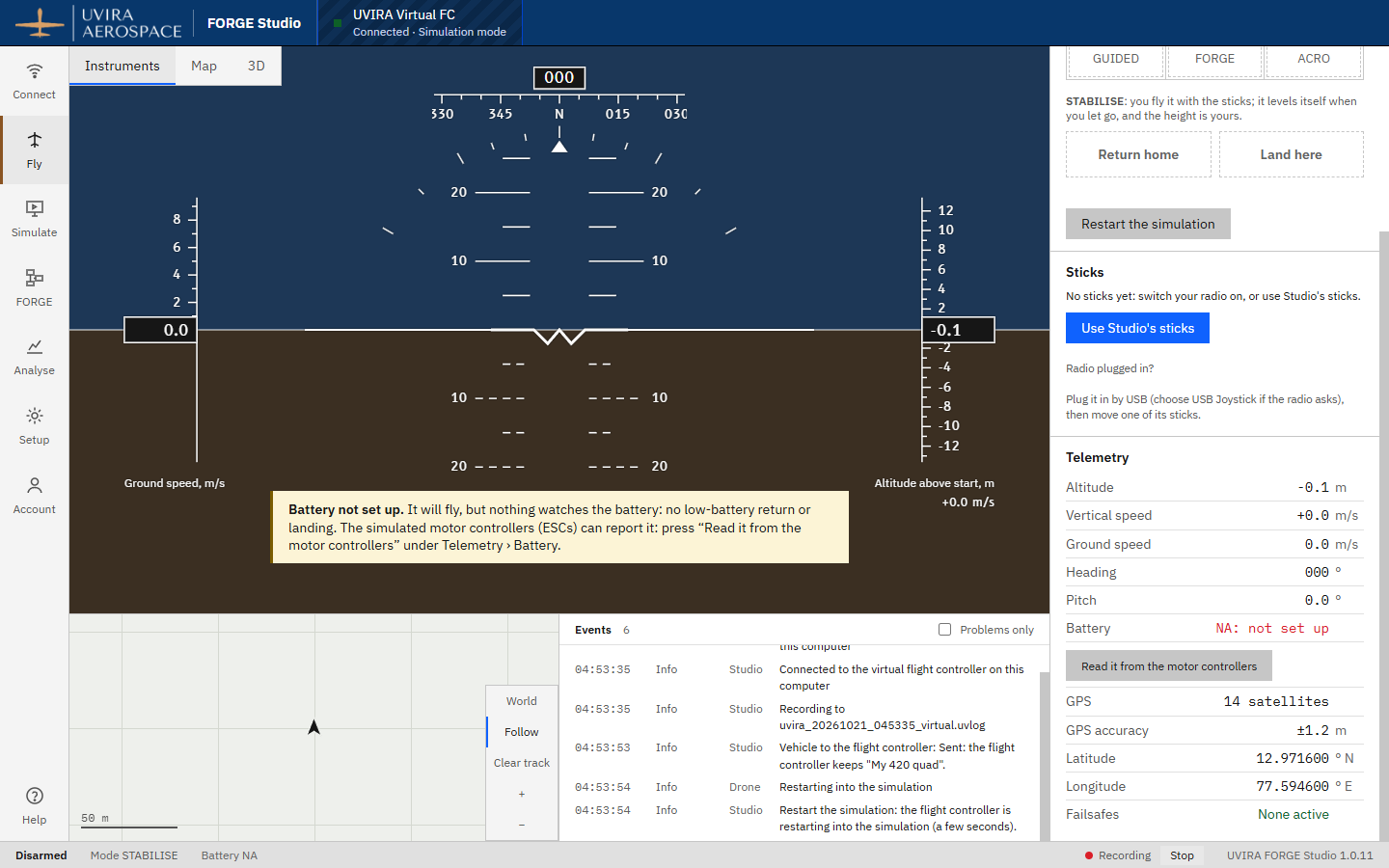
On the virtual flight controller the battery reads NA at first, as on a new board. One press of Read it from the motor controllers under Telemetry › Battery on Fly makes the simulated motor controllers (ESCs) report it, as ESCs with telemetry do. On your own board in Simulation mode, Set up the battery opens the setting instead.
While it hovers, the current should be close to Hover current in Setup › Drone, though not exactly the same. Our example drone hovered on 8.7 A on a full battery; Studio had estimated 10.3 A. A full battery has a higher voltage, so it needs less current.
- Open Fly and, while it is disarmed, press Read it from the motor controllers under Telemetry › Battery.
- Choose LOITER, Hold to arm, then Take off.
- While it hovers, read Current under Telemetry.
- Press Land here.
It worked when You have read the hover current on Fly and compared it with Hover current in Setup › Drone.
-
The first real hover 10 min
This step is on the field, with the real drone, and it is always yours: the AI never arms or flies a real drone.
Go to an open place, away from people, roads and trees, with little wind, and check your country's drone rules. Put the propellers on now.
Leave Studio connected to the drone's Wi-Fi if you can (the hotspot stays on in flight): it records the flight for step 14.
- Set the mode switch to ALTHOLD, throttle down, and arm with the arm switch.
- Within 10 seconds, raise the throttle smoothly past the middle: it lifts off.
- Hover for a minute or two at head height, then land with the throttle below the middle.
- Write down how long it flew if you fly a whole battery.
It worked when The drone hovered and landed, and you have the flight time or Studio's recording.
-
Check the simulation against the real drone 5 min
In Studio: Analyse
Compare what the real drone did with what Setup › Drone said: the current in a steady hover (Fly › Current, when the battery is set up), the flight time against Flight time (80 %), and the motors' speed against Hover speed, if your ESCs report it (Analyse plays the recording back).
If they agree within about a fifth, your math model is good. If they are far apart, an entry is usually wrong: weigh again with the battery in, and check the KV, the battery cells and the propeller size. If those are right, add what you know in More about it, such as the motor's data sheet or a thrust stand.
After a change, press Fly it in the simulation again, so the simulation flies the better model.
- Open Analyse and the recording of the flight, or use the time you wrote down.
- Compare the hover current and the flight time with the numbers in Setup › Drone.
- Correct any wrong entry, then press Fly it in the simulation again.
It worked when You know how close the real hover current and flight time are to Studio's numbers, and any wrong entry is corrected and sent again.
-
Where to get help 2 min
If a step is hard, ask your AI app connected to Studio. It can see Studio's screen, point at the control, or do the step while you watch, but it never arms or flies a real drone.
Help in Studio (the question mark at the bottom left, or F1) and the School on uvira.in have the other lessons. For anything else, write to support@uvira.in: a person replies within one working day.
- Say skip or show me to your AI app whenever a step is hard.
- Write to support@uvira.in if something does not work as this lesson says.
It worked when You know where to ask.
You Finished the Path
The end of the pathBack to the SchoolWhat you prove here flies the real drone: See the flight controller