What You Will Learn
- How a FORGE program runs: many times a second, one state at a time.
- How to send the drone to a point: metres north and east, a height, a heading and a speed limit.
- How to decide that the drone has arrived, with two checks joined by and.
- How to watch your own numbers while it flies, with shown values.
- How to fly a program in the simulation and read Studio's report of the flight.
- How to change a program yourself: a bigger square, flown higher.
Ideas First
A program repeats very fast
At the top of every program you choose how often it runs. This one runs every 20 ms, which is 50 times a second. Each run is a tick. On every tick the program looks at the drone and sends the flight controller one command, such as "fly to this point".
"when FORGE starts" runs once
Blocks in this slot run a single time, at the moment FORGE takes over the drone. It is the place to remember things, for example where the drone was at that moment.
States: one at a time
A program is a list of states, and exactly one of them is active. The first state in the list runs first. On every tick the active state's every tick blocks run. When a go to state block runs, the program switches to that state at once, and the new state starts in the same tick. A state that sends no flight command leaves the drone holding its position.
Where things are: north, east and up
Studio measures positions in metres from home, the spot where the drone took off: metres north of home and metres east of home. South and west are negative. Height is the altitude above home, with up positive.
This program doesn't use home directly. When FORGE starts it notes where the drone is, and every corner of the square is that spot plus a few metres. So the square starts wherever the drone was when you switched to FORGE.
Heading in degrees
The yaw is the direction the drone's nose points: 0 is north, 90 east, 180 south and -90 (or 270) west.
You give a destination; the flight controller flies
The fly GUIDED block takes a point, a heading and a speed limit. The flight controller flies there on its own: it speeds up, stays under your limit, brakes and stops on the point. Your program never touches the motors. The flight controller keeps its own limits and safety actions the whole time, and on a real drone the pilot can take over at any moment with the mode switch.
Step by Step
-
Open the program 2 min
In Studio: FORGE
Studio has this lesson's program built in. You can also download it from this page (hello_square.forge.json), save it in Documents › UVIRA FORGE Studio › Programs, and it shows under Open in FORGE.
- Click FORGE in the left bar.
- In the top bar, open New from example and choose Hello square (School lesson).
- If Studio asks Start a new program?, press Start new, lose the changes (or Cancel and save your own program first).
Type exactly
- Start from
Hello square (School lesson)
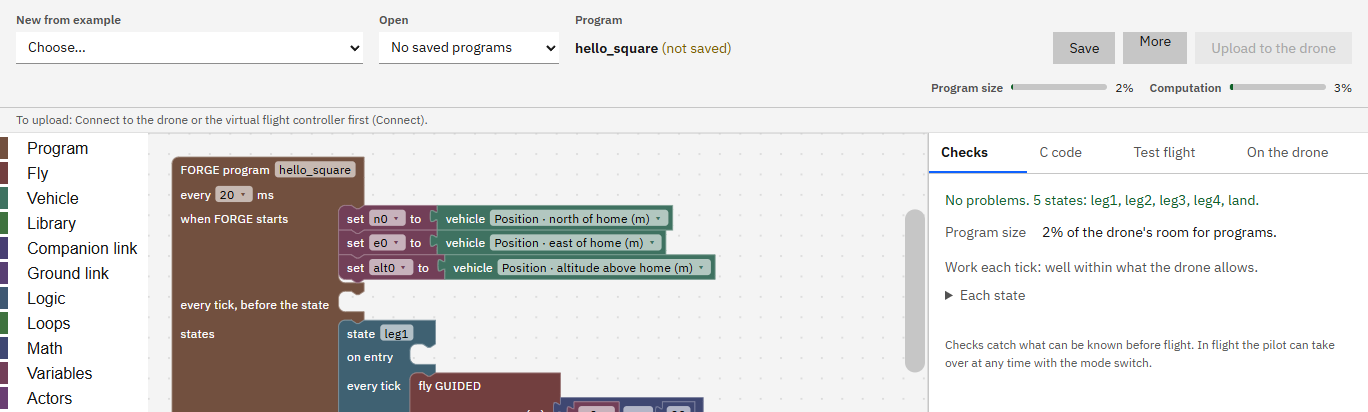
It worked when FORGE shows the program hello_square, and Checks lists the states leg1, leg2, leg3, leg4, land.
-
Read block 1: the program block and "when FORGE starts" 3 min
In Studio: FORGE
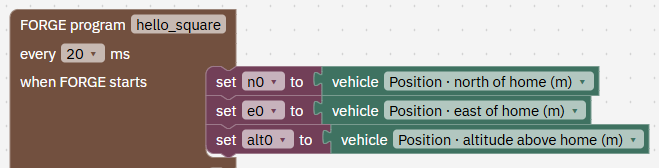
The big brown block holds the whole program. hello_square is its name, and Studio saves the file under that name. every 20 ms sets the speed: 50 ticks a second. The other choices are 10, 50 and 100 ms.
The three set blocks run once, when FORGE takes over. They store the drone's position in three variables, which are named boxes that hold a number: n0 (metres north of home), e0 (metres east) and alt0 (height). In our test flight FORGE took over 0.4 m north and 0.0 m east of home, at 10.0 m. Every corner is measured from that point, so the drone flies its square from where it already is instead of rushing back over home first.
- Find the program block and its three set blocks at the top of the editor.
It worked when You have found the three set blocks and are ready for the next block.
-
Read block 2: state leg1 flies to the first corner 3 min
In Studio: FORGE
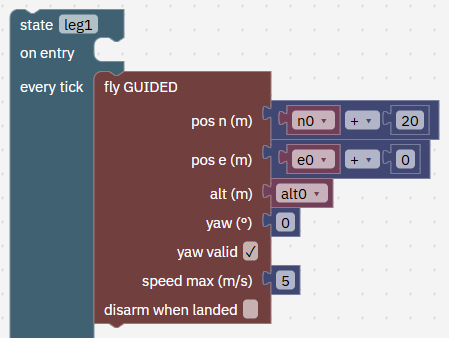
The state has two slots. on entry runs once each time the state starts; it is empty here. every tick runs 50 times a second while the state is active. Its first block is fly GUIDED, one row per input:
pos n (m) n0 + 20: 20 m north of where FORGE started. pos e (m) e0 + 0: no change east or west. alt (m) alt0: stay at the height where FORGE started.
yaw (deg) 0: nose north, the way it flies. yaw valid ticked: use this yaw; unticked, it keeps the heading it has. speed max (m/s) 5: no faster than 5 m/s (18 km/h). disarm when landed not ticked: it is not landing here.
The program sends the same destination 50 times a second. That's normal: the flight controller keeps flying to the same point, and your program stays in charge the whole time.
- Find state leg1 and its fly GUIDED block. Read each row against the list above.
It worked when You have found leg1's fly GUIDED block and can say where it sends the drone.
-
Read block 3: how far is the corner? 2 min
In Studio: FORGE
This block works out how far the drone is from the corner along the ground, in metres (height is left out), and stores it in d. When leg1 starts, d is about 20. It shrinks as the drone flies and drops under half a metre at the corner.
The north and east numbers here must be the same as in the fly GUIDED block. If they differ, the program measures the distance to a different point from the one the drone is flying to, and it waits there for ever.
- Find the block set d to distance from the vehicle to north ... east ... under fly GUIDED in leg1.
It worked when You have found the distance block and see that its numbers match fly GUIDED's.

-
Read block 4: show your own numbers 2 min
In Studio: FORGE
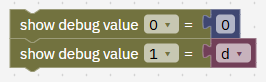
A program can show up to 8 numbers of its own, numbered 0 to 7. This one shows two: shown value 0 is the side being flown (0 in leg1, then 1, 2, 3, and 4 while landing), and shown value 1 is d, the distance to the corner.
You see them after a simulation run in FORGE › Test flight, as "Values shown at the end" with a small graph for each one that changed. While flying a drone or the virtual flight controller they show on the Fly page under Shown by the program, and later in Analyse, in the graph "Values your program showed". A shown value keeps its last number until a block changes it.
- Find the two show value blocks in leg1.
It worked when You have found the two show value blocks and can say what each one shows.
-
Read block 5: has it arrived? Two checks joined by "and" 3 min
In Studio: FORGE
The program moves on only when both are true: the drone is within half a metre of the corner (d < 0.5), and it is moving slower than half a metre a second (ground speed < 0.5), so it has almost stopped.
Speed alone would fail at once. When leg1 begins the drone is hovering, so its speed is already low and the program would jump straight to leg2, then leg3, leg4 and land, all in the first tick. The drone would land where it was.
Distance alone would cut the corners. The drone could pass through the half-metre circle still moving, and the next side would start with speed left over. The third change in More changes to try shows this happening.
go to state leg2 switches the program to leg2 at once; blocks after it in leg1 are skipped. The name must match a state exactly. A typo shows in the Checks tab as there is no state called "...".
- Find the if block at the end of leg1 and read its two checks.
It worked when You can say why the program needs both checks.

-
Read block 6: leg2, leg3 and leg4, the other sides 3 min
In Studio: FORGE
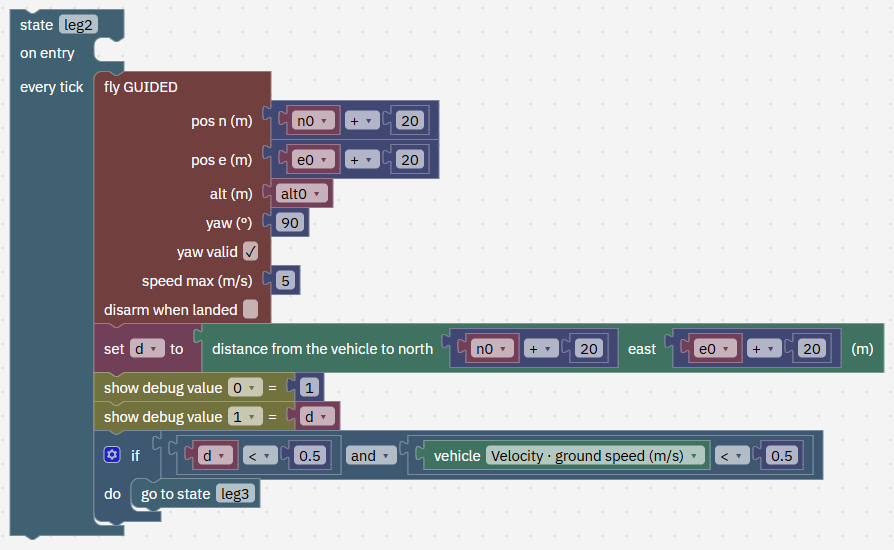
Each side has the same five blocks as leg1. Only the corner, the yaw, the value number and the next state change:
leg1: pos n0 + 20, e0 + 0, flies 20 m north, yaw 0, value 0 = 0, then leg2.
leg2: pos n0 + 20, e0 + 20, flies 20 m east, yaw 90, value 0 = 1, then leg3.
leg3: pos n0 + 0, e0 + 20, flies 20 m south, yaw 180, value 0 = 2, then leg4.
leg4: pos n0 + 0, e0 + 0, flies 20 m west back to the start, yaw -90, value 0 = 3, then land.
Seen from above with north at the top, the drone goes up, right, down and left: a clockwise square, nose always pointing the way it flies. leg4's corner, "+ 0, + 0", is exactly where FORGE started.
- Scroll down through leg2, leg3 and leg4 and find the numbers in the list above.
It worked when You have found leg2 to leg4 and can say which way each one flies.
-
Read block 7: the land state 2 min
In Studio: FORGE
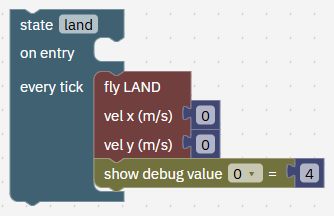
fly LAND brings the drone straight down where it is. vel x and vel y could slide it forward or right on the way down; here both are 0. LAND always stops the motors once the drone is on the ground, so this block has no "disarm when landed" box.
The drone comes down at 1 m/s and slows to 0.4 m/s for the last 3 m (Setup › Safety, Landing), which is why coming down from about 10 m takes about 15 s. The motors stop about 7 s after touchdown, once the flight controller is sure the drone has landed, so the land state lasts about 22 s.
- Find state land at the bottom of the program.
It worked when You have found the land state.
-
Check it 1 min
In Studio: FORGE › Checks
The Checks tab catches what can be known before a flight: a missing value, a state that does not exist, a program too big for the drone.
- Open the Checks tab on the right.
It worked when The Checks tab says No problems. 5 states: leg1, leg2, leg3, leg4, land.
-
Fly it in the quick simulation 3 min
In Studio: FORGE › Test flight
The Test flight tab in FORGE flies the program on this computer, faster than real time: the drone's own flight software and your program, with a model of the drone and sensors that make small errors. Studio takes off, settles near 10 m, switches to FORGE and reports how your program flew.
Keep the drone on the QC-02 for this lesson. If you have made a drone of your own in Setup › Drone, it can show up here too, and your numbers would then differ from ours.
- Open the Test flight tab on the right of the editor.
- Keep Scenario on From a hover at 10 m, no landing platform and Drone that flies on QC-02, Studio's example drone. Leave the other boxes empty.
- Press Save and fly in simulation. The first run can take up to a minute while Studio gets the test flight ready; after that it takes a few seconds.
Type exactly
- Scenario
From a hover at 10 m, no landing platform- Drone that flies
QC-02, Studio's example drone
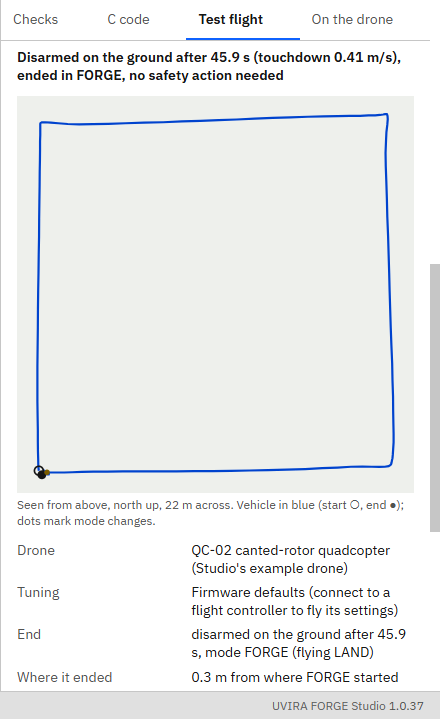
It worked when The Test flight tab shows a result that starts Disarmed on the ground after about 45.9 s.
-
Read the result 4 min
In Studio: FORGE › Test flight
Times count from the moment FORGE took over. In our run: How it ended: disarmed on the ground after 45.9 s, touchdown 0.41 m/s, ended in FORGE, no safety action needed. Failsafes: none. Most tilt in the air, fastest: 18°, 5.4 m/s. Values shown at the end: 4.00, 0.49. Track from above: a square, with the start and end circles almost on top of each other (0.3 m apart).
Each side takes about 6 s. 20 m at 5 m/s is 4 s; speeding up, braking and settling add 2 s. The four sides end at about 24 s and the landing takes the other 22 s.
The graphs of the shown values. Value 0 climbs in steps 0, 1, 2, 3, 4 at about 6, 12, 18 and 24 s. Value 1 is a sawtooth: four times it jumps to about 20 and runs down below 0.5, one tooth per side.
Fastest 5.4 m/s is a little over your limit of 5. The limit is what the drone aims for, so a small overshoot is normal. 18° of tilt is how far it leans to speed up and to brake.
In the film the drone tips nose down to speed up and nose up to brake, and waits a moment at each corner. That pause is the arrival check waiting for it to almost stop.
This scenario has no wind, so the same Run number gives exactly the same result every time. Type another run number and the sensors make different small errors: with run number 2 we got 45.4 s and an end point 0.25 m from the start. To add wind, fill in Wind from the north, m/s or Wind from the east, m/s.
- Read your result in the Test flight tab against the numbers above.
It worked when You have found each line of the result (how it ended, where it ended, most tilt and fastest, shown values).
-
On the virtual flight controller: start it 2 min
In Studio: Connect
Now the same program flown by a flight controller on your computer, as it would fly on the drone, and shown in 3D. Skip this step if the top bar already says Connected and Simulation.
- Press Connect, then Start the virtual flight controller. Studio connects to it by itself in a few seconds.
- If Fly says it needs a place first (Enter where the simulation flies first), go to Simulate › Where it flies, type the latitude and longitude below (or your own place) and press Apply.
Type exactly
- Home latitude, °
12.9716- Home longitude, °
77.5946
It worked when The top bar says Connected and Simulation, and Fly no longer asks for a place.
-
Upload the program 2 min
In Studio: FORGE
The program goes to the flight controller like a mission. The flight controller checks the file, keeps it, and runs it when you select FORGE.
If an earlier flight ended away from the drone's cradle, the QC-02 lies tipped onto its belly, as the real one would, and Fly offers Restart the simulation. Press it first, then upload. Upload again after every restart.
- In FORGE, with the program open, press Upload to the drone at the top right.
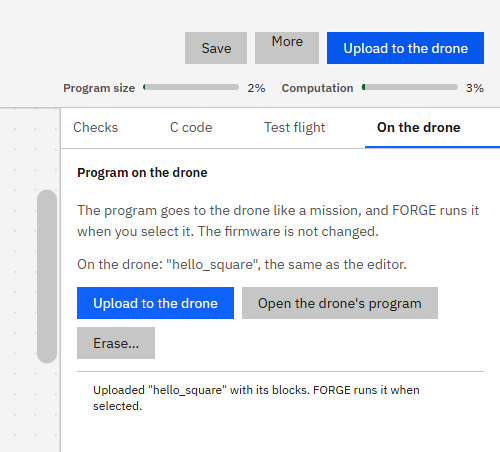
- Wait for Uploaded "hello_square" with its blocks. FORGE runs it when selected. (In Studio 1.0.0 the button is in the Board tab.)
It worked when FORGE › On the drone says On the drone: "hello_square", the same as the editor.
-
Take off 2 min
In Studio: Fly
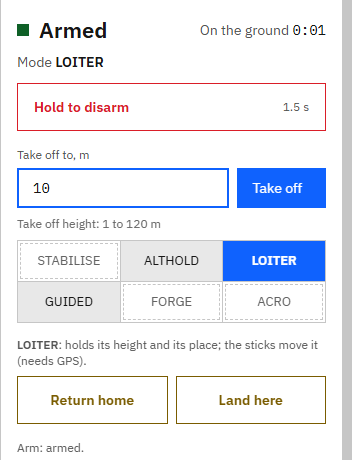
LOITER holds the drone's position and height by itself. Take off climbs straight up to the height you type, then holds it.
- On Fly, press LOITER.
- Press and hold Hold to arm until it says Armed.
- Set Take off to, m to 10 and press Take off.
Type exactly
- Take off to, m
10
It worked when Fly says Armed and the altitude reads about 10 m.
-
Run the program 3 min
In Studio: Fly
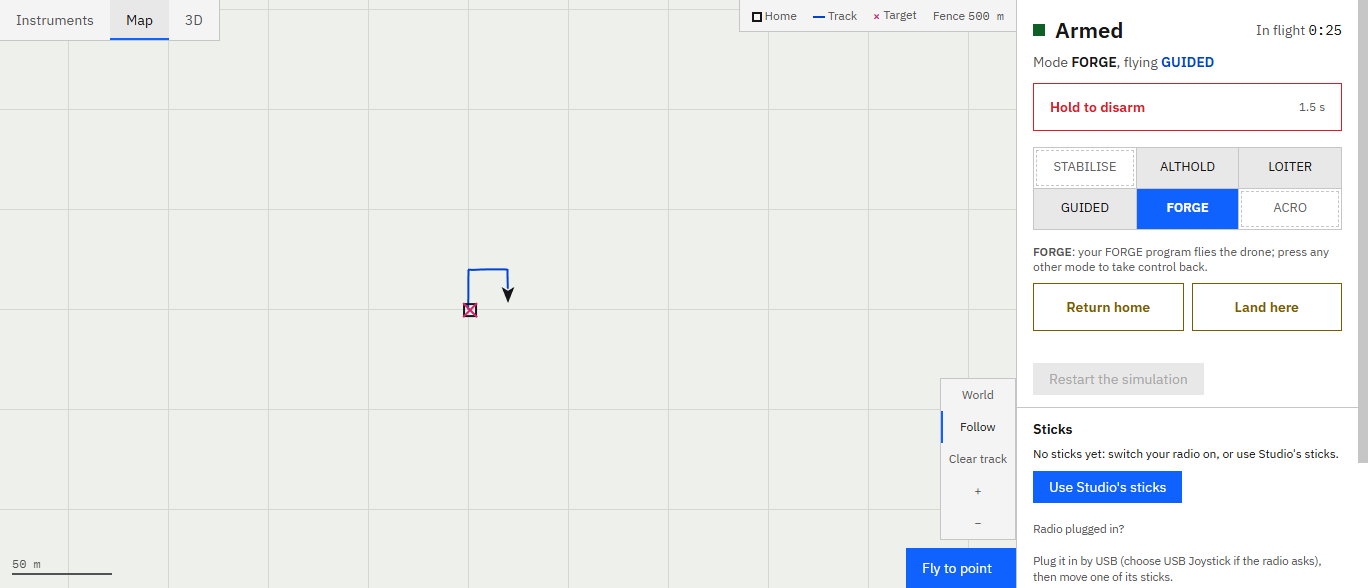
Once FORGE is selected your program flies the drone. Any other mode button takes control back at once.
- Once it hovers (about 5 seconds), press FORGE.
- Watch the 3D tab, or the Map tab to see the square drawn. It flies the square and lands about 46 seconds later, within half a metre of where FORGE started.
- On landing it settles a little off its cradle and tips onto its belly, as the real QC-02 does. Press Restart the simulation on Fly before the next flight.
It worked when The drone has landed and disarmed, shown value 0 reads 4, and it came down within about half a metre of where FORGE started.
-
More changes to try 10 min
In Studio: FORGE › Test flight
Change one thing at a time, press Save and fly in simulation, and compare with the first run (45.9 s). Try to guess the result before you read what we saw.
A bigger square (easy). Change every 20 to 30. There are 8 of them: 2 in leg1, 4 in leg2 and 2 in leg3, in both the fly GUIDED block and the distance block. leg4 has none, because it goes back to the start. What you should see: each side takes about 8 s instead of 6, and the whole flight about 54 s.
Faster (easy). Set speed max (m/s) to 10 in all four legs. How much shorter is the flight? What you should see: only about 1 s shorter (44.9 s), and the top speed is only about 6.9 m/s. A 20 m side is too short to reach 10 m/s before the drone has to brake. Make the sides 60 m and the difference shows: 77.3 s at 5 m/s, 62.6 s at 10 m/s, and this time it really reaches 10 m/s. A higher limit only helps on long sides.
Cut the corners (medium). First change the four d < 0.5 checks to d < 3. Then also change the four ground speed < 0.5 checks to < 100, so that check is always true. What you should see: the first change does nothing (45.8 s): the speed check still waits until the drone has almost stopped, which only happens at the corner. With the second change each side takes about 4.8 s and the flight 40.8 s. The corners are rounded, the drone leans up to about 35°, and it lands about 2.5 m from where it started: LAND began 3 m short of the last corner while the drone was still moving. This is exactly what the speed check prevents.
Always face north (medium). Set yaw (deg) to 0 in all four legs. Then try unticking yaw valid instead. What you should see: the same square in about the same time (46.5 s), but the drone flies sideways on the east and west sides and backwards on the south side: heading and direction of travel are separate choices. With yaw valid unticked it keeps whatever heading it had when FORGE started: here that is north too, so the flight is the same; on the virtual flight controller, turn the drone before FORGE to see the difference.
A triangle (harder). Fly north 20 m, east 20 m, then straight back to the start. Drag leg3 out of the program (leg4 and land come with it), drag leg4 back under leg2 and delete leg3. In leg2 change go to state leg3 to leg4. The way back runs south-west, so set leg4's yaw to -135. What you should see: Checks says No problems. 4 states: leg1, leg2, leg4, land. The flight takes about 41 s. The diagonal is 28.3 m long and takes about 8 s.
Wind. Set Wind from the east, m/s to 5. Every leg takes a little longer, about 6.1 to 6.2 s instead of 6.0 s, as the drone leans into the wind, and it still lands within half a metre of where it started.
- Make one change, press Save and fly in simulation, and compare. Put it back before the next one.
It worked when You have tried at least one change and compared the result with the numbers above.
-
Common mistakes 3 min
In Studio: FORGE
A corner changed in one block but not the other. If fly GUIDED says n0 + 30 but the distance block still says n0 + 20, d never drops below 0.5 and the drone waits at that corner for ever. The result says time limit after 180.0 s instead of disarmed on the ground, and shown value 0 is stuck on one number. On a real drone it would hover there until you take over or the battery runs low. Use the same numbers in both blocks.
go to state pointing to the wrong place. A misspelt name gives there is no state called "..." in Checks. A state pointing at itself starts over and over and never moves on, and Checks warns nothing goes to state "land".
speed max 0 to mean "stop". 0 means "use the default speed", 10 m/s unless you changed it in Setup › Tuning › GUIDED and FORGE. To stay still, fly GUIDED to the point where the drone already is, or use a state with no flight command.
alt as "height above the ground under me". The alt (m) row is the height above home, the take-off spot. A small number sends the drone down towards home's height, whatever is under it now. Keep alt0, or a height you have checked against the ground and obstacles where you fly.
It worked when You have read the four mistakes.
-
Check yourself 3 min
1. The program runs every 20 ms. How many times a second do the active state's "every tick" blocks run? Answer: 50 times a second (1000 ms ÷ 20 ms).
2. Which yaw makes the drone face west? Answer: -90 (270 works too).
3. leg4's corner is "n0 + 0, e0 + 0". Where is that? Answer: exactly where the drone was when FORGE started, because "when FORGE starts" saved n0 and e0 then.
4. What would happen if the arrival check were only "ground speed < 0.5"? Answer: the drone is hovering when each leg starts, so the check is true at once. All four legs are skipped in the first tick and the drone lands where it is.
- Answer each question before you read the answer.
It worked when You have answered the four questions.
-
Try it yourself: a 30 m square at 15 m 8 min
Your turn: try it on your own first. Your AI app gives hints if you ask.
In Studio: FORGE
Change the program on your own: make the square 30 m on each side and fly it at 15 m above home instead of the height where FORGE started.
Hint: the size is the 8 numbers 20 in leg1, leg2 and leg3 (fly GUIDED and the distance block). The height is the alt (m) row of the four fly GUIDED blocks: drag a number block from Math onto it in place of alt0 and type 15. The land state needs no change.
- Make the changes, check that Checks says No problems, and press Save and fly in simulation.
- Compare with what you should see: about 59 s in all, altitude up to about 15 m, value 1 up to about 30, and it lands within half a metre of where it started. The landing takes longer (about 27 s) because it starts higher.
- If you like, upload it and fly it on the virtual flight controller too.
Type exactly
- the 8 numbers 20 in leg1, leg2, leg3
30- alt (m) in the 4 fly GUIDED blocks
15
It worked when In the editor every 20 in leg1 to leg3 is now 30 (in the fly GUIDED and the distance blocks), alt is 15 in all four fly GUIDED blocks, and Checks has no problems. The Test flight tab says disarmed on the ground after about 59 s, altitude up to about 15 m, value 1 up to about 30, and it ended within a metre of where FORGE started.
Next on the Path
Next lesson, about 1 hour 26 minutesLand on a moving truckBy the end you can describe the data your drone receives, follow a moving target with velocity commands, switch from GPS to the camera, come down in stages, retry safely with a limit, and change the landing yourself for a slower truck.What you prove here flies the real drone: See the flight controller