What You Will Learn
- Describe the data your drone receives: a packet from its camera and one from the ground, each value with where it comes from.
- Follow a moving target: fly at the truck's own speed, plus a little extra towards it.
- Switch from rough GPS to the camera's exact marker once the camera can see it.
- Come down in stages: quickly when high, slowly near the deck, so the touchdown is gentle.
- Retry safely: climb away and try again when something goes wrong, with a limit on how many tries.
- End a program on purpose and hand the drone back to the flight controller.
- Change the landing yourself for a truck at another speed.
Ideas First
Where the truck's position comes from
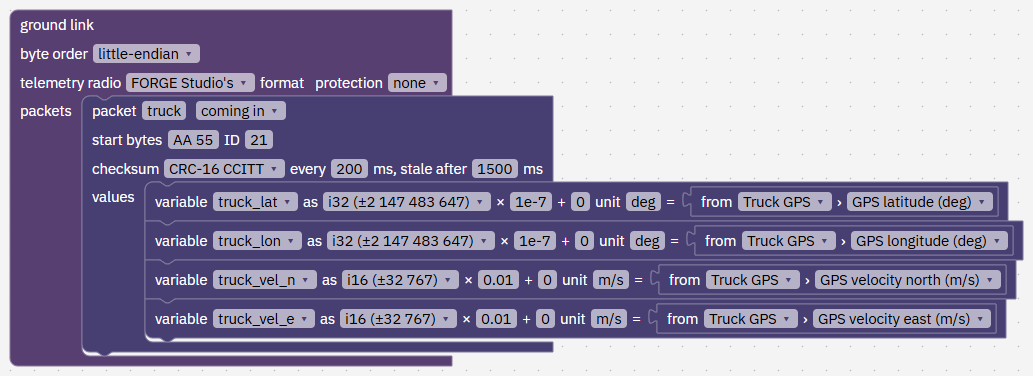
The truck carries a GPS receiver. Its readings go to a computer on the ground, and FORGE Studio passes them on to the drone over the telemetry radio. In the program this is the ground link block: one packet, truck, with four values, each a variable of the program: truck_lat, truck_lon, truck_vel_n and truck_vel_e. Each says where it comes from in the simulation (= from Truck GPS › GPS latitude). On the real drone your ground computer sends the same packet, and the program reads it the same way.
"packet truck is fresh" is true while the last packet is less than 1.5 s old (its "stale after 1500 ms"). The truck sends 5 a second, so a few can go missing. Truck GPS is good to about 0.7 m, which is too rough to land on a deck 1.5 m wide.
In the simulation Studio plays the ground computer and the computer on the drone: it works out what the truck's GPS and the drone's camera would report, with their errors and delays, and sends the packets your blocks describe. What you prove here is what the drone does in the air.
The camera and the marker
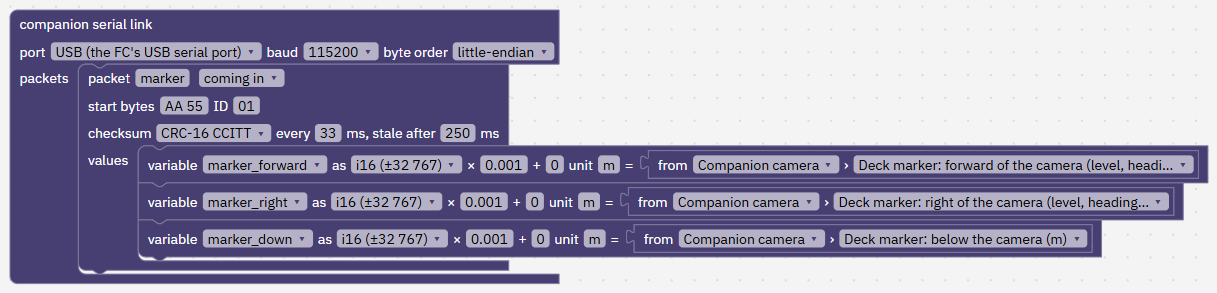
A camera on the drone looks down and finds the marker on the deck. A small computer on the drone, next to the flight controller (the companion computer), runs the detector and sends the marker packet over USB: metres forward, right and below the camera. It sends it only while it sees the marker. That is the companion serial link block. The program turns forward and right into north and east with the drone's heading (the body to north/east part block).
The camera is far more exact than GPS, about 2 cm plus 1% of the distance, but it only sees a cone below the drone (40° each side, up to 30 m) and it misses some frames. From 8 m up it sees a patch of deck about 6.7 m across. "packet marker is fresh" is true while the last marker packet is less than a quarter of a second old (its "stale after 250 ms"), and "packet marker age" says how many milliseconds ago it came.
Fly a velocity, not a point
In the square lesson you flew to fixed points. A deck that moves 5 m every second never stays at a point, so this program never says "go there". It uses the fly LOITER block, which asks for a velocity: vel x is metres per second north, vel y east, climb rate metres per second up, and yaw the way the nose points.
Ask for the truck's own velocity and the drone moves with it. Add a small extra velocity towards the deck and the gap closes. When the gap is zero the extra is zero, and the drone simply rides along.
Up is positive in climb rate. A climb rate of -0.7 means "go down at 0.7 m/s". The camera's "marker below" is positive downwards, so it is the height above the deck.
Why come down in stages
High up, a small sideways error has time to be fixed, so the drone can come down quickly. Near the deck there is little time left, and the speed at contact is the touchdown. So it comes down at 0.7 m/s above 3 m, at 0.4 m/s from 3 m to 1 m, and at 0.3 m/s for the last metre.
Retry, but not for ever
If the camera loses the marker or the drone drifts off, carrying on down is a guess. Climbing back to a safe height and trying again is better. After three failures something is wrong that another try won't fix (a dirty marker, a fault, a truck that keeps swerving), and more tries only use battery flying low over a moving truck.
Handing control back
"hand control back to the flight controller" ends the program on purpose. The flight controller takes over in LOITER (ALTHOLD without GPS) and holds the drone where it is while the truck drives on. The pilot is in charge again, and FORGE has to be chosen again to run the program. The flight controller's own limits and failsafes, and the pilot's mode switch, apply the whole time a program flies.
How the states fit together
approach goes to track when the camera sees the marker less than 4 m away.
track goes to descend after more than 1 s within 0.4 m of the marker, and back to approach when neither the marker nor the truck's GPS is known.
descend goes to touchdown below 0.5 m above the deck. It goes to abort when the marker is lost for 0.6 s or the drone is too far off (the first or second time), and to failed the third time.
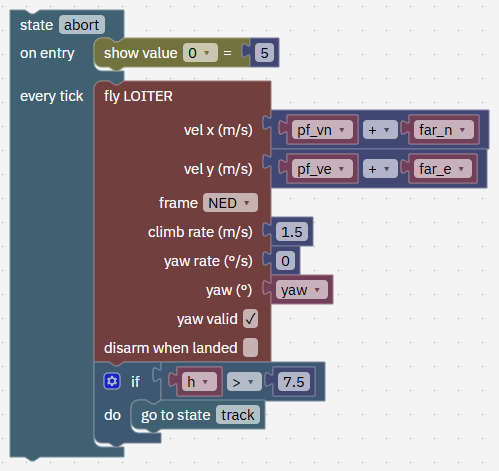
abort goes back to track once it is above 7.5 m. touchdown goes to done when the flight controller says "landed".
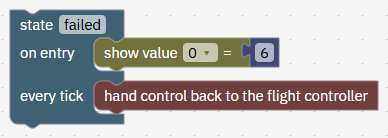
In done the flight controller stops the motors. In failed the program hands control back.
Step by Step
-
Open the program 2 min
In Studio: FORGE
The program runs every 20 ms. Its blocks fall into two parts: every tick, before the state, which works out where the deck is and how to steer, and the states, which decide what to do with that. The program box shows its name, land_on_the_truck.
You can also download land_on_the_truck.forge.json from this page, save it in Documents › UVIRA FORGE Studio › Programs and choose it under Open.
- In FORGE, open New from example and choose Land on a moving truck (School lesson).
- If Studio asks Start a new program?, press Start new, lose the changes (or Cancel and save your own program first).
- Open the Checks tab: it says No problems. 7 states: approach, track, descend, touchdown, done, abort, failed.
Type exactly
- Start from
Land on a moving truck (School lesson)
It worked when FORGE shows the program land_on_the_truck, and Checks says No problems. 7 states.
-
Read the links, 1: the marker from the camera 3 min
In Studio: FORGE
Right of the program is the companion serial link: what the computer on the drone sends the flight controller over USB. It holds one packet coming in, marker: forward, right and down, in metres, about 30 a second (the block says every 33 ms), and "stale after 250 ms".
Each value is a variable of the program (variable marker_forward as i16 and so on) and ends with = from: where it comes from in the simulation. Here every one is the Companion camera's view of the Deck marker. Choose another actor or value in the lists and the simulation sends that instead. On the real drone your companion computer sends these bytes, and nothing in the program changes.
The program reads them like any variable: marker_forward, marker_right and marker_down. packet marker is fresh tells it they are new.
- Find the companion serial link block, right of the program, and its three variables.
It worked when You can say what the marker packet carries and where its values come from.
-
Read the links, 2: the truck from the ground 2 min
In Studio: FORGE
Under it is the ground link: what comes from the ground over the telemetry radio. Its packet truck carries the truck GPS's latitude, longitude and velocity north and east, 5 a second, and "stale after 1500 ms".
The program never sees the truck itself, only these packets. Pull the ground link out of the program and the drone knows nothing of the truck: the simulation sends only what your blocks ask for.
- Find the ground link block and its four variables.
It worked when You can say which four values the truck packet carries.
-
Read block 1: when FORGE starts 2 min
In Studio: FORGE
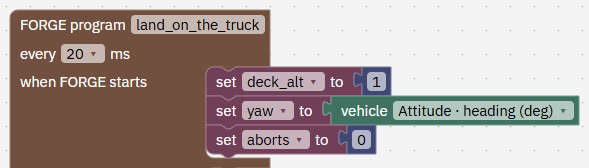
deck_alt is a first guess of the deck's height above home: 1 m. The camera corrects it as soon as it sees the marker. yaw starts as the drone's own heading, and aborts counts failed descents, from 0.
- Find the three set blocks under when FORGE starts.
It worked when You have found deck_alt, yaw and aborts.
-
Read block 2: every tick, the truck's speed and course 3 min
In Studio: FORGE
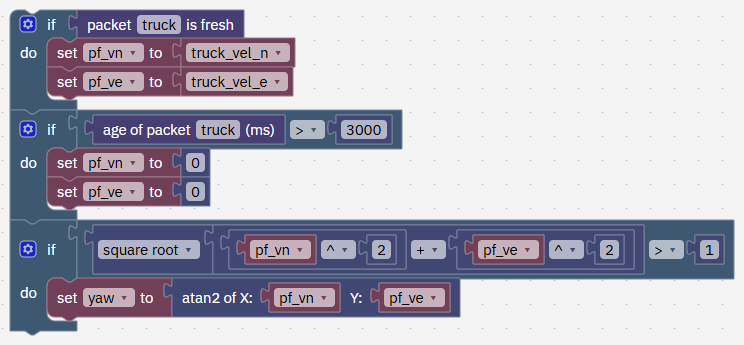
This part runs before whichever state is active, so every state uses the same fresh numbers. While packet truck is fresh, pf_vn and pf_ve take its velocity north and east (truck_vel_n, truck_vel_e); otherwise they keep the last value for a moment. When no truck packet has come for 3 s (age of packet truck > 3000), both become 0: a drone that cannot hear the truck stops chasing it and holds where it is, instead of flying on at the truck's last speed.
yaw becomes the truck's course, worked out with atan2 from its velocity (0 is north, 90 east). It only changes while the truck moves faster than 1 m/s, so a stopped truck's jittery GPS doesn't spin the drone round.
- Find the first three blocks under every tick, before the state.
It worked when You can say where pf_vn, pf_ve and yaw come from, and what happens when the truck goes quiet.
-
Read block 3: every tick, where is the deck? 3 min
In Studio: FORGE
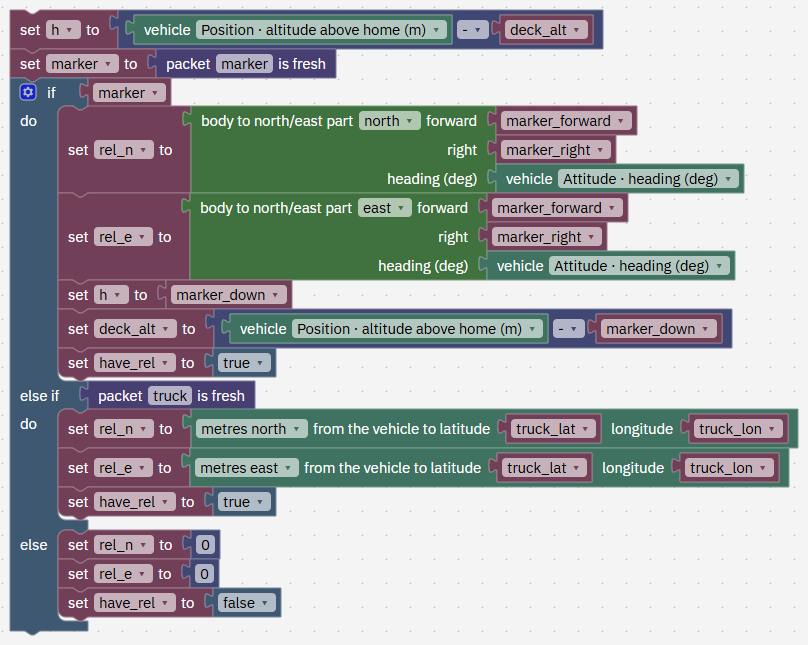
h is the height above the deck. The if picks the best source it has.
The camera sees the marker (packet marker is fresh): the deck's offset comes from the camera, forward and right turned into north and east with the drone's heading, h is the camera's "marker below", and the program learns the deck's real height (deck_alt = altitude minus marker below), so it still knows the height if the marker disappears for a moment.
Else, packet truck is fresh: the offset is how far the truck's latitude and longitude are from the drone, in metres north and east. Rougher, but enough to catch up.
Else the program doesn't know where the deck is. have_rel = false tells the states so.
- Find the if block that sets rel_n, rel_e and have_rel.
It worked when You can say which source the program uses first.
-
Read block 4: every tick, steering towards the deck 3 min
In Studio: FORGE
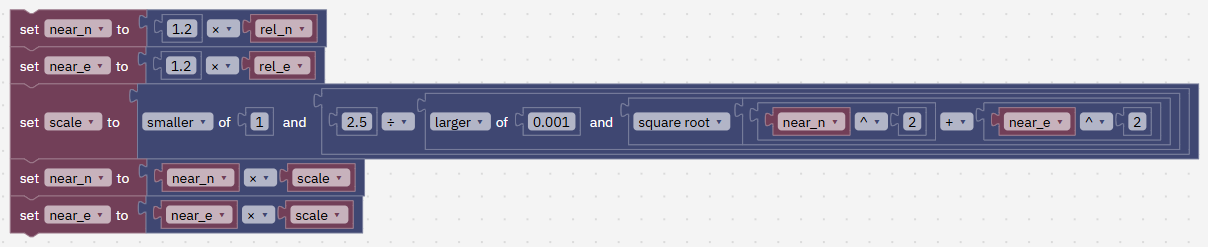
The program makes two steering values from the deck's offset rel. far, for GPS: 0.4 m/s for every metre away, at most 8 m/s extra. near, for the camera: 1.2 m/s for every metre away, at most 2.5 m/s extra. The picture shows near steering; far steering, just above it in the program, has the same shape with 0.4 and 8.
The camera is precise, so it can steer harder. GPS jumps by 0.7 m, and steering hard on it would make the drone twitch. The scale blocks cap the length of the extra velocity without changing its direction; "larger of 0.001 and the length" stops a division by zero when the drone is right over the deck.
- Find far steering and near steering.
It worked when You can say why near steering is stronger than far steering.
-
Read block 5: two safety rules and the height to hold 2 min
In Studio: FORGE
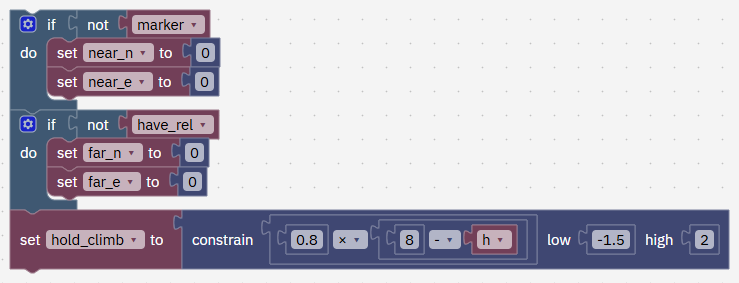
Near steering is set to zero whenever the camera doesn't see the marker, so the drone never steers close to the deck on GPS alone. Far steering is zero when nothing at all is known.
hold_climb holds 8 m above the deck: it climbs 0.8 m/s for every metre too low, at most 2 m/s up and 1.5 m/s down (constrain keeps a number between two limits).
- Find the two if blocks and hold_climb.
It worked when You can say when near steering is switched off.
-
Read block 6: state approach, catch up on GPS 2 min
In Studio: FORGE
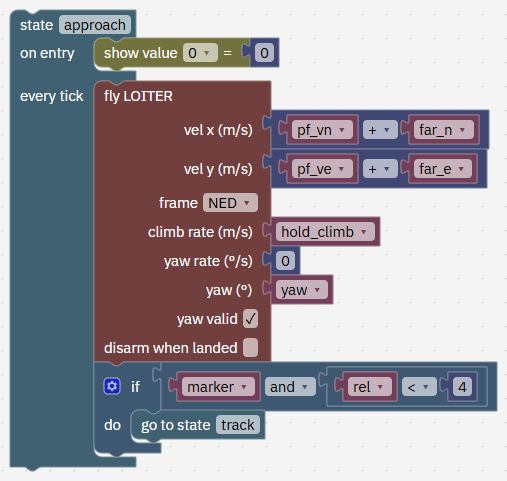
The drone flies at the truck's velocity plus the far steering, holds 8 m above the deck and points its nose along the truck's course. From 45 m behind that is 5 m/s plus up to 8 m/s, so it flies at up to about 11 m/s. Until the camera has seen the deck, "8 m above the deck" uses the 1 m guess.
It goes to track once the camera sees the marker less than 4 m away. The camera first spots it about 8 m away; waiting for 4 m puts the marker well inside the view.
- Find state approach.
It worked when You can say what makes approach go to track.
-
Read block 7: state track, sit over the marker 3 min
In Studio: FORGE
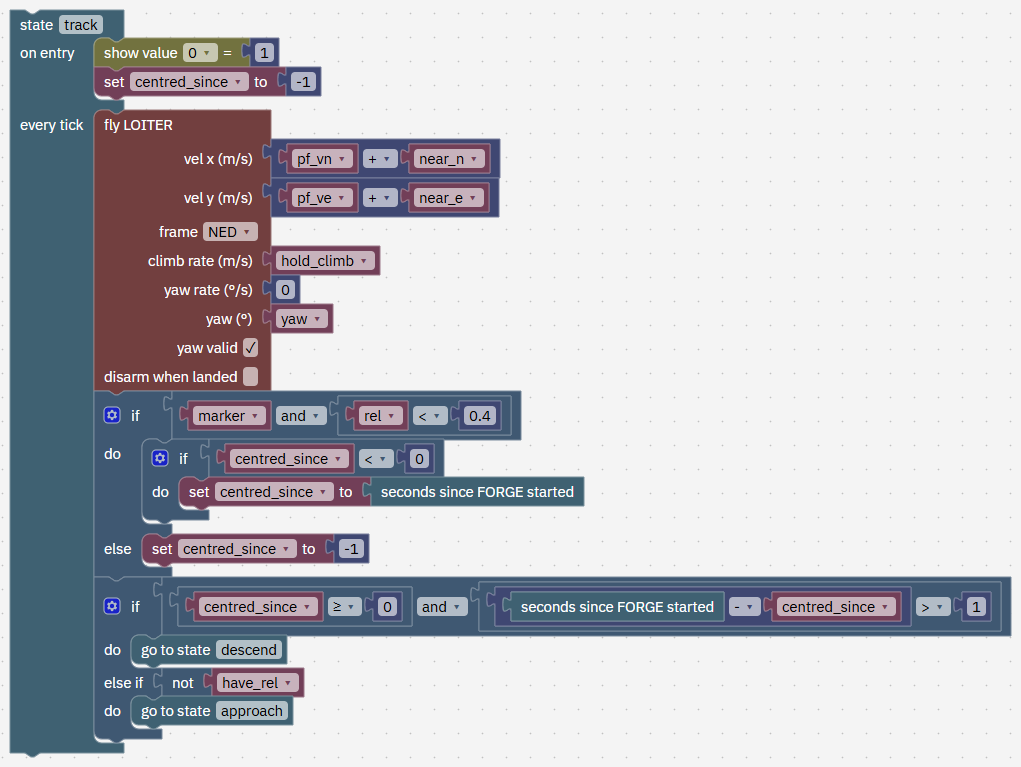
The same LOITER block, now steering with the camera, still at 8 m. On entry centred_since is set to -1, meaning "not centred". The first tick within 0.4 m of the marker stores the clock ("seconds since FORGE started"); any tick off centre or without the marker sets it back to -1.
Once it has stayed centred for more than 1 s it goes to descend. One good frame isn't enough to start down; a whole second of them is. It goes back to approach only if it knows neither the marker nor the truck's GPS. If only the marker drops out, it stays here and keeps moving with the truck.
- Find state track and centred_since.
It worked when You can say how long the drone must stay centred before it goes down.
-
Read block 8: state descend, come down and stay centred 3 min
In Studio: FORGE
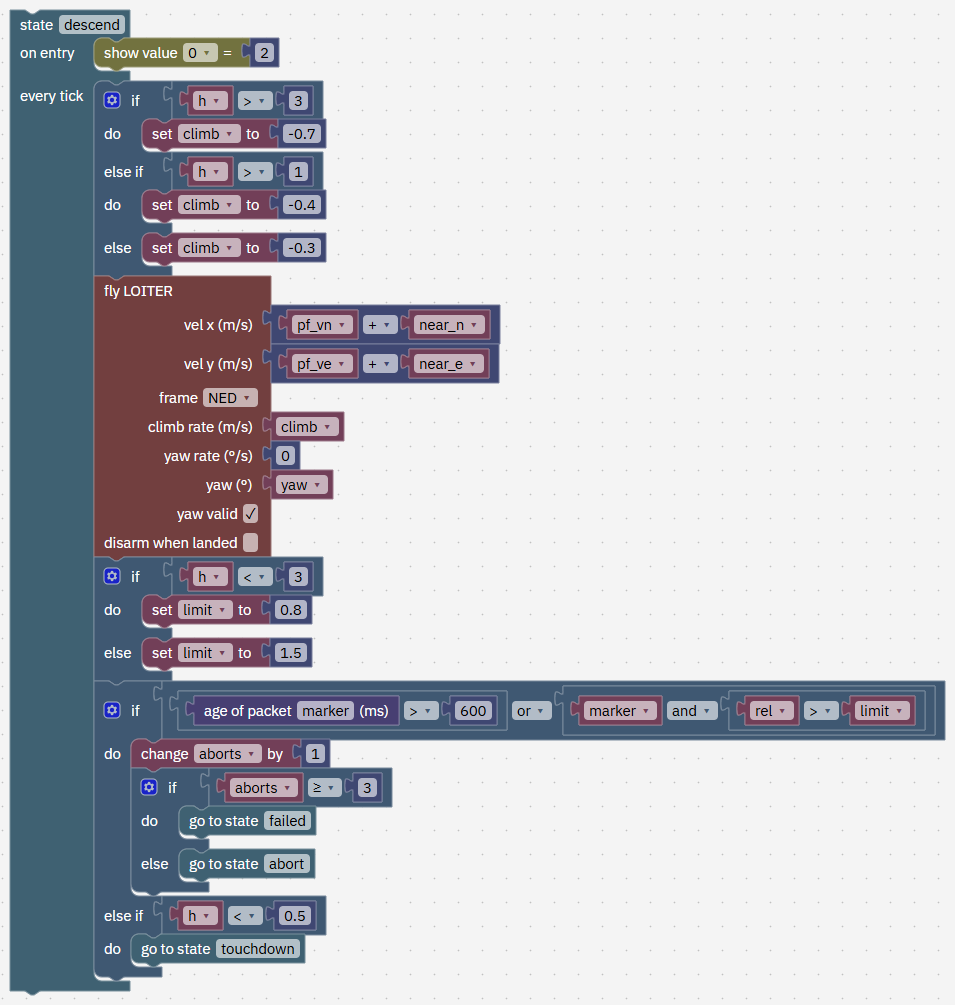
The climb rate steps from -0.7 to -0.4 to -0.3 m/s as the deck gets closer. The drone keeps the truck's velocity plus near steering. Two checks stop a bad descent: no marker packet for more than 600 ms (age of packet marker > 600), or the camera says the drone is too far off (more than 1.5 m above 3 m, more than 0.8 m below 3 m).
The limit tightens low down because the deck here is 2.0 m by 1.5 m, so 0.8 m off is at its edge. Only an offset the camera measured can stop the descent; a GPS offset is too rough and would stop landings that were fine.
On a stop it adds 1 to aborts (change aborts by 1) and goes to failed if that makes 3, otherwise to abort. If all is well it goes to touchdown below 0.5 m.
- Find state descend and its three climb rates.
It worked when You can say the three climb rates and the two checks that stop a descent.
-
Read block 9: states touchdown and done 2 min
In Studio: FORGE
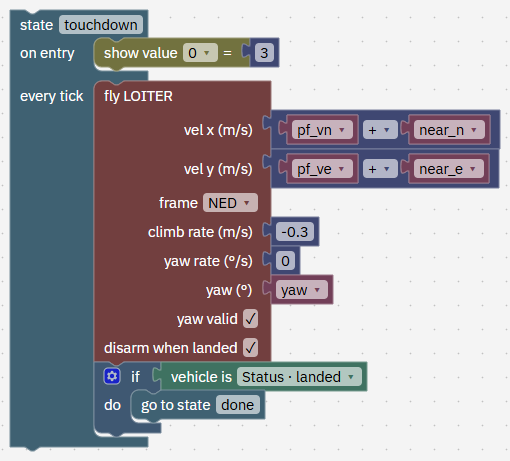
Below 0.5 m the camera is too close to see the marker well, so the drone commits: it matches the truck's speed and keeps coming down at 0.3 m/s. Near steering falls to zero as the marker leaves the view, and GPS is never used this low (it would tip the drone off the deck). disarm when landed lets the flight controller stop the motors once it is sure the drone has landed: it waits until the drone has rested on the deck for about 5 s.
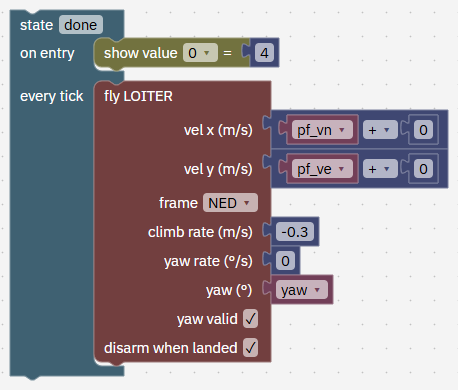
done asks only for the truck's velocity and a gentle -0.3 m/s, with no steering at all, until the motors stop. In our run the motors stopped about 7 s after the drone touched the deck.
- Find states touchdown and done.
It worked when You can say why touchdown ticks disarm when landed.
-
Read the done state 1 min
In Studio: FORGE
The whole state is one fly LOITER block: the truck's velocity, no steering, -0.3 m/s down and disarm when landed ticked.
- Find state done.
It worked when You have found state done.
-
Read block 10: states abort and failed 2 min
In Studio: FORGE
abort climbs at 1.5 m/s while following the truck with far steering, which works whether or not the camera sees the marker. While the marker is lost, the height comes from the deck height learned earlier. Above 7.5 m it goes back to track, which brings it to 8 m and checks it is centred again before another try.
- Find state abort.
It worked when You can say where abort goes next and when.
-
Read the failed state 1 min
In Studio: FORGE
failed ends the program. The flight controller holds the drone in LOITER where it is. It doesn't climb first, so this can happen a few metres above the deck. aborts is never reset, so one flight gets three tries in total.
- Find state failed.
It worked when You can say who flies the drone after failed.
-
Fly it in the quick simulation 3 min
In Studio: FORGE › Test flight
The quick simulation has its own truck and test deck (2 x 1.5 m), separate from the truck in the 3D world.
- Open the Test flight tab on the right of the editor.
- Set Scenario to Landing platform (truck) at 5 m/s and Drone that flies to QC-02, Studio's example drone. Leave the platform speed, wind and run number boxes empty.
- Press Save and fly in simulation. The first run can take up to a minute while Studio gets the test flight ready.
Type exactly
- Scenario
Landing platform (truck) at 5 m/s- Drone that flies
QC-02, Studio's example drone
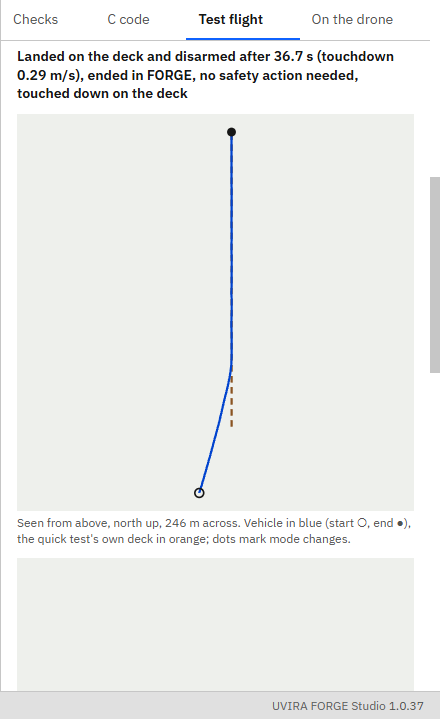
It worked when The result says landed on the deck and disarmed after about 37 s, ended in FORGE, touched down on the deck.
-
What you should see 3 min
In Studio: FORGE › Test flight
In our run: from 0 to 10.3 s it is in approach, at up to about 11 m/s. At 10.3 s the camera has the marker: track. At 14.6 s it has been centred for a second: descend. At about 29.2 s it touches the deck, and at 36.7 s the motors stop, once the flight controller is sure the drone has landed.
Test deck: touched down 0.03 m from the deck's centre, 0.29 m/s down, 0.03 m/s across, no hops. Altitude: 0.85 to 10.0 m. Most tilt in the air: about 36°, while it races to catch the truck at 11 m/s.
Plot of the shown values: value 0 steps 0, 1, 2, 3, 4 through the states. Value 2 (height above the deck) holds 8, then slopes down in three steepnesses. Value 3 (age of the marker packet) stays well under the 600 ms limit while the camera sees the marker.
Each run number has its own sensor errors and gusts, so your numbers move a little (run number 2: 36.2 s, 0.01 m from the centre). The result line ends "touched down on the deck": the drone landed on the truck.
- Read your result against these numbers.
It worked when You have found the touchdown line and the test deck line in the result.
-
On the virtual flight controller: start it 2 min
In Studio: Connect
Now the same program flown by a flight controller on your computer, as it would fly on the drone, and shown in 3D. Skip this step if the top bar already says Connected and Simulation. The truck in the simulated world starts driving when the drone is armed, so it is near when you take off.
- Press Connect, then Start the virtual flight controller.
- If Fly says it needs a place first, go to Simulate › Where it flies, type the latitude and longitude below (or your own place) and press Apply.
Type exactly
- Home latitude, °
12.9716- Home longitude, °
77.5946
It worked when The top bar says Connected and Simulation, and Fly no longer asks for a place.
-
Check the camera on the drone 2 min
In Studio: Simulate › Actors
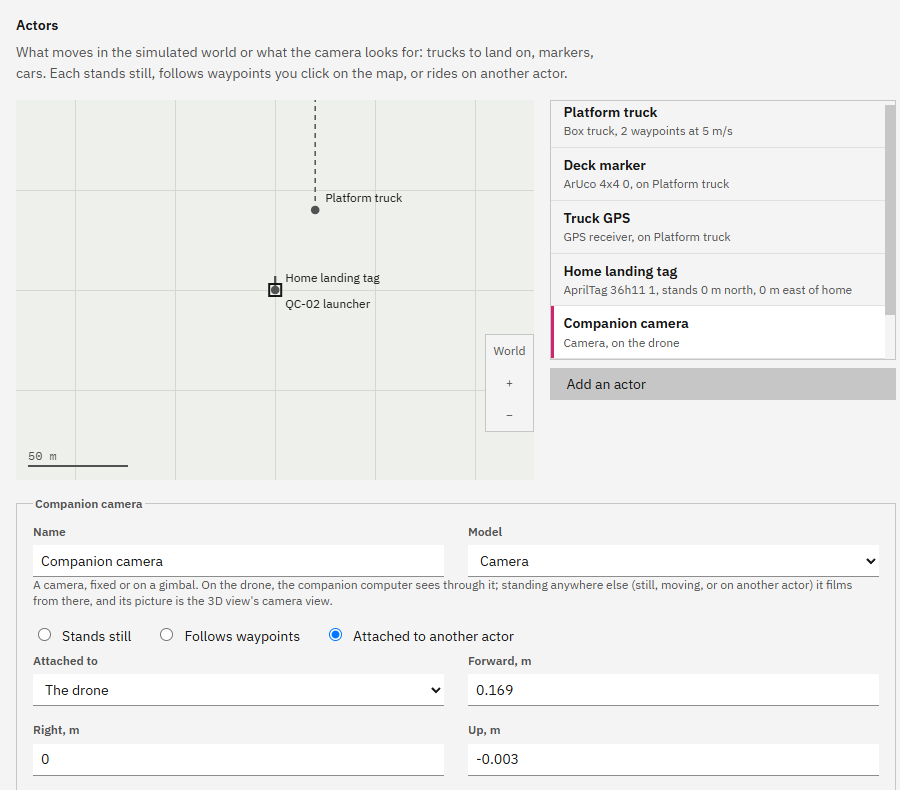
The landing needs the camera on the drone to see the marker. It is there from the start: Simulate › Actors lists the Platform truck, its Deck marker, Truck GPS and the Companion camera, whose Attached to says The drone. The program brings them with it: if one is missing, FORGE › Checks says so and adds it back with one button.
There is nothing to switch on: in Simulation mode Studio sends the program exactly the packets its companion link and ground link describe, from the actors their "from" blocks name.
- Open Simulate › Actors and choose Companion camera in the list.
- If you removed it: add a camera (Add an actor), set Attached to another actor, Attached to The drone, and the values below, then press Save actors.
Type exactly
- Forward, m
0.169- Right, m
0- Up, m
-0.003- Pitch, ° (nose up +)
-125
It worked when Simulate › Actors shows Companion camera, attached to the drone.
-
Upload the program 2 min
In Studio: FORGE
If an earlier flight ended with the drone somewhere else (on the truck, or tipped over after a landing), press Restart the simulation on Fly first: it puts the drone back on its cradle. Then upload. After a restart the program must be uploaded again: until it is, it does not receive the truck's GPS or the camera, and the drone would only hover.
- If the drone is not on its cradle, press Restart the simulation on Fly and wait a few seconds.
- In FORGE, with the program open, press Upload to the drone at the top right and wait for Uploaded "land_on_the_truck" with its blocks. (In Studio 1.0.0 the button is in the Board tab.)
It worked when FORGE › On the drone says On the drone: "land_on_the_truck", the same as the editor.
-
Take off 2 min
In Studio: Fly
The truck starts driving when you arm, so don't wait long between arming and FORGE.
- On Fly, press LOITER, then press and hold Hold to arm until it arms.
- Set Take off to, m to 10 and press Take off.
Type exactly
- Take off to, m
10
It worked when Fly says Armed and the altitude reads about 10 m.
-
Run the program 3 min
In Studio: Fly
Any other mode button takes control back at once.
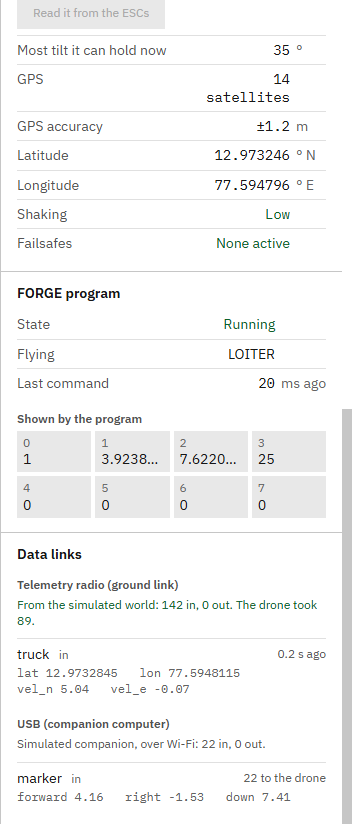
While it flies, Fly › Data links shows both packets arriving: truck over the telemetry radio and marker from the companion computer, with their newest values. After it lands, Fly may say the drone is tipped over: it rode off the end of the truck in the simulated world. Restart the simulation before the next flight.
- Once it hovers (about 5 seconds), press FORGE and watch the 3D tab.
- It catches the marker about 19 seconds later, starts down at about 24 s and touches the truck's deck (about 3 m above home) at about 38 s, a few centimetres from the marker, then rides with the truck until the motors stop, about 7 s later.
It worked when The drone has disarmed on the truck's deck, about 3 m above home, and shown value 0 reads 4.
-
Make it harder 6 min
In Studio: FORGE › Test flight
Pick another scenario in the Test flight tab and fly the same program. Nothing in it changes.
Truck at 5 m/s, 3 m/s crosswind with gusts. Our run: motors stop at 36.6 s; 0.03 m from the centre, 0.30 m/s down. The program never mentions wind. LOITER flies the velocity you ask for over the ground, so the drone leans into the wind by itself, and the 1 s centring check stops a gust from starting a descent off centre.
Truck turning 3 °/s. Our run: motors stop at 36.9 s; 0.08 m from the centre. yaw comes from the truck's velocity every tick, so the nose follows the turn; the camera's near steering does more work because GPS lags the turn.
The camera loses the marker for 1.5 s. Our run: abort at 19.7 s, back above 7.5 m and in track at 22.7 s, descends again at 25.6 s; motors stop at 47.6 s; value 4 ends at 1. The companion sends no marker packet while the camera is blind, so this is the age of packet marker > 600 check, the abort state and the retry through track.
The pilot takes over after 20 s. The drone leaves FORGE and holds in LOITER. The pilot always wins over a program.
The same program also lands on a truck at 6, 8 and 9 m/s in our tests: type the speed in Platform speed, m/s.
- Choose each scenario in Scenario, press Save and fly in simulation, and compare.
It worked when You have flown at least one harder scenario and compared it.
-
More changes to try 10 min
In Studio: FORGE › Test flight
Guess first, then fly and compare.
A slower first stage (easy). In descend change -0.7 to -0.5 and fly the crosswind scenario. Then try -1.5. Does the touchdown get harder? What you should see: at -0.5 the descent takes about 3 s longer (motors stop at 39.5 s instead of 36.6 s). At -1.5 the descent drops from about 13.5 s to 9 s. Both times the touchdown stays about 0.3 m/s: the last metre sets the touchdown, the first stage doesn't.
A harder touchdown (easy). Change -0.3 to -0.8 in descend's else and in touchdown's LOITER block. Put them back afterwards. What you should see: Last touchdown reads about 0.81 m/s instead of 0.29.
The retry limit (medium). In descend change aborts ≥ 3 to aborts ≥ 1 and fly the marker-loss scenario. What you should see: at 19.7 s it goes straight to failed. The result shows left FORGE: program handed control back, it ends in LOITER and never touches the deck: the drone hovers while the truck drives away.
More patience with the camera (medium). Put the limit back to 3 and change age of packet marker > 600 to 2000. Fly the marker-loss scenario again. What you should see: it no longer aborts and its motors stop at 35.8 s instead of 47.6 s. Think about why that is risky: for 1.5 s it flew blind, following only the truck's speed. Fine on a straight road, but what if the truck swerved?
When the camera takes over (harder). Open the plot of the shown values of a normal run and find when value 3 (age of the marker packet) first drops. Then change rel < 4 in approach to 6. What you should see: value 3 drops from "never seen" to about 30 ms at about 8.8 s, and value 0 changes from 0 to 1 at 10.3 s, when value 1 (distance) passes 4 m. With 6, track starts at 9.6 s, but the landing ends at about the same time, because centring takes longer from further out.
Another source (harder). In the companion serial link, change the from list of one of its variables to another value and fly again. The simulation sends that value instead: the program receives exactly what the packet describes, as the real drone would.
- Make one change, fly the scenario it names, compare, and put it back.
It worked when You have tried at least one change and compared the result.
-
On the real drone 6 min
In Studio: FORGE › Checks
Nothing in the program changes. What you need around it: a camera computer on the drone that finds the marker and sends the marker packet to the flight controller's USB port, a computer on the truck that reads its GPS and sends the truck packet (a GPS module alone gives position, not velocity north and east, so a small computer works them out), and FORGE Studio with the drone paired, passing the truck packet on (Setup › Connection › Ground link).
The camera computer sends forward, right and down from the camera to the marker as if the camera were level and its forward pointed where the drone's nose points, so it takes out the drone's tilt itself. It sends the packet only while it sees the marker, and sends nothing when it does not: the program's age of packet marker check then does its job. FORGE › Checks › Export the byte layout and code gives every byte of both packets as a PDF, and a Python module and a C header that make and read them, for whoever writes the two programs.
The marker in the simulation is a printed square marker, ArUco 4x4 number 0, 1 m across: Simulate › Actors › Deck marker shows it. Use the same on your deck, or change the camera computer to yours.
Fly it in steps: first on a parked truck, then at walking pace, then faster. Nobody stands on or beside the deck. The pilot keeps the radio in hand: moving the mode switch, or the FORGE override switch (Setup › Radio), takes control back at once. Remember that approach chases the truck at up to about 11 m/s at 8 m.
- In FORGE › Checks, find Export the byte layout and code.
- In Simulate › Actors, open Deck marker and read which marker it is.
It worked when You can say what runs on the drone, what runs on the truck, and how they will test it before a full-speed landing.
-
Common mistakes 3 min
In Studio: FORGE
Treating climb rate as "down is positive". A climb rate of +0.7 in descend goes up, and the drone never reaches the deck. Use -0.7 to go down.
Steering on GPS near the deck. GPS is good to about 0.7 m and the deck is 1.5 m wide. Keep the "if not marker: near = 0" blocks.
Steering towards the deck without the truck's velocity. Without pf_vn and pf_ve the drone always lags behind a moving truck. Ask for the truck's velocity plus the correction.
Starting down after one good frame. The 1 s on the clock (centred_since) is what makes the descent start reliably. Take it out and a single lucky frame starts the descent off centre.
Retrying for ever, or forgetting "disarm when landed". Without a limit the drone keeps flying low over the truck. Without the tick the motors keep running on the deck.
It worked when You have read the mistakes.
-
Check yourself 3 min
1. Why does the drone ask for the truck's velocity plus a correction instead of flying to the truck? Answer: the deck never stays at a point. Matching its velocity keeps the drone moving with it, and the correction only closes the gap.
2. At 2 m above the deck, how fast does it come down, and how far off the marker can it be before it aborts? Answer: 0.4 m/s down. It aborts if the camera sees it more than 0.8 m off (below 3 m the limit is 0.8 m).
3. The camera loses the marker for 1.5 s during the descent. What happens? Answer: after 0.6 s it aborts and adds 1 to aborts, climbs at 1.5 m/s to above 7.5 m, centres again in track for 1 s and tries again.
4. What happens on the third abort, and who flies the drone then? Answer: it goes to failed and hands control back. The flight controller holds the drone in LOITER, the truck drives away, and the pilot decides what to do. FORGE has to be chosen again to restart the program.
- Answer each question before you read the answer.
It worked when You have answered the four questions.
-
Try it yourself: a slower truck, a quicker descent 8 min
Your turn: try it on your own first. Your AI app gives hints if you ask.
In Studio: FORGE › Test flight
The truck now drives at 4 m/s. Fly the program as it is first, then change it so the first stage of the descent (above 3 m) comes down at 1.0 m/s instead of 0.7. Check that the touchdown stays gentle.
Hint: the first stage is the -0.7 in state descend. Leave the -0.4 and -0.3 alone: the last metre sets the touchdown.
- In the Test flight tab choose Landing platform (truck) at 5 m/s and type 4 in Platform speed, m/s. Press Save and fly in simulation and note when the motors stop.
- Change -0.7 to -1 in descend and fly again.
- What you should see: unchanged, the motors stop at about 30.2 s; with -1 at about 27.9 s. Both land on the deck with a touchdown of about 0.3 m/s and no hops.
Type exactly
- Platform speed, m/s
4- descend, first climb rate
-1
It worked when In the editor, descend's first climb rate is -1 and its -0.4 and -0.3 are unchanged. With Platform speed 4, the result says touched down on the deck, with a touchdown under 0.4 m/s, no hops, and the motors stop sooner than with the unchanged program.
Next on the Path
Next lesson, about 1 hour 15 minutesFly a loopBy the end you can command attitude and throttle with fly STABILISE, time states, follow an angle round a circle, build a rescue path, switch the J4 payload output, and size a bigger loop yourself.What you prove here flies the real drone: See the flight controller