What You Will Learn
- Start a program from an empty one and name its states.
- Make variables and store where the drone started.
- Work out a point straight ahead of the nose with cos and sin.
- Turn the nose a little more every tick with seconds in this state.
- Check, fly and judge a program you wrote yourself.
Ideas First
The plan
Five states, one after another: up climbs to 10 m over the spot where FORGE started; out flies 30 m the way the nose pointed; look turns the nose a full circle at 20° a second (18 s) while holding that spot; back flies home to the start, nose first; land lands.
Each state shows its number in shown value 0 (0 for up to 4 for land), so you and your AI can see which state is flying. out and back also show the distance left in shown value 1.
A point straight ahead
"30 m forward" depends on where the nose points. With the heading h0 in degrees (0 north, 90 east), a point 30 m ahead is 30 × cos(h0) metres north and 30 × sin(h0) metres east of where you are. Facing north, cos is 1 and sin is 0: 30 m north. Facing east, cos is 0 and sin is 1: 30 m east. The loop lesson used the same idea with ch0 and sh0.
A heading that keeps growing
seconds in this state starts at 0 when a state starts and counts up. A yaw of h0 + 20 × seconds in this state points the nose 20° further round every second. After 18 s that is 360°: one full turn, back to where it began. Any angle works as a heading: 370 is the same as 10.
Step by Step
-
Start from an empty program 2 min
Your turn: try it on your own first. Your AI app gives hints if you ask.
In Studio: FORGE
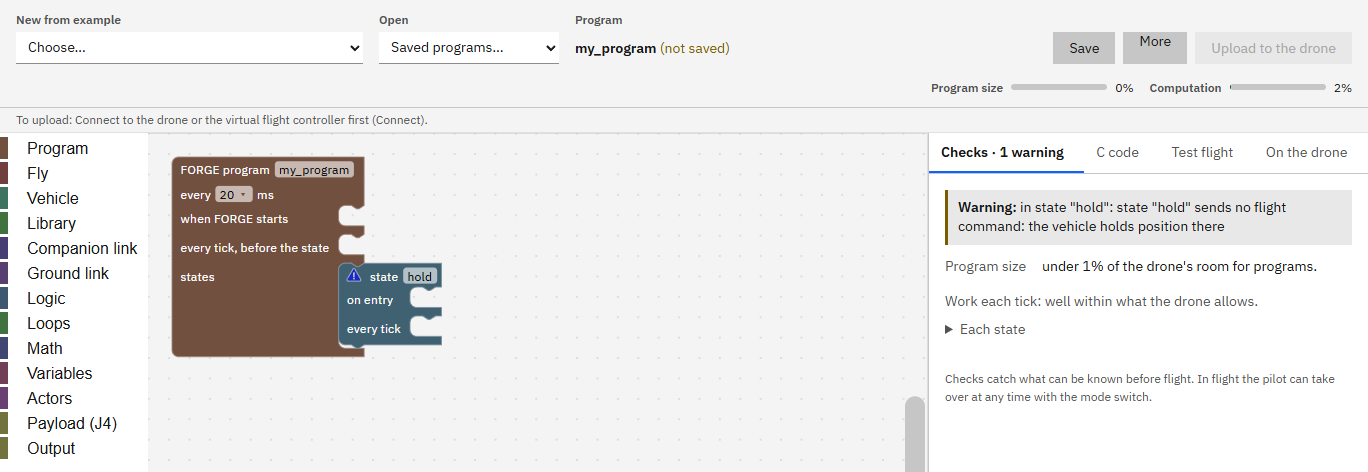
An empty program has the program block and one state, called hold, that holds the drone where it is. Checks warns that hold sends no flight command; that goes away once the state flies something.
- In FORGE, open New from example and choose Empty program (if Studio asks Start a new program?, press Start new, lose the changes or save first).
- Click the name my_program in the program block and type look_around.
- Click the state's name hold and type up.
Type exactly
- Start from
Empty program- FORGE program
look_around- state
up
It worked when The program block says look_around and its one state is called up.
-
Make the variables 2 min
Your turn: try it on your own first. Your AI app gives hints if you ask.
In Studio: FORGE
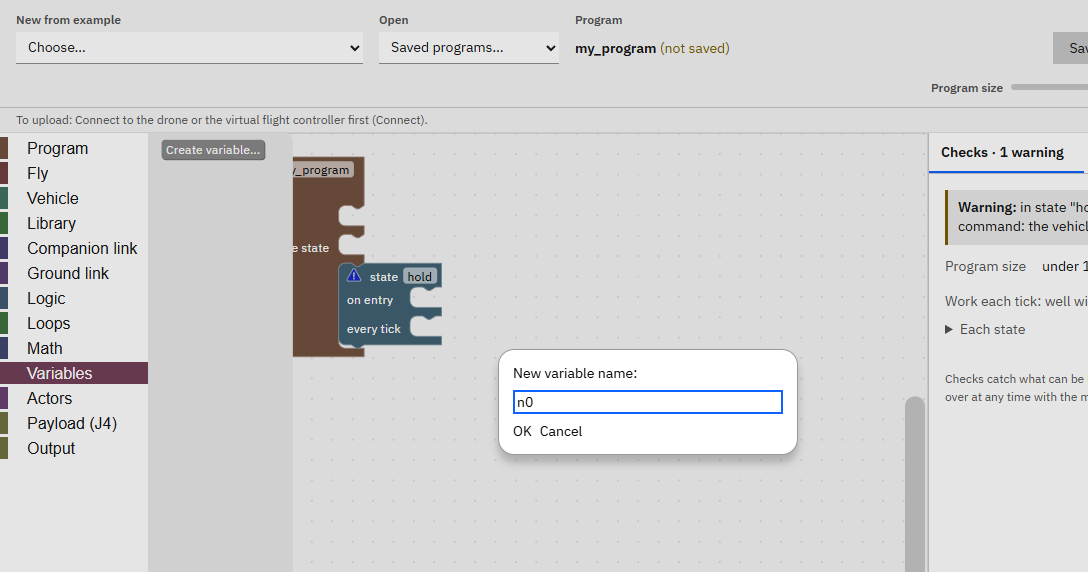
Six named boxes for numbers: n0, e0 and h0 remember where the drone was and where it pointed; fn and fe hold the point 30 m ahead; d holds the distance left.
- Click Variables in the block list, press Create variable..., type a name and press OK. Do it six times.
Type exactly
- New variable name
n0, e0, h0, fn, fe, d
It worked when The Variables list shows n0, e0, h0, fn, fe and d.
-
Remember where it started 4 min
Your turn: try it on your own first. Your AI app gives hints if you ask.
In Studio: FORGE
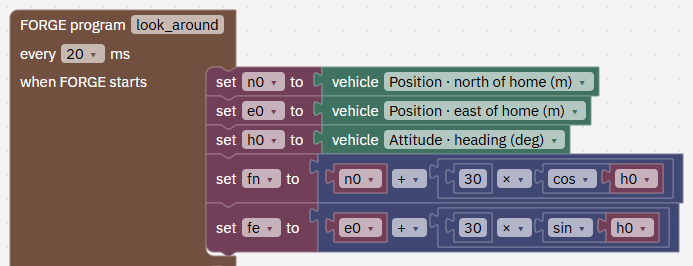
Five set blocks in when FORGE starts: they run once, when FORGE takes over.
- From Variables, drag a set ... to block into when FORGE starts. Choose n0 in its list and attach a vehicle block from Vehicle, set to Position · north of home (m).
- Under it: set e0 to Position · east of home (m), and set h0 to Attitude · heading (deg).
- Then set fn to n0 + 30 × cos(h0), and set fe to e0 + 30 × sin(h0). The + block is in Math (its list also has ×), and so is sin (its list also has cos). Numbers are the 0 block in Math: click it to type.
Type exactly
- n0
vehicle Position · north of home (m)- e0
vehicle Position · east of home (m)- h0
vehicle Attitude · heading (deg)- fn
n0 + 30 × cos(h0)- fe
e0 + 30 × sin(h0)
It worked when when FORGE starts holds the five set blocks as in the picture: n0, e0 and h0 from the vehicle, fn and fe with 30, cos and sin of h0.
-
State up: climb to 10 m 3 min
Your turn: try it on your own first. Your AI app gives hints if you ask.
In Studio: FORGE
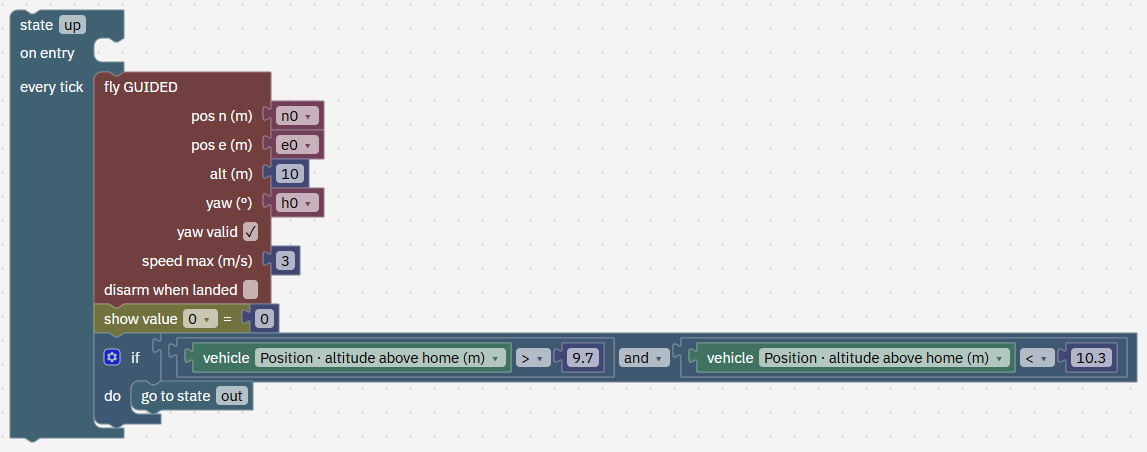
fly GUIDED over the start point at 10 m. When the height is between 9.7 and 10.3 m, the program goes on to out.
- From Fly, drag fly GUIDED into up's every tick. It comes with numbers: put the variable n0 in pos n, e0 in pos e, keep 10 in alt, put h0 in yaw, keep yaw valid ticked and set speed max to 3.
- From Output, add show value 0 = 0.
- From Logic, add an if. In it put an and block with two compare blocks (the = block, its list has < and >): vehicle Position · altitude above home (m) > 9.7, and the same < 10.3. In do, put go to state (from Program) and type out.
Type exactly
- pos n, pos e, alt, yaw, speed max
n0, e0, 10, h0, 3- show value 0
0- if
altitude > 9.7 and altitude < 10.3, go to state out
It worked when State up has fly GUIDED to n0, e0 at 10 m, yaw h0, speed max 3, value 0 = 0, and the if that goes to out. Checks may still say there is no state called "out"; that goes away in the next step.
-
State out: fly 30 m ahead 4 min
Your turn: try it on your own first. Your AI app gives hints if you ask.
In Studio: FORGE
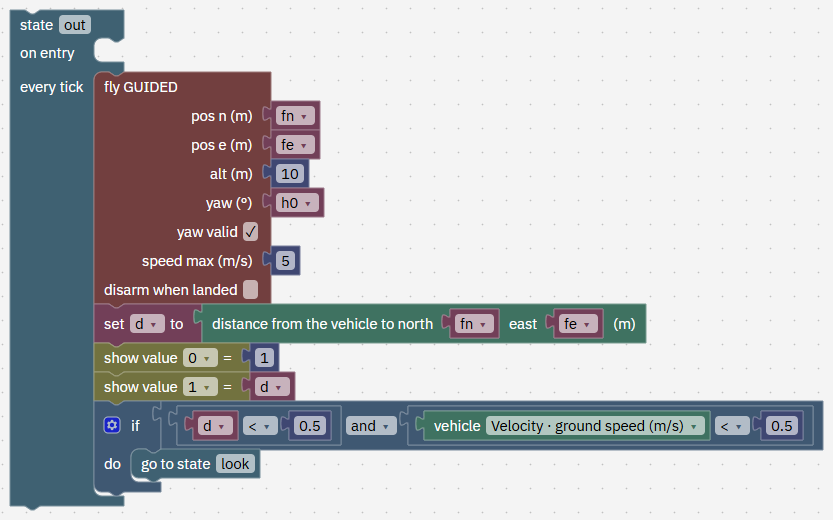
The same arrival check as the square: close to the point and almost stopped.
- From Program, drag a state block under up and name it out.
- In its every tick: fly GUIDED to fn, fe, alt 10, yaw h0, speed max 5.
- set d to the distance from the vehicle to north ... east ... block (in Vehicle), with fn and fe.
- show value 0 = 1 and show value 1 = d.
- if d < 0.5 and vehicle Velocity · ground speed (m/s) < 0.5, go to state look.
Type exactly
- fly GUIDED
fn, fe, 10, h0, speed max 5- set d to distance to
north fn, east fe- value 0, value 1
1, d- if
d < 0.5 and ground speed < 0.5, go to state look
It worked when State out looks like the picture, and its distance block uses the same fn and fe as its fly GUIDED.
-
State look: turn all the way round 3 min
Your turn: try it on your own first. Your AI app gives hints if you ask.
In Studio: FORGE
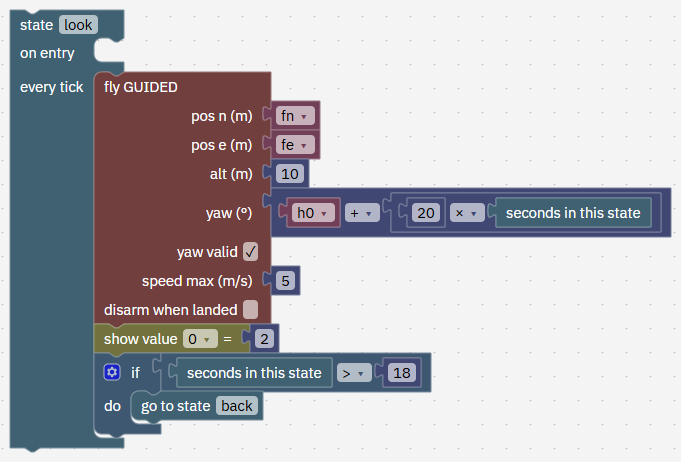
The drone stays on the point ahead while its nose turns 20° a second. After 18 s it has turned once round.
- Add a state named look under out.
- fly GUIDED to fn, fe, alt 10, speed max 5, with yaw h0 + 20 × seconds in this state (seconds in this state is in Program).
- show value 0 = 2.
- if seconds in this state > 18, go to state back.
Type exactly
- yaw
h0 + 20 × seconds in this state- if
seconds in this state > 18, go to state back
It worked when State look looks like the picture: yaw h0 + 20 × seconds in this state, and it goes to back after 18 s.
-
State back: come home, nose first 2 min
Your turn: try it on your own first. Your AI app gives hints if you ask.
In Studio: FORGE
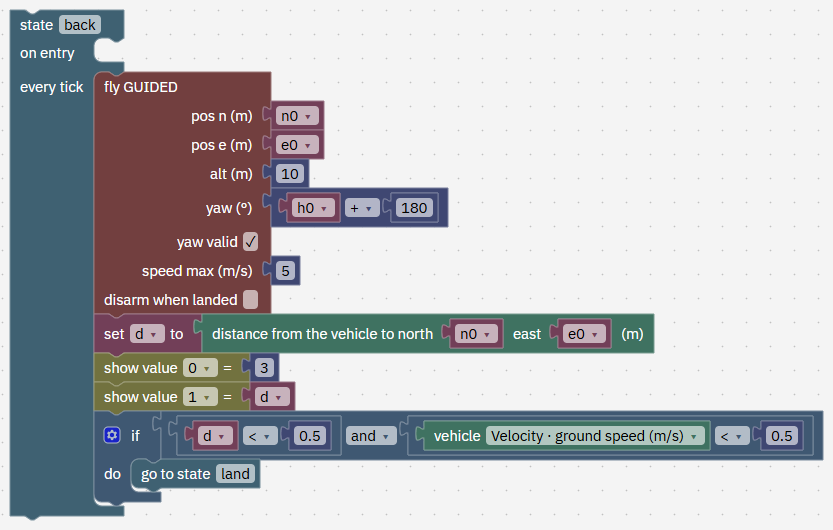
back is out turned round: the point is the start (n0, e0) and the nose points the other way, h0 + 180.
Tip: right-click state out and choose Duplicate to copy it, then change the copy.
- Add a state named back under look: fly GUIDED to n0, e0, alt 10, yaw h0 + 180, speed max 5.
- set d to the distance to north n0, east e0; show value 0 = 3 and show value 1 = d.
- if d < 0.5 and ground speed < 0.5, go to state land.
Type exactly
- fly GUIDED
n0, e0, 10, h0 + 180, speed max 5- if
d < 0.5 and ground speed < 0.5, go to state land
It worked when State back looks like the picture.
-
State land 1 min
Your turn: try it on your own first. Your AI app gives hints if you ask.
In Studio: FORGE
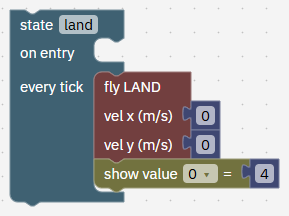
fly LAND comes straight down and stops the motors on the ground by itself.
- Add a state named land with fly LAND (vel x 0, vel y 0) and show value 0 = 4.
It worked when State land has fly LAND with 0 and 0, and value 0 = 4.
-
Check it 1 min
In Studio: FORGE › Checks
If you are stuck, the finished program is in this lesson's files (look_around.forge.json): save it in Documents › UVIRA FORGE Studio › Programs and open it under Open, or compare it with yours.
- Open the Checks tab. Fix anything it lists: a misspelt state name shows as there is no state called "...".
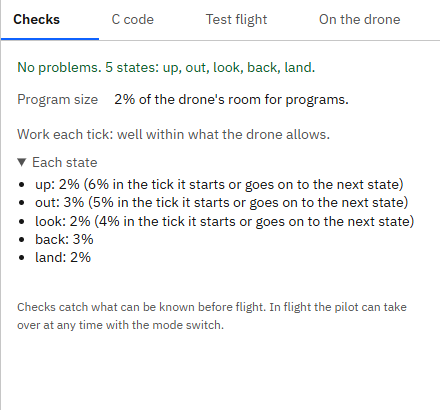
It worked when Checks says No problems. 5 states: up, out, look, back, land.
-
Fly it in the quick simulation 2 min
In Studio: FORGE › Test flight
Start it low, so you see your up state climb.
- Open the Test flight tab, keep From a hover at 10 m, no landing platform, type 3 in FORGE starts at a height of, m and press Save and fly in simulation.
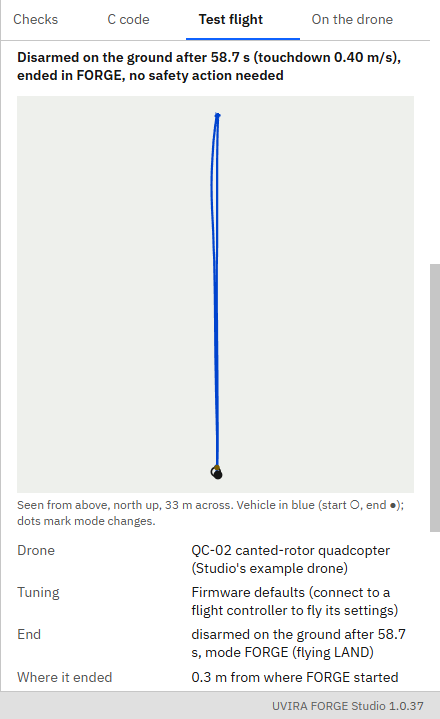
- What you should see: disarmed on the ground after about 59 s, ended in FORGE, no safety action needed; it ends about 0.3 m from where FORGE started; altitude up to about 10 m; fastest about 5.4 m/s; value 1 up to about 30. The track from above is a straight line out and back.
Type exactly
- FORGE starts at a height of, m
3
It worked when The result says disarmed on the ground after about 59 s, ended in FORGE, and it ended within a metre of where FORGE started; the graph of the shown values shows value 0 stepping 0, 1, 2, 3, 4, with about 18 s on 2.
-
Fly it on the virtual flight controller 4 min
In Studio: Fly
The same steps as in the earlier lessons. If Fly shows Restart the simulation, press it first.
- In FORGE, press Upload to the drone.
- On Fly, press LOITER, hold Hold to arm, set Take off to, m to 3 and press Take off.
- Press FORGE and watch: it climbs to 10 m, flies 30 m ahead, turns once round in 18 s, flies back nose first and lands about 59 s after you pressed FORGE, within about half a metre of where it started.
Type exactly
- Take off to, m
3
It worked when The drone has landed and disarmed within about a metre of where FORGE started, and shown value 0 reads 4.
Next on the Path
Next lesson, about 1 hour 10 minutesThe math model of a drone, with the QC-02By the end you know which numbers make up a drone's math model, how to measure or look up each one for your own drone, how to check that Studio's hover numbers make sense, and how to send the model to the flight controller and fly it in the simulation.What you prove here flies the real drone: See the flight controller