What You Will Learn
- What a math model is, and why the simulation needs one
- Mechanical: mass, centre of gravity, motor positions and inertia, with the QC-02's values
- Propulsion: motor KV, resistance and no-load current, the propeller's thrust and power numbers, a thrust stand test, the battery
- How to read Studio's hover numbers (throttle, current, flight time, thrust to weight) and check them with simple sums
- Aero: the aerospace axes, drag areas for a simple model, and an aero table from a wind tunnel or a computer flow simulation (CFD)
- Sending the model to the flight controller, flying it in the simulation and comparing it with the real drone
- The list of what to gather for your own drone
Ideas First
A math model is a list of numbers
The simulation has no drone to look at, so it works from numbers. It has to know how heavy the drone is, how hard it is to turn, how much each propeller pushes at each speed, how fast the battery runs down, and how the air pushes on the body as it flies. Together these numbers are the drone's math model.
Each number in Setup › Drone has a source next to it: measured, data sheet, design tool, estimated or typical value. Where you leave a box empty, Studio writes estimated beside it and says how it worked the number out. One guessed number can spoil an otherwise measured model, so look at the source as well as the value.
Force, weight and moment
Forces are in newtons (N). One kilogram weighs about 9.8 N, so the QC-02 at 2.98 kg weighs 29.2 N. Its four propellers together must push 29.2 N up just to hover.
A moment is a turning push: a force times its distance from the centre. A 1 N push held 0.1 m from the centre turns the drone with 0.1 N·m. Studio's moments are about the centre of gravity, and they are positive when they roll the right side down, pitch the nose up or yaw the nose to the right.
Inertia: how hard it is to start turning
Mass says how hard the drone is to push along. Inertia says how hard it is to start turning, and it is different for each axis. Weight far from the middle adds much more inertia than weight close to it, because it counts with its distance squared. That is why heavy motors on long arms make a drone slower to roll and pitch.
Inertia is in kg·m². The QC-02's numbers are around 0.03 to 0.04 kg·m².
The thrust and power numbers of a propeller
A propeller's thrust grows with the square of its speed and with its diameter to the fourth power. The thrust number (CT) is what is left once speed and size are taken out, so one number describes the propeller at any speed. The power number (CP) does the same for the power it takes to turn it.
One sum is worth knowing: thrust = CT × air density × (revolutions per second)² × diameter⁴, with the diameter in metres. The QC-02's propeller has CT 0.1492 and a diameter of 0.2032 m. At 9187 rpm (153.1 turns a second) and air density 1.225 kg/m³ it gives 7.3 N, which is a quarter of the QC-02's weight: the hover speed Studio shows.
The aerospace axes
Studio uses the axes aircraft use. On the drone: x forward, y right, z down, with the origin at the centre of gravity. On the ground: north, east and down. Down is positive, so a motor above the centre of gravity has a minus height.
Angles follow the same rule. Pitch is positive nose up, roll positive right side down, yaw positive nose right.
Studio's drone axes are taken with the drone in its hover attitude, the way it sits while hovering with its propellers facing straight up. For a flat quad that is simply level. The QC-02's motors lean 35° on its body, so it hovers with its body 35° nose up, and its axes are taken in that pose.
Coefficients: air forces without the speed
The air's push grows with the square of the airspeed. Studio writes it as a coefficient times q times a reference area, where q = air density × speed² ÷ 2. At 20 m/s, q is 245 N/m².
A coefficient has no unit. The QC-02's table uses a reference area of 0.016 m², about the drone seen from the front, and a reference length of 0.578 m for the turning effects. A drag coefficient of 0.833 then means 0.833 × 245 × 0.016 = 3.3 N of drag at 20 m/s.
Step by Step
-
Open the QC-02 in Setup › Drone 5 min
In Studio: Setup › Drone
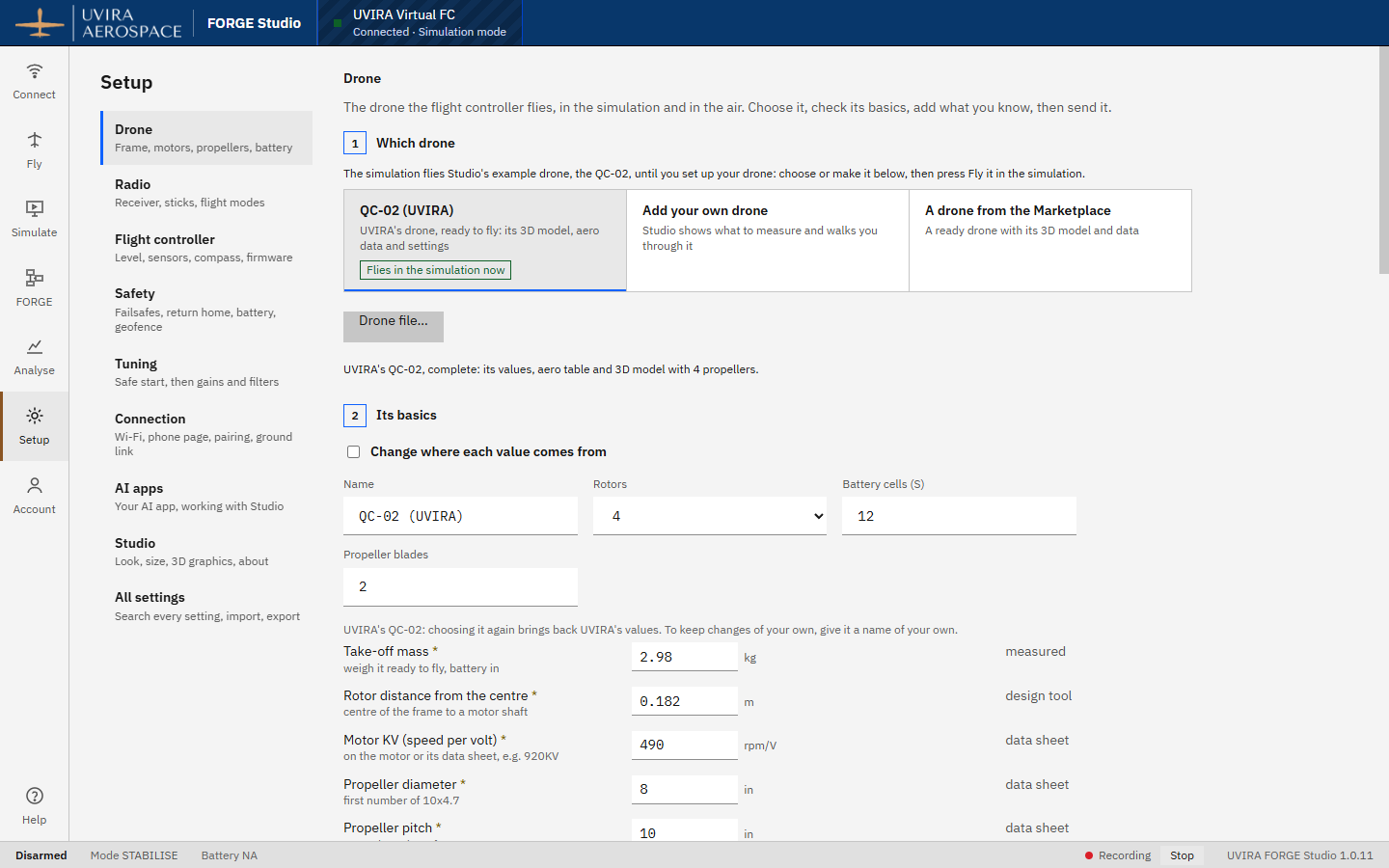
Setup › Drone is where a drone's math model lives. It has four steps: 1 Which drone, 2 Its basics, 3 More about it and 4 Fly it. This lesson walks down the same page with UVIRA's QC-02, a quadcopter whose four motors lean 35° on its body.
Choosing the QC-02 fills in every value from UVIRA's own data: what was weighed, what came from the part makers' data sheets, what came from its design files, and its aero table.
- Press Setup on the left, then Drone.
- Under 1 Which drone, press QC-02 (UVIRA).
- Read the line under the cards: UVIRA's QC-02, complete: its values, aero table and 3D model with 4 propellers.
It worked when The message reads UVIRA's QC-02, complete, and the Name box in step 2 says QC-02 (UVIRA).
-
Mechanical: mass and the centre of gravity 5 min
In Studio: Setup › Drone › Weights and balance
The first number is the take-off mass: the drone ready to fly, battery in, on a scale. The QC-02 weighs 2.98 kg. Its design file said 2.919 kg; the extra 61 g is wiring, screws and glue the design never had. Always weigh the real drone.
The centre of gravity is the balance point, where all the weight seems to act. Studio measures every position from it. On the QC-02 it sits behind the middle of the motors: the front motors are 12.0 cm ahead of it and the back motors 8.7 cm behind. So the back motors carry more of the weight, about 58 %, and turn a little faster to hold a hover.
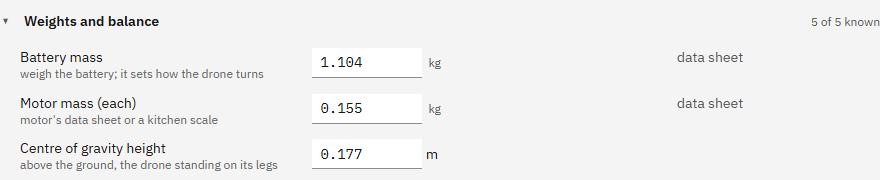
Weights and balance adds the heavy parts. The QC-02's battery (two packs) is 1.104 kg and each motor 0.155 kg, both from the data sheets. Its Centre of gravity height is 0.177 m: the balance point's height above the ground when it rests on its tail in the hover attitude. The simulation starts the drone there.
- In 2 Its basics, find Take-off mass: 2.98 kg, marked measured.
- Under 3 More about it, open Weights and balance.
- Read Battery mass, Motor mass (each) and Centre of gravity height.
It worked when Weights and balance is open and shows Battery mass 1.104, Motor mass 0.155 and Centre of gravity height 0.177.
-
Mechanical: where the motors are, and which way they spin 5 min
In Studio: Setup › Drone › Weights and balance
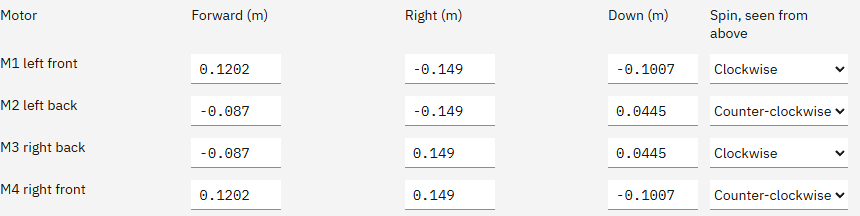
Motor positions gives each propeller's middle from the centre of gravity, in metres, with the drone as it hovers: forward, right and down. The motors are in the flight controller's order: M1 left front, M2 left back, M3 right back, M4 right front.
The QC-02's front motors are at forward 0.1202 m and its back motors at minus 0.087 m; all four are 0.149 m to the side. Because the body hovers 35° nose up, the front motors end up 0.1007 m above the centre of gravity (down minus 0.1007) and the back motors 0.0445 m below it. The average distance from the centre is the Rotor distance from the centre in step 2: 0.182 m.
The spin matters as much as the place. M1 and M3 turn clockwise seen from above, M2 and M4 counter-clockwise. Each propeller twists the drone the other way as it turns, and the pairs cancel out. Get one wrong and the simulated drone spins.
You can measure these on the drone with a ruler, or read them from your design tool. For a plain X quad you can leave them empty: Studio places the motors in an X at the rotor distance.
- In Weights and balance, scroll to Motor positions.
- Find M1 left front: Forward 0.1202, Right minus 0.149, Down minus 0.1007, Clockwise.
It worked when You have found the Motor positions table and read M1's row.
-
Mechanical: inertia about each axis 5 min
In Studio: Setup › Drone › Weights and balance
Inertia from your design tool holds the drone's inertia about its three axes. The QC-02's: Ixx 0.030975 (roll), Iyy 0.03589 (pitch), Izz 0.042445 (yaw), in kg·m².
Yaw has the most, since turning flat swings all four motors around the middle. Roll has the least because the QC-02's body is long and thin along x, so its weight stays close to the roll axis. The QC-02 also has an Ixz of 0.015844. That cross term comes from the 35° nose-up hover pose: pitch the body and the mass is no longer balanced around x and z, so a roll pulls a little on yaw. A flat, symmetric quad has all three cross terms near 0.
The QC-02's values came from its design tool, with every part given its real mass, then scaled up by 2.98 ÷ 2.919 to the weighed mass. Studio does that scaling for you if you type the design tool's mass in Mass in the design tool.
No design file? Leave the boxes empty. Studio then estimates the inertia from the motors on their arms, the battery in the middle and the rest of the mass spread over the frame. That estimate is usually within 15 to 25 % of a design tool's. A swing test, with the drone hung from two strings, measures it more closely, but Studio has no calculator for it yet.
- In Weights and balance, scroll to Inertia from your design tool.
- Read Ixx, Iyy and Izz, and notice Izz is the biggest.
It worked when You can say which axis is hardest to turn (yaw, Izz 0.042445).

-
Propulsion: the motor 4 min
In Studio: Setup › Drone › Motors and propellers
Motor KV is the speed a motor tries to reach per volt with nothing on it. The QC-02's motors are 490 KV, so with no propeller on its 44.4 V battery they would spin at about 490 × 44.4 = 21,756 rpm. KV is printed on the motor or its box.
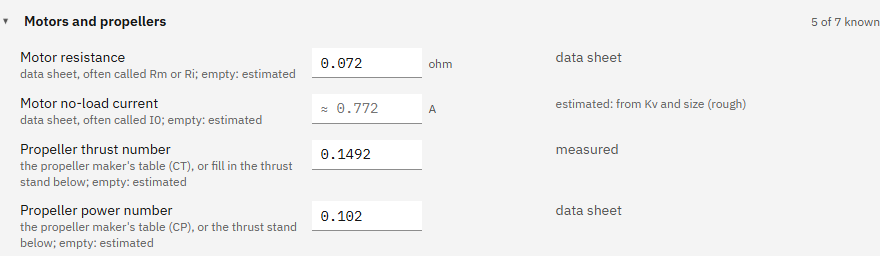
Motor resistance is the winding's resistance; the current through it turns into heat. The QC-02's is 0.072 ohm from the data sheet. Motor no-load current is the small current the motor draws spinning with no propeller. The box is empty for the QC-02, so it shows Studio's estimate, about 0.77 A, and says so beside it. The simulation does not use that estimate for the QC-02: its own file gives the motor's measured losses and response time instead.
From KV Studio also works out how much turning force each amp gives: 0.0195 N·m per amp for 490 KV. You will see it under What Studio estimates.
- Under 3 More about it, open Motors and propellers.
- Read Motor resistance and Motor no-load current, and the note beside the estimated one.
It worked when Motors and propellers is open and shows Motor resistance 0.072.
-
Propulsion: the propeller and the thrust stand 6 min
In Studio: Setup › Drone › Motors and propellers
A propeller's size is printed on it as two numbers: diameter and pitch, in inches. The QC-02's is 8 × 10: 8 inches across, and in one turn it would move 10 inches forward through the air if it slid like a screw. It has 2 blades and weighs 12 g.
The Propeller thrust number (CT) and Propeller power number (CP) describe how hard it pushes and how much power it takes. The QC-02 uses CT 0.1492 and CP 0.102. The propeller maker's table gave CT 0.157, but UVIRA's static thrust test on the real propeller measured 0.149, about 5 % less. The QC-02 therefore uses the maker's table times 0.95. Check a published table with a test of your own when you can.
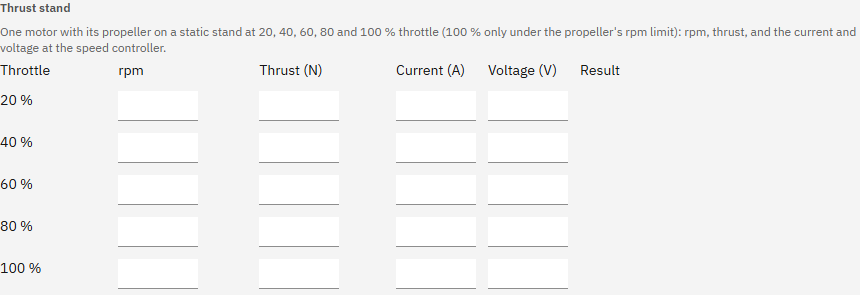
A thrust stand test is how you measure your own. Clamp one motor with its propeller on a stand that reads thrust. Run it at 20, 40, 60, 80 and 100 % throttle and note the rpm, thrust, battery current and voltage at each step. Type them into Thrust stand and Studio works out CT and CP. It also flags any row that does not make physical sense, such as an rpm above KV × voltage.
With no table and no stand, Studio estimates CT and CP from the pitch and diameter. The thrust number is then within about 13 % and the power number within about 24 %, so a stand test is worth an afternoon.
- In Motors and propellers, read Propeller thrust number and Propeller power number.
- Scroll to Thrust stand and look at its five rows. The QC-02's are empty because its numbers come from the maker's table with the measured correction.
It worked when You have found the Thrust stand table.
-
Propulsion: the battery 3 min
In Studio: Setup › Drone › Battery
The battery gives the voltage, sets how long the drone flies and sags under load. The QC-02 flies two 6-cell packs of 4000 mAh in series: Battery cells (S) 12 and Battery capacity 4 Ah. Twelve cells make 44.4 V nominal and 50.4 V full.
Battery C rating is 70 C, so the packs can give 70 × 4 = 280 A. Battery resistance (0.03 ohm for the whole pack) sets how far the voltage drops when the current rises. For the QC-02 it is UVIRA's estimate, and its source says estimated. A smart charger shows yours; with nothing typed in, Studio estimates it from the cells, the C rating and the capacity.
- In 2 Its basics, read Battery cells (S) and Battery capacity.
- Open Battery under 3 More about it and read the C rating and the resistance.
It worked when The Battery fold is open and shows Battery C rating 70.

-
What follows: the hover numbers, and how to check them 5 min
In Studio: Setup › Drone
Under 2 Its basics, Studio turns all of the above into six numbers. For the QC-02 at sea-level air: Hover throttle 44 %, Hover current 16.7 A, Hover speed 9187 rpm, Flight time (80 %) 11.5 min, Thrust to weight 3.01, Top speed 49 m/s.
Check them with simple sums. Flight time: 80 % of 4 Ah is 3.2 Ah, and 3.2 ÷ 16.7 A = 0.19 hours, 11.5 minutes. Power at hover: 16.7 A × 44.4 V, about 740 W. Thrust to weight 3.01 means full throttle pushes three times the drone's weight, about 88 N in all. Hover speed: the propeller sum under Ideas gives 7.3 N per rotor at 9187 rpm, a quarter of 29.2 N.
Studio warns you when a number is out of the healthy range: hover throttle above about 70 % leaves too little room to correct, thrust to weight below 1.6 leaves little margin to climb in wind, and hover current above half the battery's rating is too much. A number that looks wrong nearly always means a wrong entry, such as grams typed into a kilogram box.
Top speed is the fastest level flight, limited by the maximum tilt and by the motors' thrust. For the QC-02 the air's push in it comes from its aero table, the same as in the simulation, so it matches the aero viewer you will meet in the Aero steps.
Open What Studio estimates. It lists the estimates the simulation really flies with. For the QC-02 there are only two: the motor torque constant (0.0195 N·m per amp, worked out from KV) and the battery resistance (0.03 ohm, an estimate in the QC-02's own file). The line under them says what comes from the drone's own data instead: the motor's response time and losses, the propeller's measured table, the rotor inertia and the aero table. For your own drone this list shows what to measure next.
- Read the six numbers under 2 Its basics.
- Open What Studio estimates under 3 More about it and read its list.
It worked when You have checked the flight time sum (3.2 Ah ÷ 16.7 A, about 11.5 minutes).

-
Aero: the axes and the angles of the air 5 min
In Studio: Setup › Drone › Air (how the air pushes it)
The air's push depends on the direction it comes from, and two angles describe that direction. The angle of attack (α) is positive when the air comes from below the nose. The sideslip (β) is positive when the air comes from the right.
Both angles are measured on the drone's own axes in its hover attitude. For the QC-02, angle of attack 0 means air straight along x with the body 35° nose up, the way it hovers. When it flies forward it tilts up to 35° nose down, its body is then level, and in its own axes the air arrives 35° from above the nose: angle of attack minus 35°.
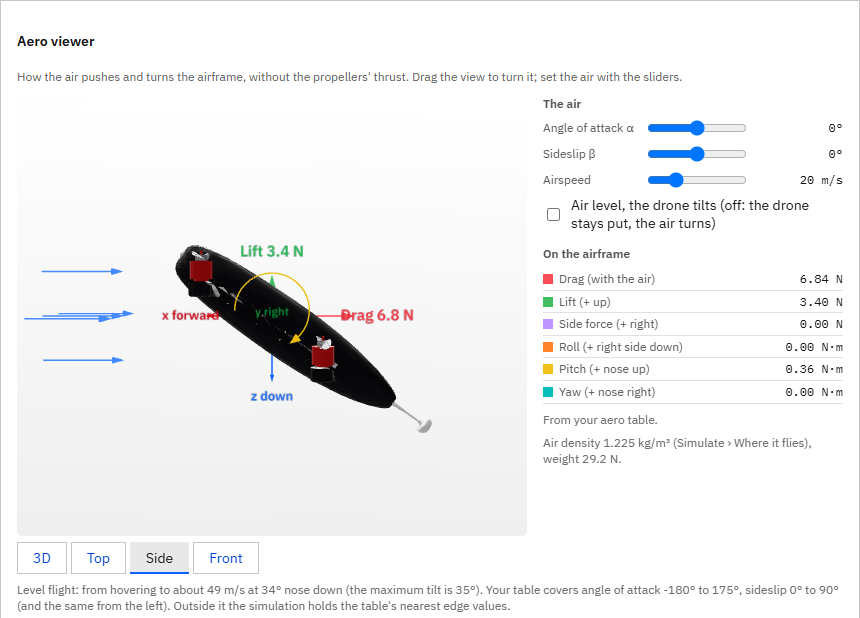
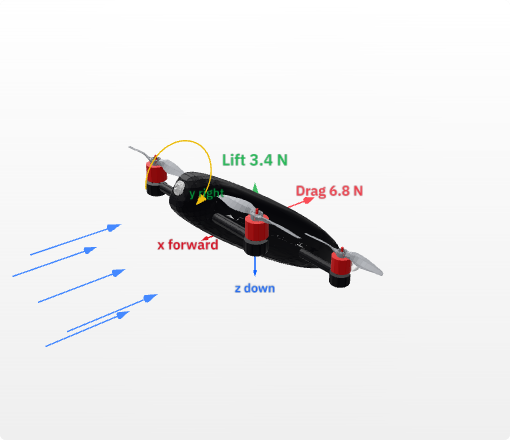
The Aero viewer draws the QC-02's 3D model with its axes (x forward, y right, z down), the air as blue arrows, and the forces and moments the air puts on it. These are the forces on the airframe only; the propellers' thrust is not in them.
- Under 3 More about it, open Air (how the air pushes it) and scroll to Aero viewer.
- Press Side. Leave the angle of attack at 0° and the airspeed at 20 m/s.
- Read On the airframe: Drag 6.84 N, Lift 3.40 N, Pitch 0.36 N·m (nose up).
Type exactly
- Angle of attack α
0- Airspeed
20
It worked when The Aero viewer shows angle of attack 0°, airspeed 20 m/s and Drag (with the air) 6.84 N.
-
Aero: the simple model, from shape and areas 3 min
In Studio: Setup › Drone › Air (how the air pushes it)
A drone with no wind tunnel data still gets a usable air model. Choose a Body shape (Boxy, Rounded or Streamlined) and give the Front area, Side area and Top area: the drone's outline seen from each side, from a design tool or a photo with a ruler in it. Studio multiplies each area by a drag coefficient for the shape and gets a drag area for each direction.
This simple model gives drag only, with no lift and no turning moments. For a first model of a typical quad that is enough.
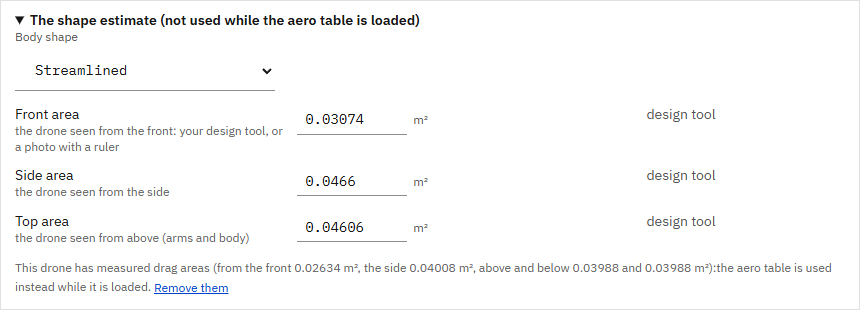
The QC-02 has an aero table, so the top of Air (how the air pushes it) says the simulation uses the table, and the shape inputs wait folded away under The shape estimate (not used while the aero table is loaded). Open it to see what a drone without a table would fill in. For the QC-02 it holds Streamlined, the areas from its design files (front 0.03074 m², side 0.0466 m², top 0.04606 m²) and a note about its measured drag areas. None of them is flown while the table is loaded.
- Open Air (how the air pushes it) and read the first line: the simulation uses this drone's aero table.
- Open The shape estimate (not used while the aero table is loaded) and read Body shape and the three areas.
It worked when The shape estimate is open and shows Body shape Streamlined and the three areas.
-
Aero: the aero table 4 min
In Studio: Setup › Drone › Air (how the air pushes it)
An aero table lists, for each direction the air can come from, six coefficients: the push back, sideways and up or down, and the turning effect about roll, pitch and yaw. It comes from a wind tunnel or a computer flow simulation (CFD), where the drone's shape is put in a stream of air at one angle after another and the forces are measured.
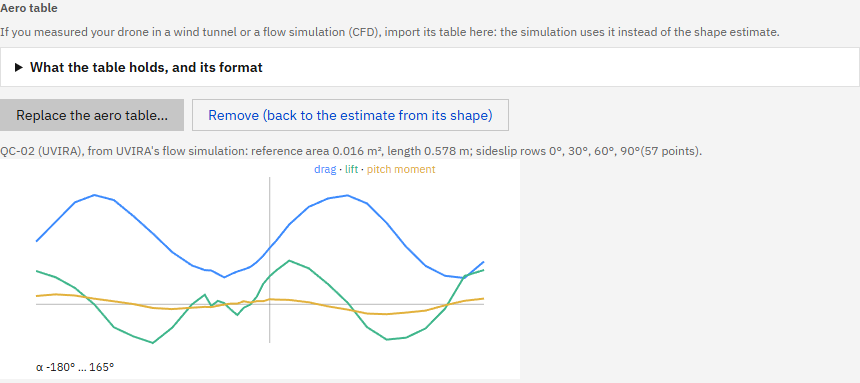
The QC-02's table is UVIRA's flow simulation of its body with the propellers off, at angles of attack all the way round from minus 180° to 175°, in rows of sideslip 0°, 30°, 60° and 90° (the left side is the mirror of the right). It has 57 points, a reference area of 0.016 m² and a reference length of 0.578 m. When a drone has a table, the simulation uses it instead of the drag areas.
The chart under Aero table draws three of the coefficients against the angle of attack with no sideslip: drag in blue, lift in green and the pitch moment in yellow. Drag dips at minus 35°, where the QC-02's body points straight into the air in forward flight; its body was shaped for that.
- In Air (how the air pushes it), find Aero table and read the line under its buttons.
- Open What the table holds, and its format to see the columns a table needs.
It worked when You have read the table's line: reference area 0.016 m², length 0.578 m, sideslip rows 0°, 30°, 60°, 90°, 57 points.
-
Aero: forward flight and a side wind in the aero viewer 4 min
In Studio: Setup › Drone › Air (how the air pushes it)
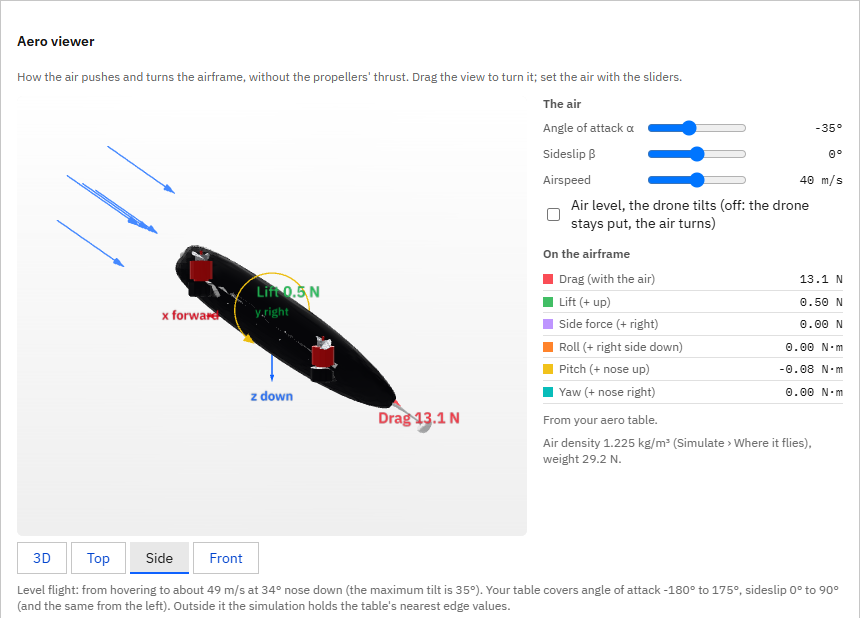
Set the air the way the QC-02 meets it in fast forward flight: angle of attack minus 35°, 40 m/s. Drag is 13.1 N. At 20 m/s the same angle gives 3.26 N, so twice the speed gives four times the drag, because drag grows with the square of the speed.
Now try a side wind: angle of attack 0°, sideslip 30°, 20 m/s. A side force of minus 2.72 N appears, pushing the drone to the left, away from air that comes from the right, with small roll and yaw moments.
Under the viewer, Level flight says the QC-02 can fly at about 49 m/s at 34° nose down: the same 49 m/s that step 2 shows as Top speed.
- In the Aero viewer, set Angle of attack α to -35 and Airspeed to 40.
- Read Drag (with the air): 13.1 N.
- Then set the angle of attack to 0, Sideslip β to 30 and the airspeed to 20, and read Side force: minus 2.72 N.
Type exactly
- Angle of attack α
-35- Airspeed
40- Sideslip β
30
It worked when You have seen drag 13.1 N at minus 35° and 40 m/s, and side force minus 2.72 N at sideslip 30° and 20 m/s.
-
The 3D model 3 min
In Studio: Setup › Drone › 3D model
The 3D model is how the drone looks in the 3D view and in the aero viewer. The simulation flies the numbers and only draws the shape, yet the model is worth adding: it shows at a glance whether the motor positions and spins are right.
Export it from your design tool as STL, OBJ, 3MF, glTF or GLB, with each propeller its own body named P1, P2, P3 and P4 in the motor order (P1 left front, P2 left back, P3 right back, P4 right front). Studio checks its size and which way is up with you.
Check against the motor positions compares each propeller in the model with its motor. For the QC-02 the model is 49 × 50 × 36 cm and every propeller sits within 1 mm of its motor.
- Open 3D model under 3 More about it.
- Press Check against the motor positions and read the list.
It worked when The check lists P1 to P4, each 0 or 1 mm from its motor.
-
Send it to the flight controller 4 min
In Studio: Setup › Drone
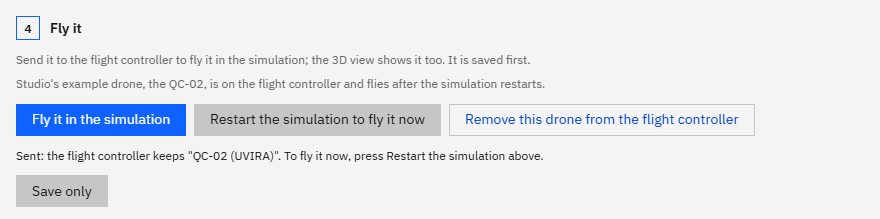
The math model only counts once the flight controller's simulation flies it. 4 Fly it saves the drone and sends it to the flight controller that is connected, the virtual one or your own board in its simulation. Real flights are never changed by it.
The flight controller keeps the drone and flies it after its simulation restarts. Once you press Fly it in the simulation, a line under the buttons says what happened and what to do next: press Restart the simulation to fly it now.
The line above the buttons always says which drone the simulation flies. After the restart it reads: The simulation flies Studio's example drone, the QC-02, sent from here.
- Connect the virtual flight controller if it is not connected (Connect, then start the virtual flight controller).
- In 4 Fly it, press Fly it in the simulation and read the line under the buttons.
- Press Restart the simulation to fly it now and wait a few seconds.
It worked when The line above the buttons says The simulation flies Studio's example drone, the QC-02, sent from here.
-
Fly it, and compare with the real drone 5 min
In Studio: Analyse
Fly a short hover in the simulation, as in Getting started, then open the recording in Analyse. The Rotors chart shows each motor's speed. In a hover in UVIRA's simulation the QC-02's front motors turned at about 8,450 rpm and its back motors at about 9,930 rpm. Their average is Studio's 9187 rpm, and the back ones are faster because they carry 58 % of the weight. The current was about 16.3 A, close to Studio's 16.7 A.
With a real drone, fly the same hover and compare the two recordings. Look at the motor speeds at hover, the battery current and voltage (when a battery monitor is set up), and how fast it flies on a straight line at full tilt. If the real motors turn faster at hover, the real drone is heavier or its propellers push less than the model says: weigh it again, or do a thrust stand test. A model that matches at hover and at speed is ready for your own programs.
- Go to Fly, take off and hover for 20 seconds, then land.
- Open Analyse, choose the newest recording and read the Rotors chart during the hover.
It worked when You have read the motor speeds at hover from the Rotors chart and compared them with Studio's hover speed.
-
For your own drone: what to gather 4 min
Your turn: try it on your own first. Your AI app gives hints if you ask.
In Studio: Setup › Drone
You have now seen every number of a math model. For your own drone, gather them in this order; each one makes the simulation closer to the real thing, and anything you skip is estimated and marked.
First the seven things Add your own drone asks for, about 15 minutes with a scale and a ruler: take-off mass, rotor distance from the centre, number of rotors, motor KV, propeller size, battery capacity and battery cells. Studio ticks each one off as you enter it. Where its typical value already matches your drone, press Mine is the same beside it.
Then what you can read off labels and data sheets: battery and motor mass, motor positions and spins, motor resistance and no-load current, the propeller maker's table, and the battery resistance from a smart charger.
Last, what takes more work and gives the closest model: the inertia from your design tool (with the inside parts given their real masses), a thrust stand test, your 3D model with propellers P1 to P4, and, for a drone that flies fast, an aero table from a wind tunnel or a flow simulation.
Then check the hover numbers with the sums from this lesson, send it in 4 Fly it, and compare a hover with the real drone. The next lesson does exactly this with your drone, starting from Add your own drone.
- Write down those seven for your own drone, or for a drone you plan to build.
- Note which of the other values you can find on labels and data sheets.
It worked when You have the seven values for your drone, or know where to find each one.
Next on the Path
Next lesson, about 1 hour 36 minutesYour own drone: its math model and its configBy the end, the simulation flies your own drone, its flight modes, battery and failsafes are set for it, and you know how to check it against the real drone after its first hover.What you prove here flies the real drone: See the flight controller