What You Will Learn
- What each part of the left-hand bar is for, and which to use first
- What the virtual flight controller is, and how to start it
- Where the simulation flies, and what actors are (a camera you place in the world)
- Which drone the simulation flies (the QC-02), and which settings to leave alone at first
- The Fly screen: the instruments, the map, the 3D view and its camera views
- Flying with Studio's sticks, the keyboard, a game controller or your radio
- Every flight mode: what the sticks do in it and what the drone does when you let go
- Sending the drone to a point, bringing it home, landing, and replaying the flight
Ideas First
The virtual flight controller
The IFC 1.3 board runs UVIRA's flight software. The virtual flight controller runs that same software on your computer, so you can set up a drone, fly it and build programs before you have a board, or while the board is on your desk.
It flies a model of a drone in a simulated world. The model's sensors have the errors, delays and dropouts that real sensors have, so it flies the way a drone does outside. Its motors are pretend ones and nothing on your computer moves. What you set up on it is kept for next time.
How the parts fit together
Studio talks to a flight controller: the virtual one on this computer, or your IFC 1.3 over Wi-Fi. Simulate says where the simulation flies and what else is in the world (wind, trucks, markers, cameras). Studio sends the place and the wind to the flight controller and shows everything in the 3D view.
Fly is where you fly and watch. Setup holds the drone and its settings. FORGE is where you build programs that fly the drone (the next lessons). Analyse keeps a recording of every connection, so any flight can be watched again.
Flight modes at a glance
ACRO: the sticks turn the drone; let go and it stays at the angle it reached. For experienced pilots.
STABILISE: the sticks tilt the drone; let go and it levels. The throttle is all yours, so the height is too.
ALTHOLD: like STABILISE, but it holds its height when the throttle stick is in the middle. Let go and it levels, then slides on and slows down slowly.
LOITER: the sticks set its speed; let go and it brakes and holds its place and height, even in wind. Needs GPS.
GUIDED: it flies to a point you pick on the map and stays there. Return home climbs to a safe height, flies home, lands and switches the motors off. Land here lands where it is. FORGE hands the drone to your program (the next lessons).
Step by Step
-
What you have: a tour of Studio 2 min
In Studio: The bar on the left
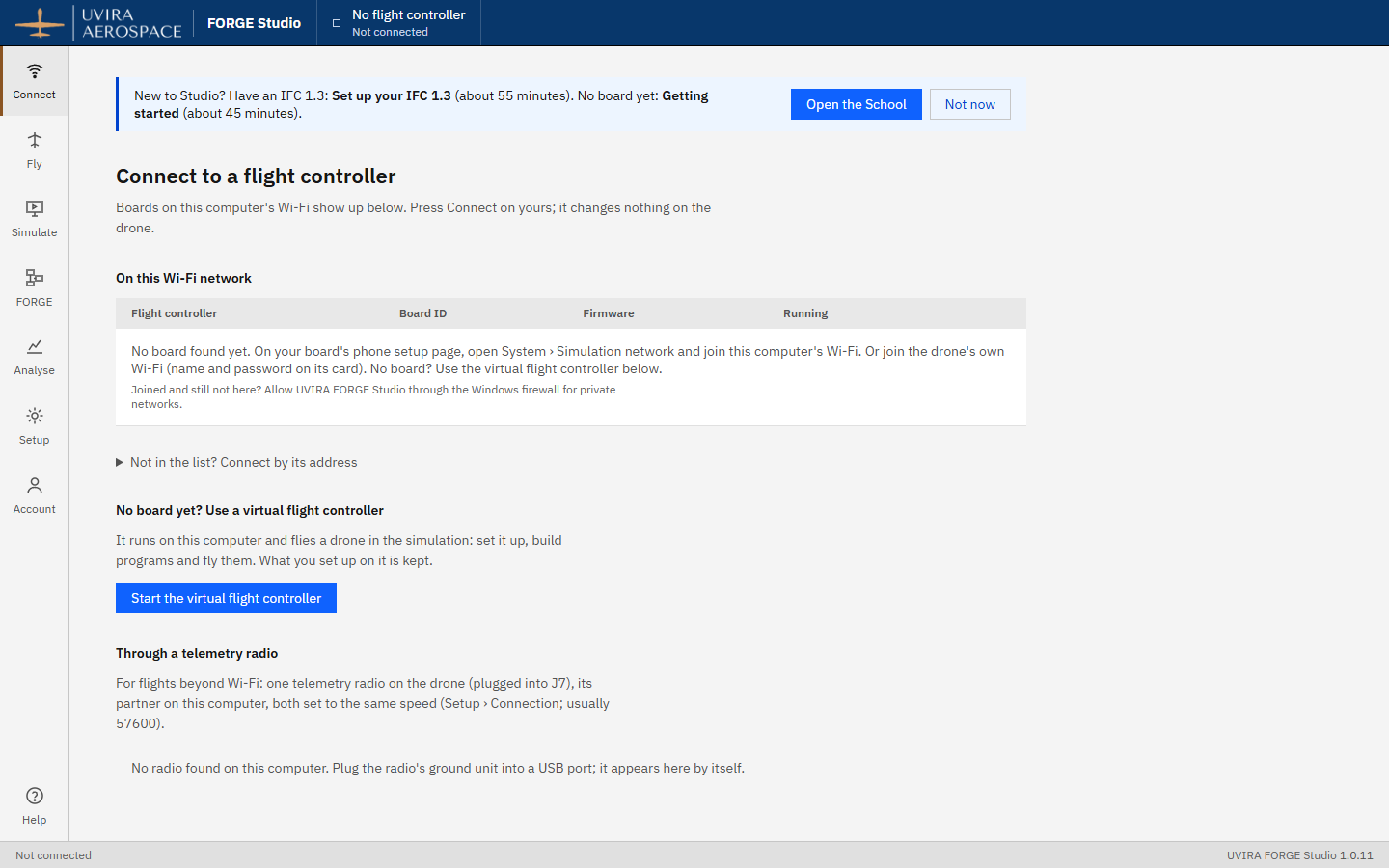
Studio opens on Connect. The bar on the left has a button for each part of Studio: Connect (link to a flight controller), Fly (fly and watch), Simulate (the world it flies in), FORGE (programs from blocks), Analyse (recordings of your flights), Setup (the drone, its settings and Studio's look), Account (your plan and updates) and Help at the bottom.
The first time Studio opens, a note at the top of Connect offers this lesson. Use the parts in this order the first time: Connect, Simulate, Setup, Fly, then Analyse. FORGE comes in the next lessons. Help (or F1) explains the screen you are on.
- Look at the bar on the left and find each part.
- If you like a light screen, press Setup, then Studio, then Light.
It worked when You have found the left-hand bar and are on Connect.
-
Start the virtual flight controller 2 min
In Studio: Connect
No board yet, or the board is not with you? The virtual flight controller runs on this computer and Studio connects to it by itself in a second or two. It is always in its simulation: the motors stay locked.
- On Connect, find No board yet? Use a virtual flight controller, below the Wi-Fi list.
- Press Start the virtual flight controller.
- Wait for the green box: You can fly now, in Simulation mode.
It worked when The top bar says Connected and Simulation, Motors locked in firmware.

-
Choose where it flies 2 min
In Studio: Simulate › Where it flies
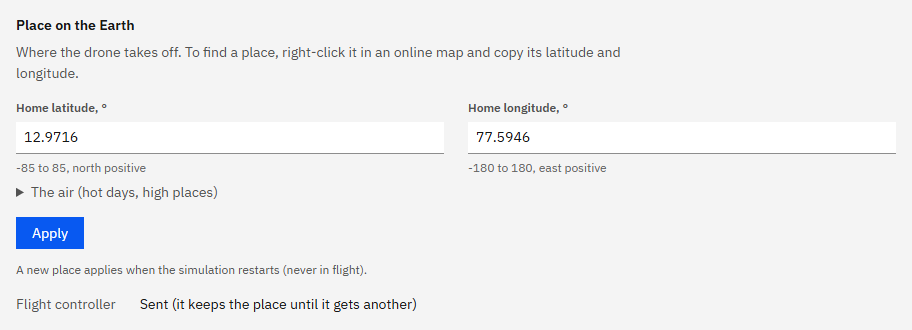
The simulation has no built-in place. Until you give it one, the drone has no GPS and will not arm. Any latitude and longitude on Earth works, read from any map; this lesson uses a spot in Bengaluru. The ground is at sea level.
The Weather page next to it sets the wind and gusts the drone has to fly in, and the time of day and clouds for the 3D view. Leave it calm for now.
- Press Simulate, then Where it flies.
- Type the home latitude and longitude below, leave the air temperature and air density empty, and press Apply.
Type exactly
- Home latitude, °
12.9716- Home longitude, °
77.5946
It worked when Under the Apply button, Flight controller reads Sent (it keeps the place until it gets another).
-
Actors: put a camera in the world 3 min
In Studio: Simulate › Actors
An actor is anything else in the simulated world: a truck, a car, a marker on the ground, a GPS receiver, or a camera. Each one stands still, follows waypoints you click on the map, or rides on another actor or on the drone. Studio already placed a few for you (a truck, markers, the QC-02's launcher and a camera on the drone).
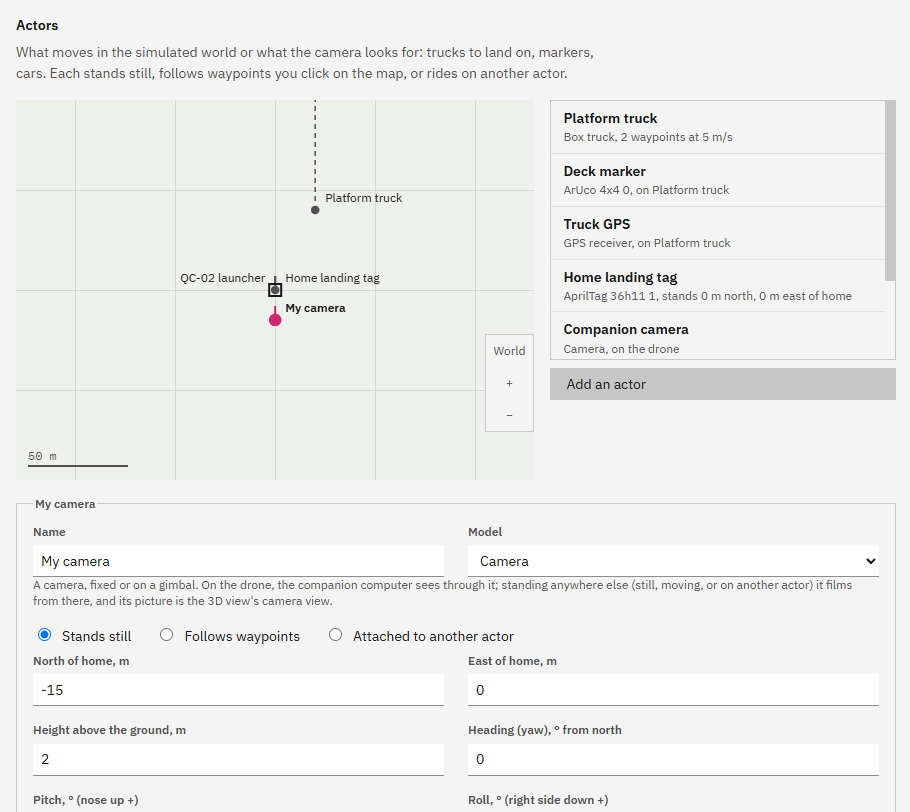
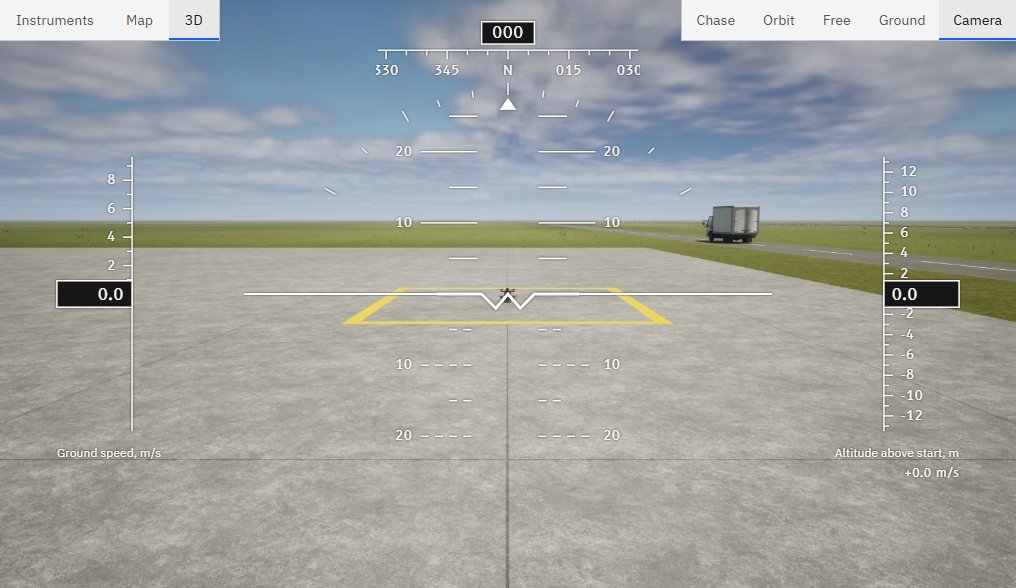
A camera standing in the world films from where it stands, and its picture is the 3D view's Camera view. You will place one 15 m south of home, looking at the drone.
- Press Simulate, then Actors, then Add an actor, then Camera.
- Name it My camera and choose Stands still. It starts level and facing home, with Turns to keep the drone in the picture already ticked.
- Type the values below.
- Press Save actors.
Type exactly
- North of home, m
-15- East of home, m
0- Height above the ground, m
2- Heading (yaw), ° from north
0- Field of view (across), °
30
It worked when The list of actors has My camera, Camera, stands at -15 N, 0 E, and the map shows it just south of home.
-
Setup: the drone and its settings 3 min
In Studio: Setup › Drone
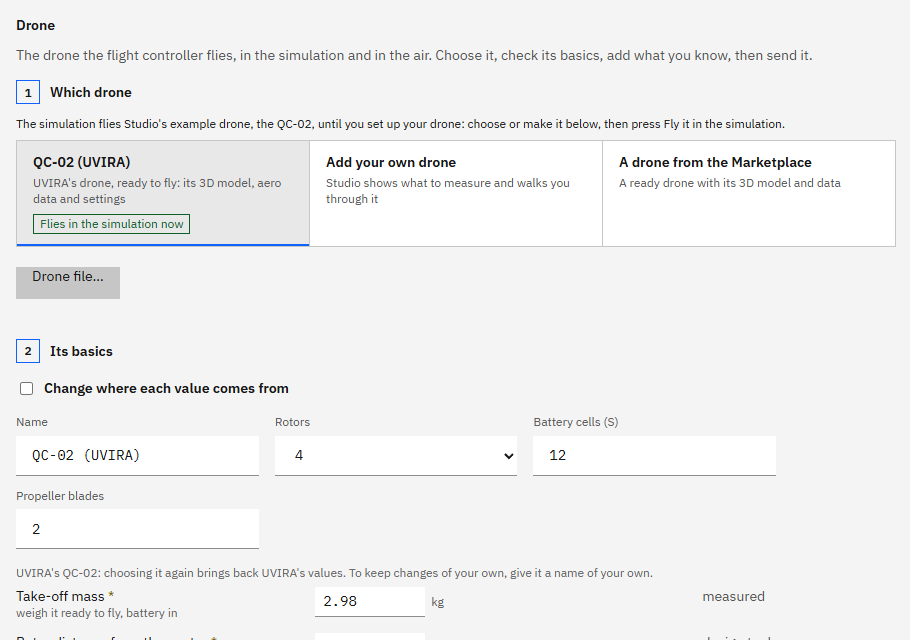
Setup › Drone says which drone the simulation flies. The QC-02 is UVIRA's drone, ready to fly with its 3D model, its air data and its settings. It flies the simulation until you set up your own drone (a later lesson).
The other Setup pages hold every setting of the flight controller, the same ones as on the phone page: Radio (the flight modes on your radio's mode switch), Safety (the failsafes: what it does when the radio is lost or it leaves the fence) and Tuning (how fast and how high it flies); All settings lists them all. The defaults are safe: leave them alone for now.
Setup › Flight controller shows the board and its sensors, Setup › Connection its Wi-Fi and pairing. Setup › AI apps connects an AI app such as the one teaching you now.
- Press Setup, then Drone, then QC-02 (UVIRA): it says Flies in the simulation now.
- Press Safety and look through its groups: Failsafes, Battery, Return home, Landing. Change nothing.
It worked when The QC-02 (UVIRA) card says Flies in the simulation now.
-
The Fly screen 3 min
In Studio: Fly
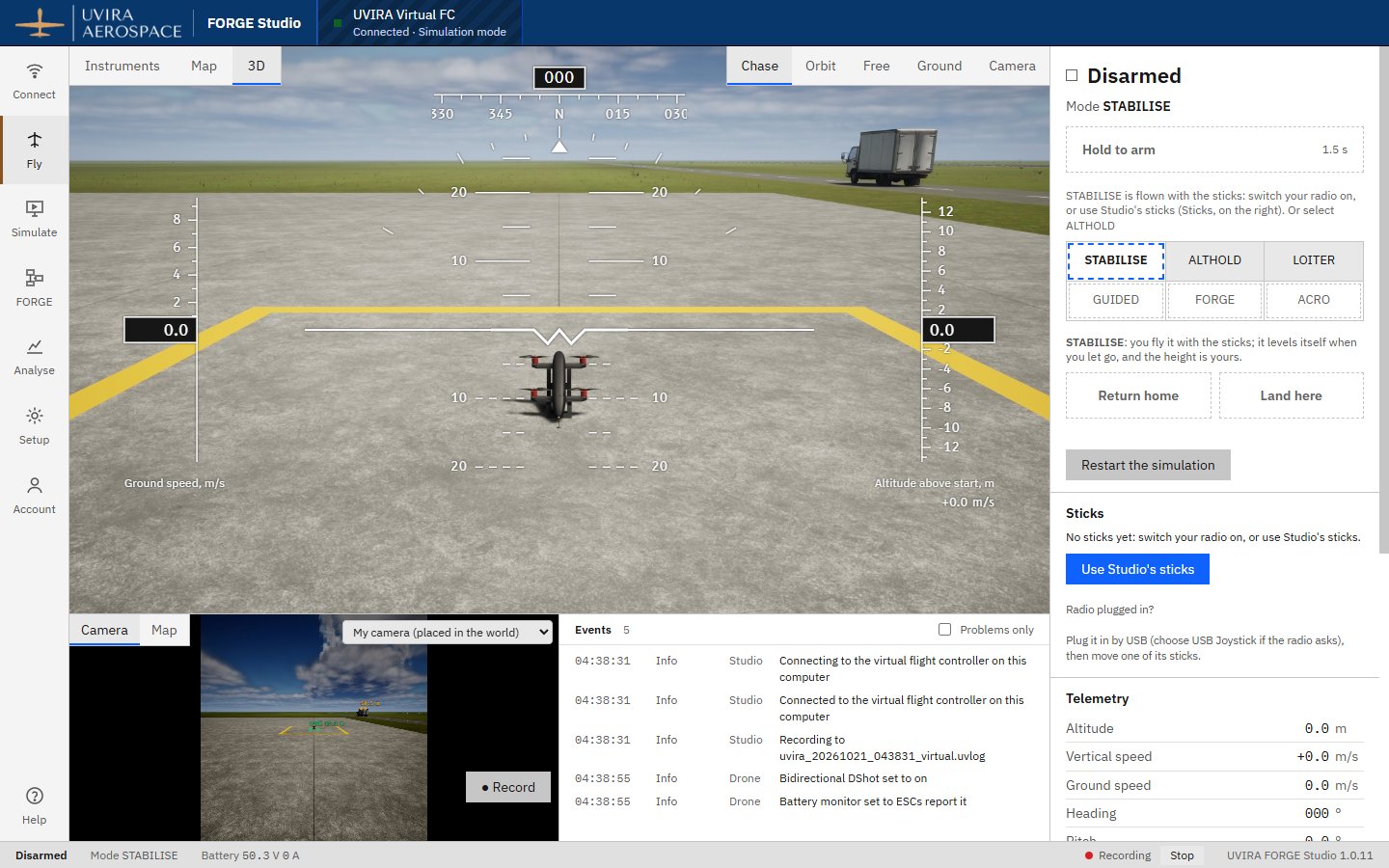
Fly is where you fly. At the top left you choose the big view: Instruments (the artificial horizon with speed on the left and height on the right), Map (home, the track it flew and the fence), or 3D. The smaller view below shows the camera or the map, and Events lists everything that happened, each with its reason.
In the 3D view, choose how you watch at the top right: Chase follows behind the drone, Orbit circles it, Free lets you move around, Ground watches from where you stand, and Camera shows what a camera in the world sees.
On the right: the arm button, the flight mode buttons, Return home and Land here, then the sticks, and Telemetry with the altitude, speeds, GPS and failsafes. The bar at the bottom always shows armed or disarmed, the mode and the recording.
Telemetry › Battery first says NA: not set up, as on a new board. On the virtual flight controller one press fixes it: Read it from the motor controllers lets the simulated motor controllers report the battery. On a real drone you set the battery up before flying.
- Press Fly, then 3D. The first start of the 3D view takes a little longer.
- Try Orbit and Ground, then go back to Chase.
- Under Telemetry › Battery, press Read it from the motor controllers.
It worked when The 3D view shows the QC-02 on its launcher at the airfield, and Battery shows volts.
-
See the drone through your camera 1 min
In Studio: Fly › 3D
Your actor and the 3D view are connected: My camera stands where you put it and films from there. If the 3D view was open when you saved the actors, it reloaded by itself to show them.
- In the 3D view, press Camera at the top right.
- Then press Chase again for flying.
It worked when The 3D view shows the drone from the south, seen from My camera.
-
Sticks: Studio's, or your radio 2 min
In Studio: Fly › Sticks
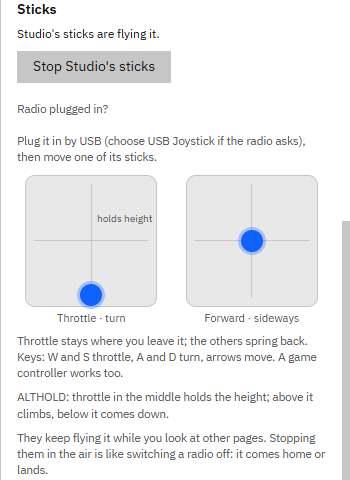
STABILISE and ACRO are flown with sticks, so Studio has its own. The left pad is throttle and turn, the right pad is forward and sideways, as on most radios. The throttle stays where you leave it; the other stick springs back to the middle. On the keyboard: W and S move the throttle up and down, A and D turn, and the arrow keys move the drone.
A game controller works too, and so does your radio plugged in by USB (on the radio, choose USB Joystick when it asks how to connect). The radio flies through the flight controller's receiver settings, the same way its receiver would on the drone, so its sticks, arm switch and mode switch work as they do there. It takes over from the sticks on screen while the drone is on the ground. (Studio 1.0.4 and earlier asks you to set the radio up once first.)
If you stop Studio's sticks in the air, the drone treats it like a radio switched off and comes home or lands.
- On Fly, under Sticks, press Use Studio's sticks.
- With a radio plugged in: press Fly with the radio (in Studio 1.0.4 and earlier, Set up the radio and its 7 short steps).
It worked when Sticks says Studio's sticks are flying it (or that your radio is flying it), and the two pads show.
-
Arm and take off in ALTHOLD 3 min
In Studio: Fly
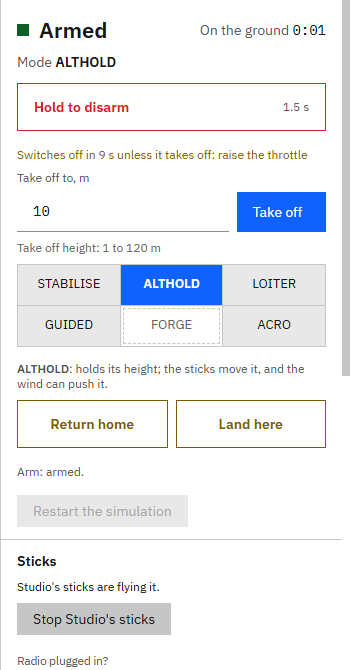
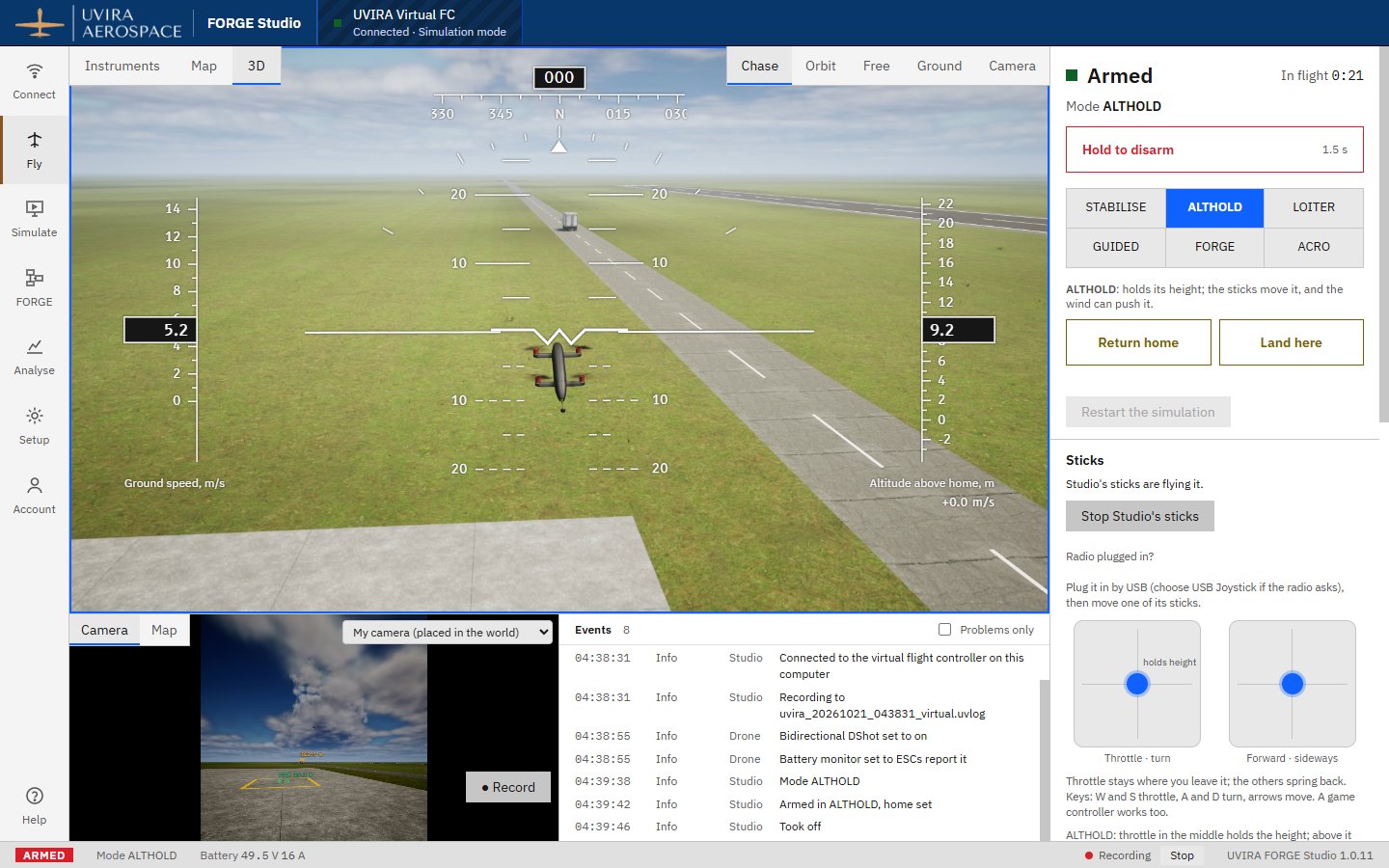
Arming starts the motors. In ALTHOLD the middle of the throttle holds the height, so taking off is: arm, push the throttle above the middle, and bring it back to the middle at the height you want. The pad marks the middle with holds height.
Studio arms only with the throttle at the bottom and the other sticks in the middle; otherwise Fly says what to do, for example Move the throttle to the bottom. After arming you have 10 seconds to take off, or it switches off by itself. Studio counts down under the button.
- Press ALTHOLD.
- Press and hold Hold to arm until it fills (1.5 s). It says Armed.
- Click once on the 3D view so the keys reach Studio, then hold W for about 3 seconds: the throttle dot goes above holds height and the drone climbs.
- When Altitude reads about 10 m, press S for 1 second: the dot is back on holds height and the drone stays at that height.
It worked when Armed, Mode ALTHOLD, Altitude about 10 m and Vertical speed close to 0.
-
ALTHOLD: it holds the height, you hold the place 2 min
In Studio: Fly
In ALTHOLD the right stick tilts the drone, and it moves the way it leans. Let go and it levels out, but it keeps sliding and slows down only slowly. Wind pushes it too. You keep it in place yourself; it keeps the height.
- Hold the Up arrow for 2 seconds, then let go.
- Watch Ground speed: it falls slowly. Press the Down arrow briefly to stop it sooner.
- Turn with A and D.
It worked when You have moved the drone, let go and seen it coast and slow down while Altitude stayed the same.
-
LOITER: let go and it stops 2 min
In Studio: Fly
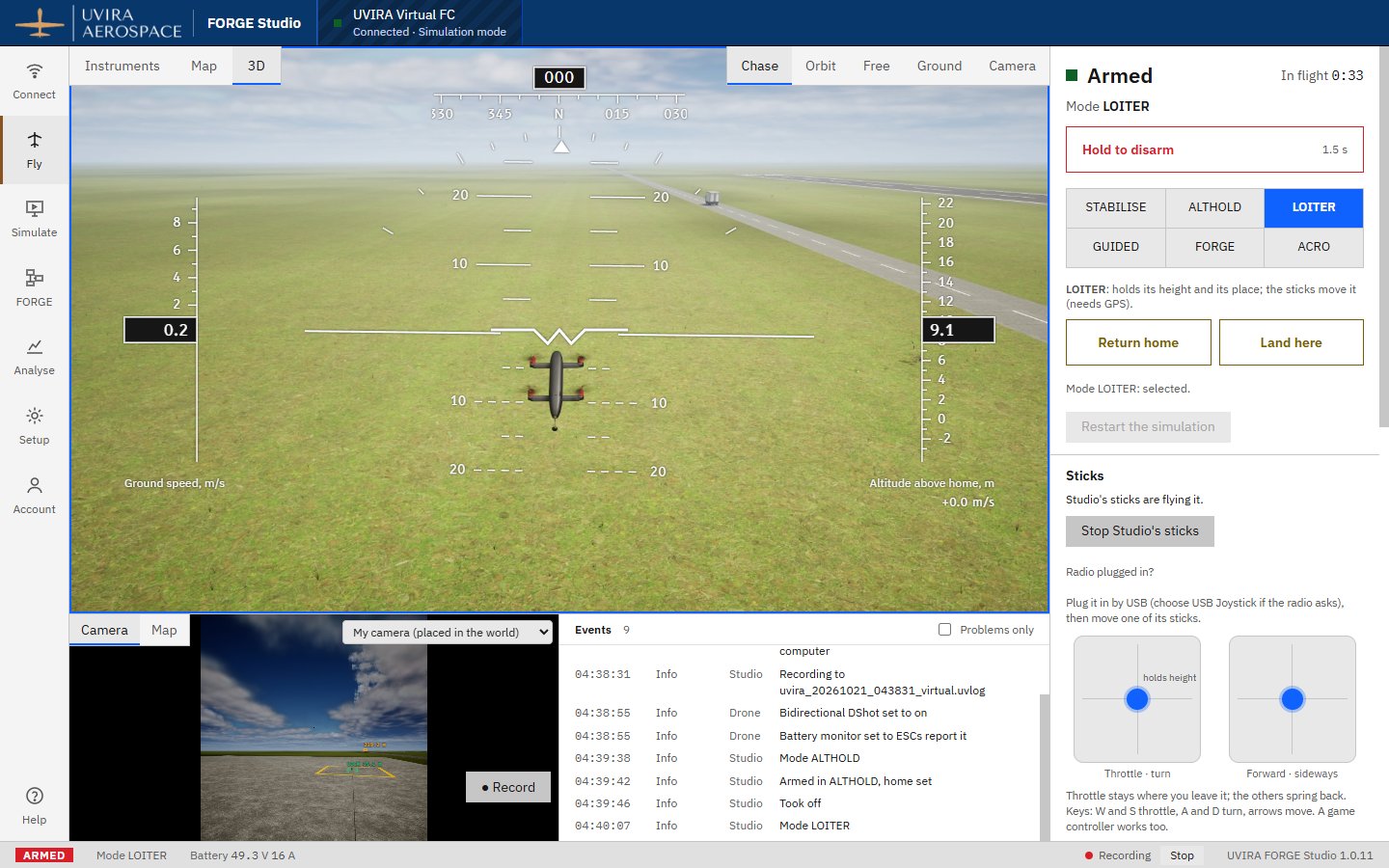
LOITER uses GPS. The right stick sets how fast it flies, and the throttle sets how fast it climbs or comes down. Let go of the right stick and it brakes, stops within a couple of seconds and stays on that spot, even in wind. It is the easiest mode to fly.
The throttle works as in ALTHOLD: on holds height the drone keeps its height, and below it the drone comes down.
- Press LOITER.
- Hold the Left arrow for 3 seconds, then let go and watch it stop.
- Hold D for a second to turn it, and let go.
It worked when Mode LOITER, and after letting go Ground speed is close to 0 and the drone stays on its spot.
-
STABILISE: the throttle is yours 3 min
In Studio: Fly
In STABILISE the drone keeps itself level when you let go of the right stick, but it does nothing about the height. The throttle decides: a little too much and it climbs, a little too little and it sinks. With the QC-02 the middle of the throttle climbs slowly, so hover a touch below it.
If it gets away from you, press LOITER: it stops and holds. The fence also watches it: above 120 m or beyond 500 m from home it turns round and comes home by itself.
- From about 10 m in LOITER, press STABILISE.
- Watch Vertical speed. Tap S briefly when it climbs and W when it sinks, until it hovers.
- Tap an arrow and let go: it tilts, moves, and levels when you let go.
- Press LOITER to finish. Put the throttle back on holds height first (tap W or S).
It worked when You flew STABILISE for a while and are back in LOITER at a steady height.
-
ACRO: for experienced pilots (you can skip it) 2 min
In Studio: Fly
In ACRO the sticks turn the drone and nothing levels it. Let go and it stays at whatever angle it reached, and keeps flying that way. The throttle is all yours, as in STABILISE. Racing and stunt pilots fly like this. Fly it high, and keep LOITER as your way out.
- Climb to 20 m or more in LOITER (throttle above the middle, then back).
- Press ACRO, tap the Right arrow very briefly and watch it stay tilted.
- Tap the Left arrow just as briefly to level it, then press LOITER.
It worked when You have tilted the drone in ACRO, seen it hold the angle, and are back in LOITER.
-
GUIDED: send it to a point 3 min
In Studio: Fly › Map
In GUIDED you pick a point and the drone flies there by itself, turns its nose towards it, brakes and stays there. The sticks do nothing in GUIDED; choose LOITER to take over again.
With the 3D view in front, Studio shows the map in the small panel for picking.
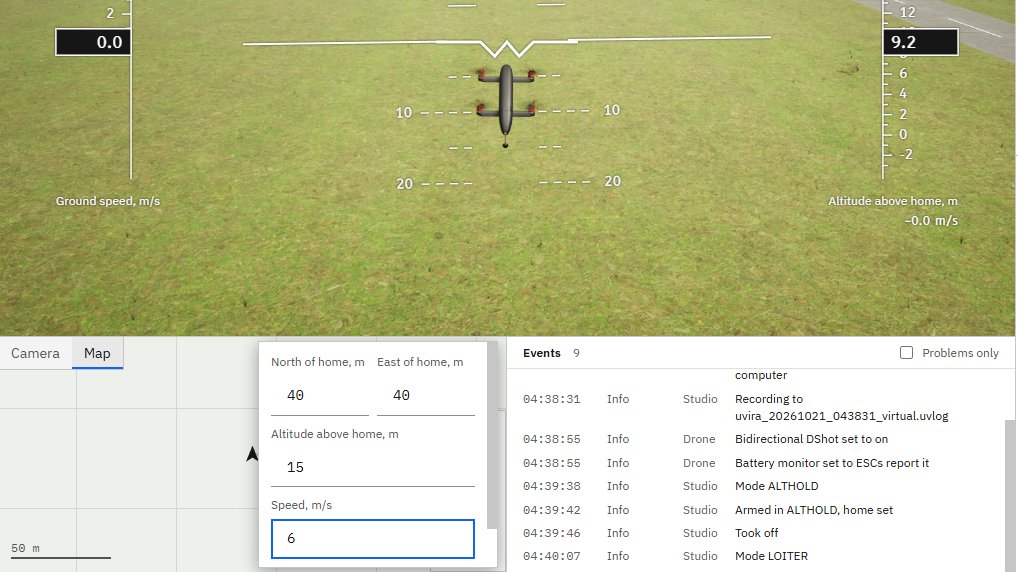
- Press GUIDED. The map says Click the map where the drone should fly.
- Click a spot about 40 m from home (each grid square is 50 m).
- In the box, type the altitude and speed below and press Fly here.
Type exactly
- Altitude above home, m
15- Speed, m/s
6
It worked when Mode GUIDED, the red cross on the map, and the drone stops over it with Ground speed close to 0.
-
Return home 3 min
In Studio: Fly
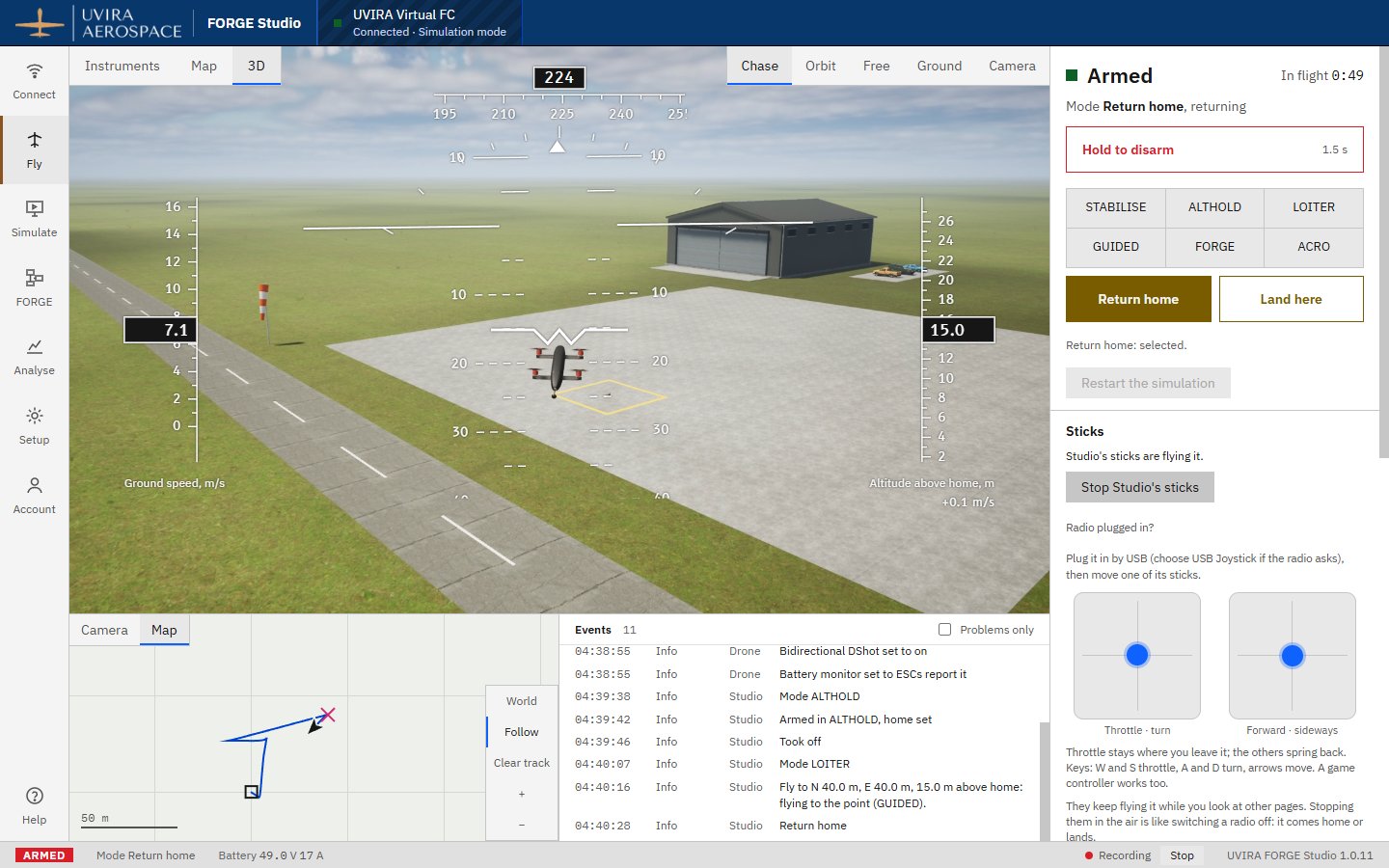
Return home brings the drone back to where it was armed and lands it there. It climbs to 15 m first if it is lower, flies home, waits 2 seconds above home, comes down and switches the motors off by itself. The mode line shows each part: climbing, returning, holding over home, landing.
The flight controller also chooses it by itself when the radio is lost or the drone leaves the fence.
- Press Return home, then move the mouse away and watch.
- Wait until it says Disarmed.
It worked when The drone is back on its launcher at home and the top of the controls says Disarmed.
-
Another way up: Take off 2 min
In Studio: Fly
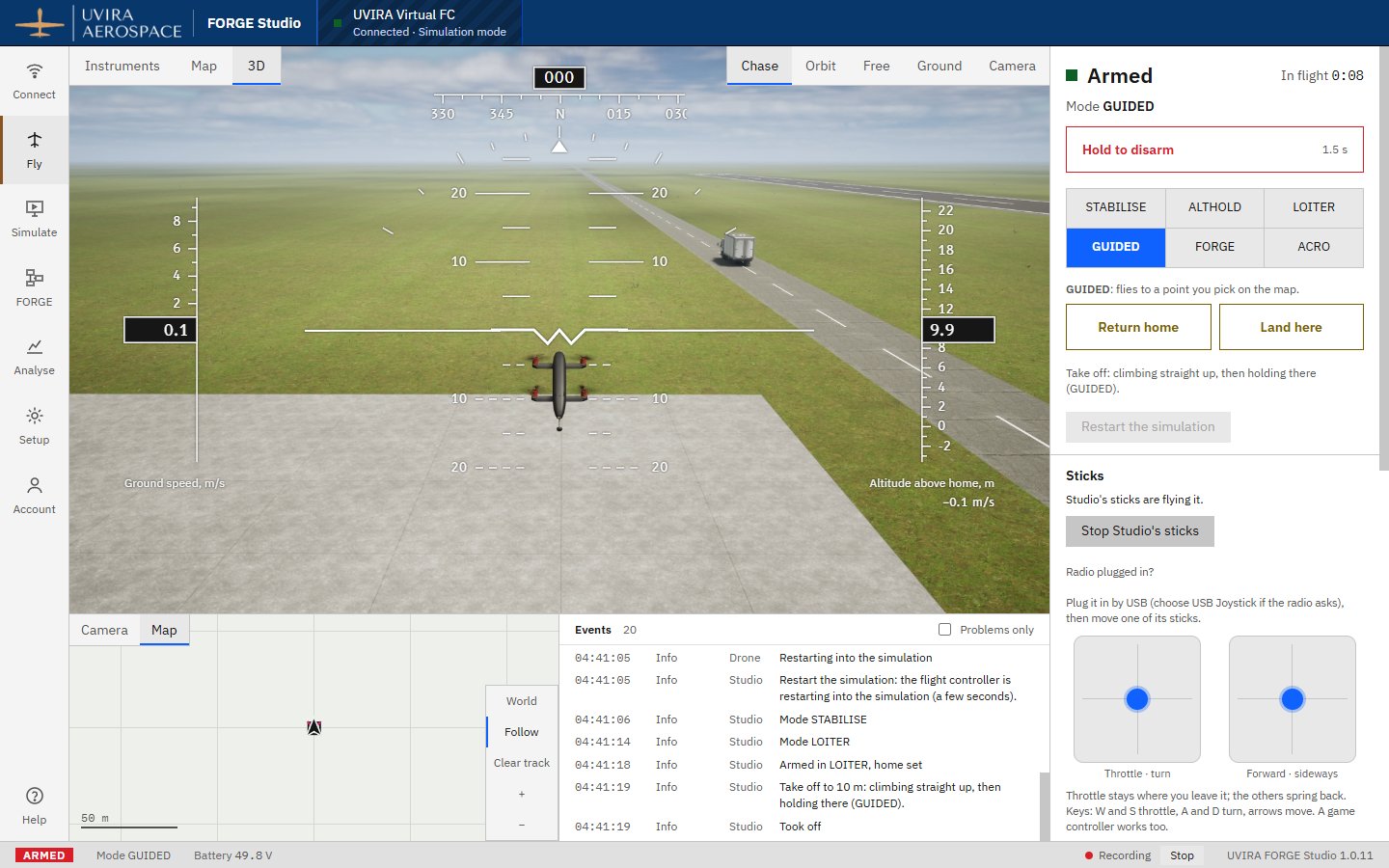
Armed on the ground in LOITER or ALTHOLD, Studio also offers Take off: the drone climbs straight up to the height you give and stays there in GUIDED. Studio then puts its throttle in the middle, so LOITER and ALTHOLD hold the height when you choose them.
- If Fly says It is lying tipped over (Return home set it down beside its launcher), press Restart the simulation and wait a few seconds. Press LOITER. Hold S until the throttle dot is at the bottom (Fly says Move the throttle to the bottom until it is), then hold Hold to arm.
- Leave Take off to, m at 10 and press Take off.
- Press LOITER: it stays at 10 m.
Type exactly
- Take off to, m
10
It worked when Altitude about 10 m, and in LOITER it stays there.
-
Land here, and switching off 3 min
In Studio: Fly
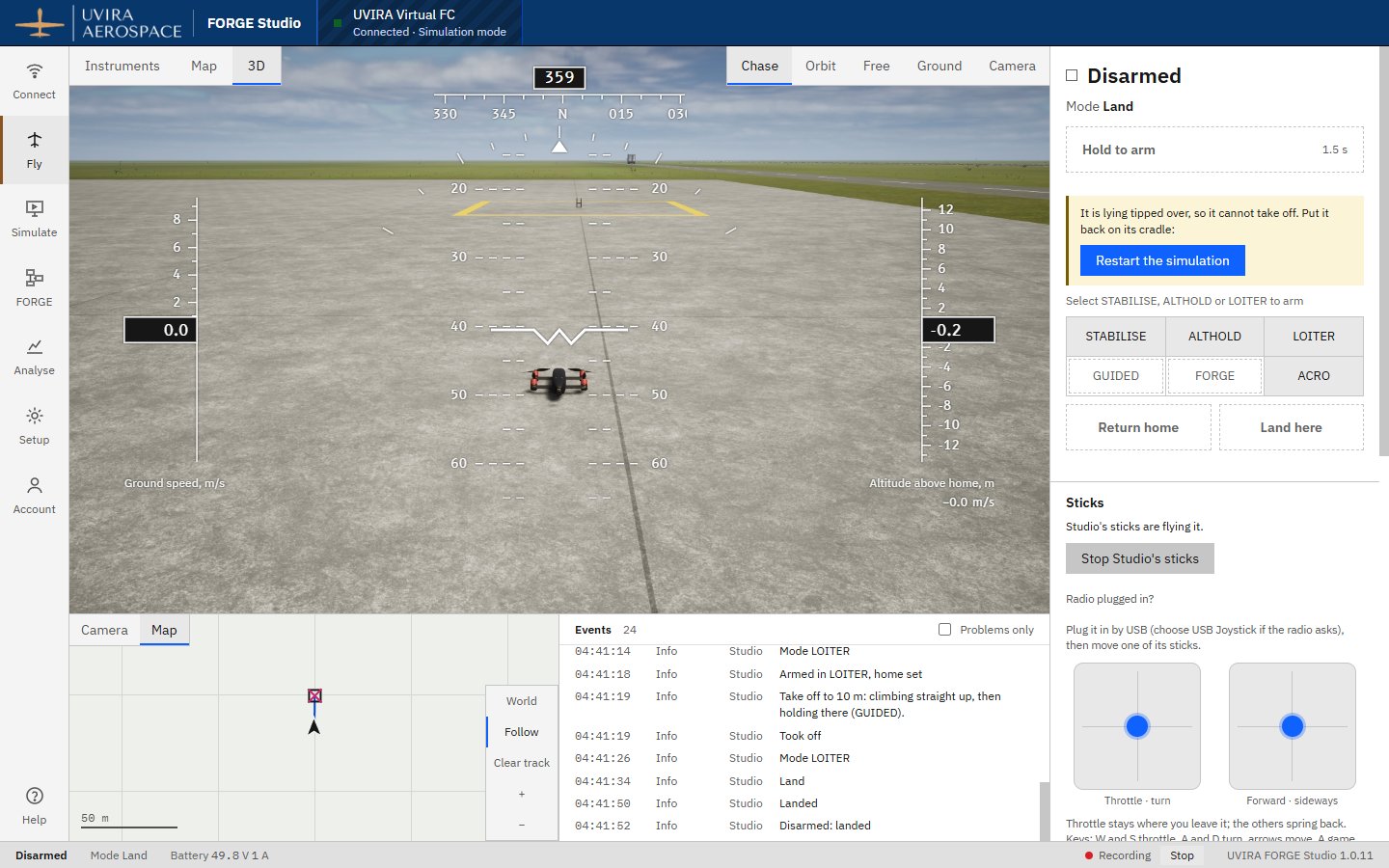
Land here comes straight down where the drone is: 1 m a second, then slower for the last 3 m. About 7 seconds after it touches down, once the flight controller is sure it has landed, the motors stop by themselves.
The QC-02 stands on its launcher. Landed anywhere else, it tips onto its belly as the real one does, and then it cannot take off. Studio says so and offers Restart the simulation, which puts it back on its launcher.
To switch off by hand on the ground, hold Hold to disarm. In the air Studio asks first, because the drone would fall.
- In LOITER, move about 15 m away from home with an arrow key.
- Press Land here and wait for Disarmed.
- When it says It is lying tipped over, press Restart the simulation.
It worked when Disarmed after landing, and after Restart the simulation the drone is back on its launcher.
-
Analyse: watch your flight again 3 min
In Studio: Analyse
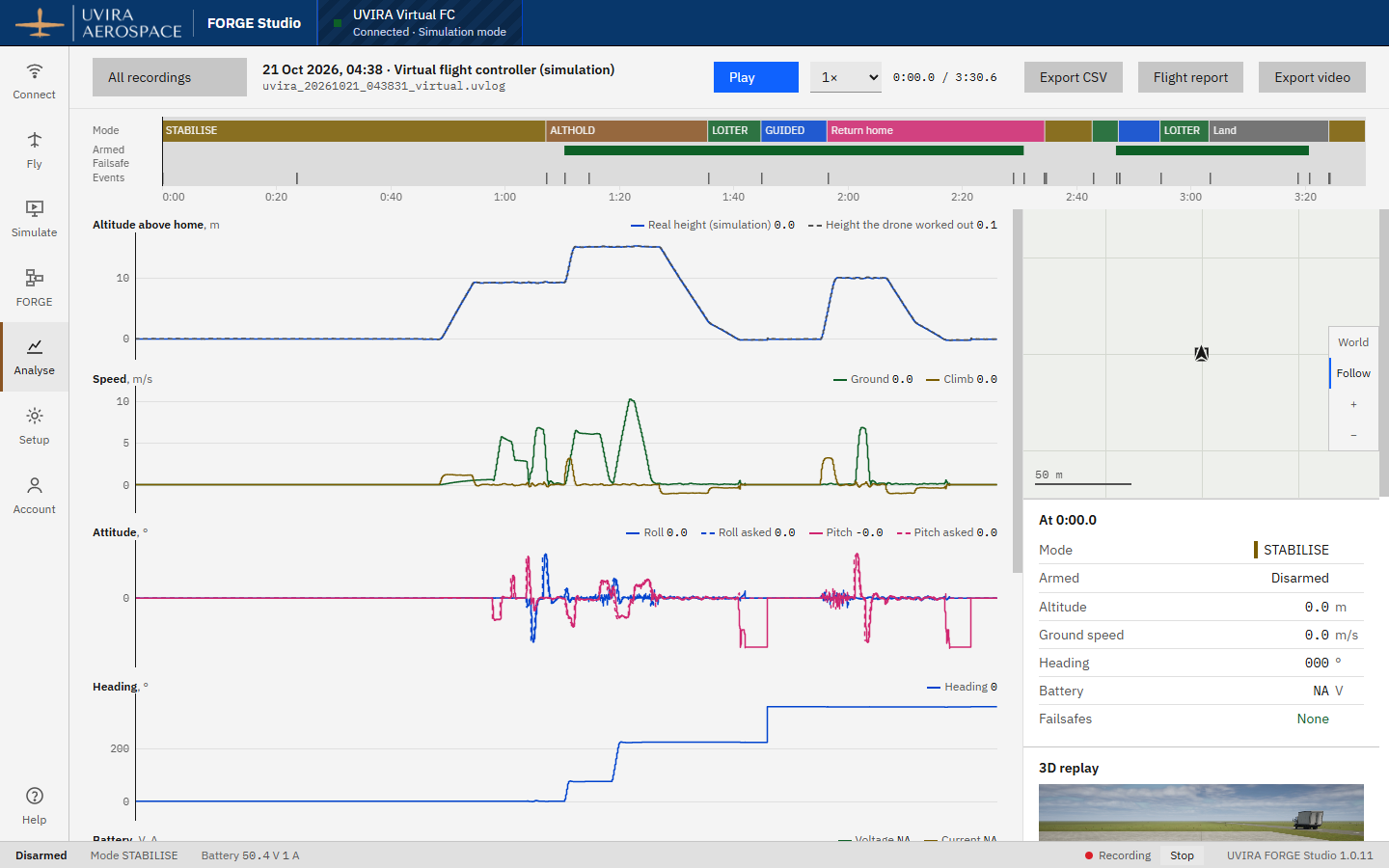
Studio records every connection from the moment it starts, so everything you just flew is already saved. The recording shows the modes on a timeline, plots of height, speed and attitude, the track on a map, the events and a 3D replay. In the simulation you see two heights: the real one and the one the drone worked out from its sensors.
From there you can save a flight report, a video or a spreadsheet file.
- Press Analyse, then Open on the newest recording.
- Press Play to watch it again.
It worked when The recording is open with its timeline and plots.
-
What next 1 min
In Studio: FORGE
You have flown every mode except FORGE. In FORGE mode the drone flies a program you build from blocks, and the next lesson builds the first one: Hello square, a program that flies a square by itself.
Stop the virtual flight controller on Connect when you are done, or close Studio. Studio keeps your place and your actors, and the virtual flight controller keeps its settings, for next time.
- Open the next lesson, Hello square, when you are ready.
It worked when You know the next lesson is Hello square.
Next on the Path
Next lesson, about 1 hourYour first program: a squareBy the end you can read a FORGE program block by block, fly it in Studio's quick simulation and on the virtual flight controller, read the result, and change the size, height and speed of the square yourself.What you prove here flies the real drone: See the flight controller