What You Will Learn
- Where each wire goes
- Setting the drone up from your phone, the motor test included
- Connecting Studio to the board, pairing it and updating it
- Practising on the board in simulation mode, then the first flight in Real Flight mode
Step by Step
-
What you need 3 min
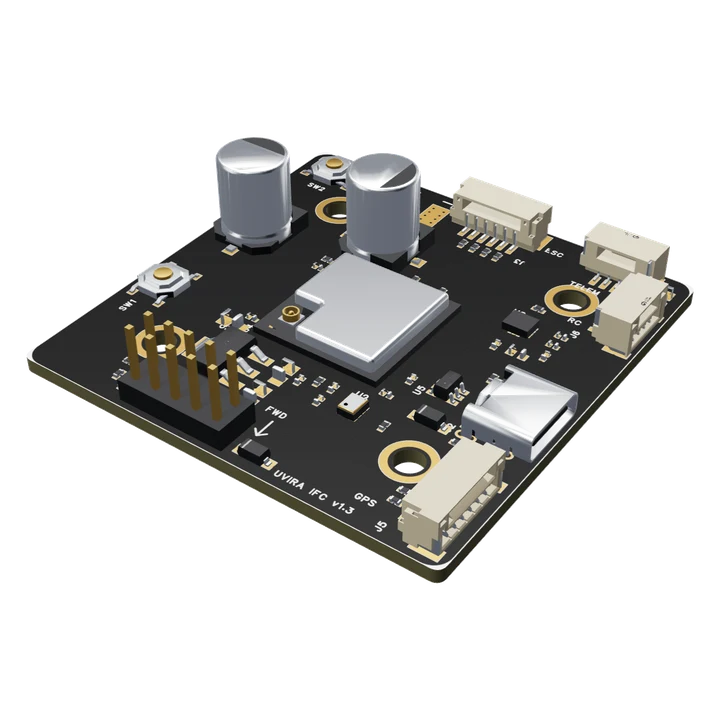
The IFC 1.3 flies a Quad X drone. Your radio flies it; the phone sets it up; Studio adds practice, programs and updates.
- Have ready: the frame with four motors and four ESCs (or one 4-in-1 ESC) that speak DShot, a 6S battery with an XT60 or XT90 lead, a radio and its receiver (CRSF / ELRS, SBUS or iBUS), and the card from the box.
- A GPS module with a compass is optional: it adds LOITER, return home and flying to points.
It worked when Everything on the list is at hand, with the card from the box.
-
Fit and wire the board 15 min
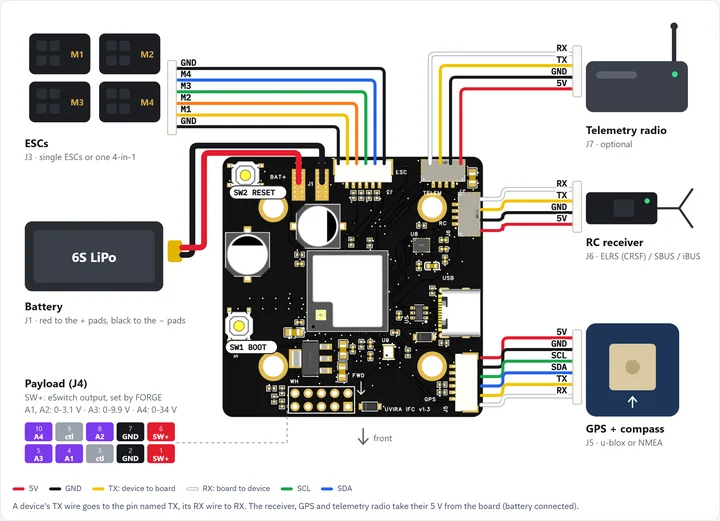
The arrow on the board points to the front. The motors are M1 front left, M2 back left, M3 back right, M4 front right.
- Mount the board on its four dampers, arrow to the front.
- Solder the battery lead to J1: red to the + pads, black to the - pads.
- Plug the ESCs into J3, the receiver into J6 and the GPS into J5. Screw on the Wi-Fi antenna.
- Bind the receiver to your radio, as its maker's guide says.
It worked when The board is mounted and wired, propellers off.
-
Join its Wi-Fi from your phone 3 min
The board makes its own Wi-Fi. Its setup page opens on your phone; no app to install, no internet needed.
- Connect the battery. About five seconds later the board's Wi-Fi appears.
- Scan the Wi-Fi code on the card with your phone camera, or join the network named with the board's serial number (as on the card) and type the password from the card.
- The setup page opens. If it does not, tap Sign in to network.
It worked when The phone shows the board's setup page.
-
Set it up from your phone 15 min
The phone page's Setup goes through the drone one step at a time. Each step says what to do.
- Open Setup and work down: airframe, board direction, level, receiver, switches (arm and mode), battery, failsafe.
- On Motors, tick that the propellers are off, then hold to spin each motor. A motor in the wrong place: Find the motor order. Turning the wrong way: Reversed.
- When every motor is right, fit the propellers, each on the motor with its matching spin.
- On Tune, press Safe start for the first flight.
It worked when Every Setup step on the phone page is ticked.
-
Put the board on your Wi-Fi 2 min
Studio finds the board on your own Wi-Fi network. The board's hotspot stays on too, for the phone.
- On the phone page, open System › Simulation network, choose the network your computer is on, type its password and press Join.
It worked when The phone page says it joined the network.
-
Connect FORGE Studio 2 min
In Studio: Connect
A board bought from UVIRA is already on your account. The first time Studio connects to it, its 2 months of FORGE Studio start.
- In Studio, open Connect. Under On this Wi-Fi network, press Connect on your board's row.
It worked when The top bar says Connected, with the board's firmware.
-
Pair this computer 2 min
In Studio: Setup › Pairing
Over Wi-Fi the board takes settings and updates only from the computer paired with it. Switching it on proves you are at the drone.
- Switch the board off and on.
- Within 2 minutes, open Setup › Pairing and press Pair this computer.
It worked when Setup › Pairing says Paired with this computer.
-
Update its firmware 3 min
In Studio: Account
New firmware comes through Studio. Your settings and Wi-Fi stay as they are.
- Open Account and press Check now.
- If Flight controller firmware shows a newer version, press Update the flight controller. Keep the board powered for about a minute.
It worked when Account says the board has the newest firmware.
-
Practise in simulation mode 5 min
In Studio: Fly
In simulation mode the board flies a math model of your drone with its real flight software, and its motors cannot turn. What you learn there is what the drone does in the air.
- Open Fly and press Switch to Simulation mode. The top bar says Simulation mode.
- Plug your radio into the computer by USB and press Fly with the radio.
- Take off in ALTHOLD and fly. The lesson Getting started shows every flight mode.
It worked when The top bar says Simulation and the drone has flown.
-
The first flight 5 min
Switched on, the board starts in Real Flight mode. Your radio flies it.
- Switch the board off and on: it starts in Real Flight mode. Go to an open space with little wind.
- Set the mode switch to ALTHOLD, throttle down, arm with the arm switch.
- Raise the throttle smoothly past the middle: it lifts off. Back to the middle: it holds its height.
- Land with the throttle below the middle. After landing, the phone page's Fly tab shows how much it shook in the flight.
It worked when The drone has flown and landed.